

Inventory Overview in BoxNCase Partners Admin
The Inventory domain in BoxNCase Partners allows you to comprehensively manage inventory items, their quantity across different locations, and their reservations. This powerful system ensures accurate stock tracking and optimal inventory control for your business operations.Key Features
Automatic Inventory Creation
When a product variant’s “Manage Inventory” is enabled, BoxNCase Partners automatically creates inventory items for that variant to manage its quantity. This seamless integration ensures that your inventory tracking begins immediately when you enable inventory management for your products.Manual Inventory Management
You can also create inventory items manually and link them later to variants. This approach is particularly useful for:- Multi-part products that consist of multiple components
- Bundled products that combine several items into a single offering
- Custom inventory configurations that require specific setup
Comprehensive Inventory View
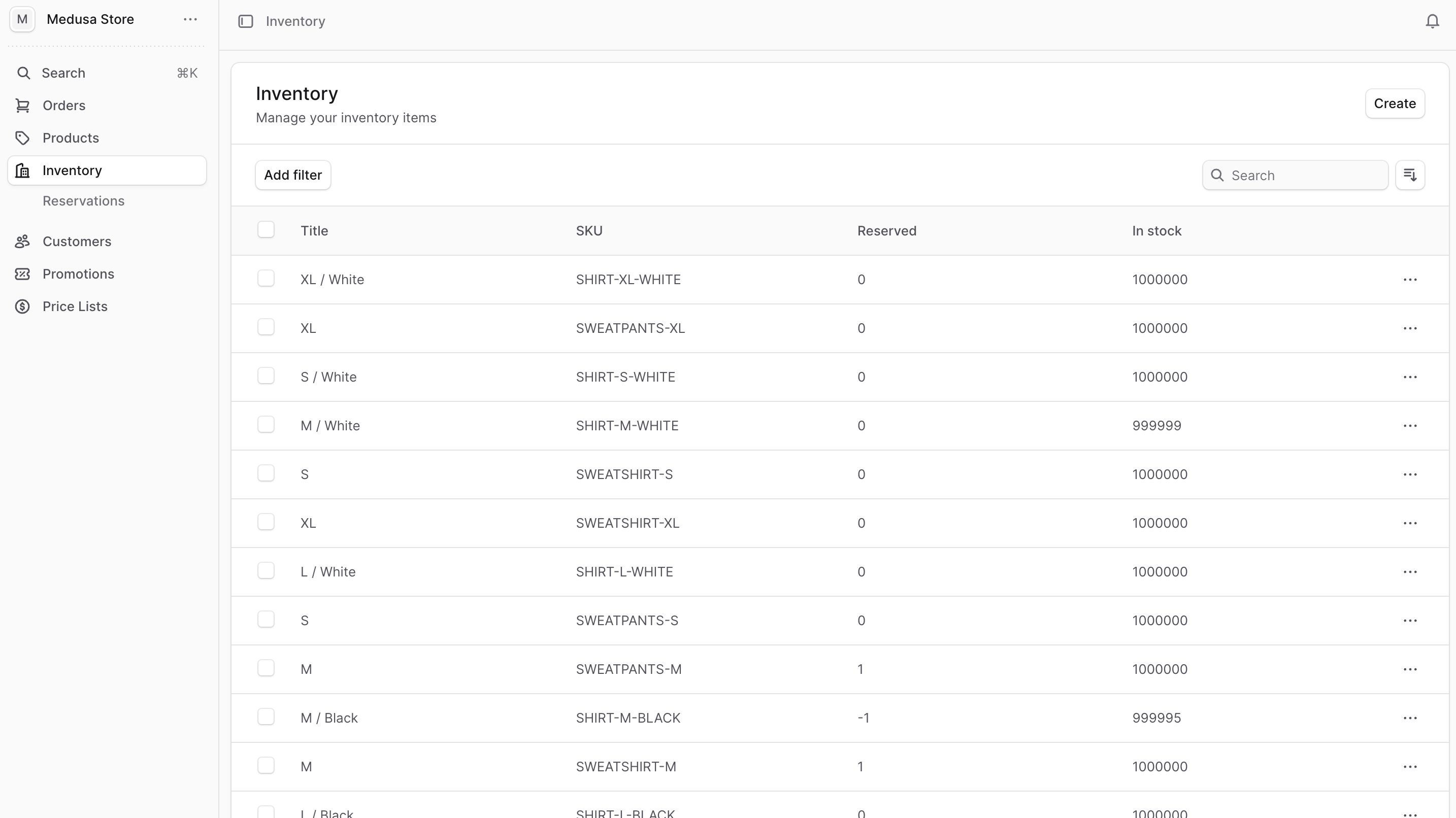
Access your complete inventory by clicking on Inventory from the sidebar menu. The inventory list provides essential details including:- Title: Product or item name for easy identification
- SKU: Unique stock keeping unit for inventory tracking
- In-stock quantity: Current available stock levels
- Location-specific quantities: Stock levels across multiple locations
Multi-Location Support
BoxNCase Partners supports inventory management across multiple locations, allowing you to:- Track stock levels in different warehouses, stores, or distribution centers
- Manage location-specific inventory quantities
- Set up automated alerts for low stock levels
- Monitor inventory movements between locations
Inventory Reservations
The system automatically handles inventory reservations to ensure accurate stock allocation:- Automatic reservations: Created when customers make purchases
- Manual reservations: For offline sales, special orders, or inventory holds
- Reservation tracking: Monitor all current reservations and their status
Quick Actions
Manage Inventory
- Manage Inventory Items - Create, edit, and track inventory items
- Manage Reservations - Handle automatic and manual inventory reservations
Additional Settings
You can also configure stock locations and shipping settings under Settings → Locations.Getting Started
- Enable Inventory Management: Turn on inventory tracking for your product variants
- Set Up Locations: Configure your warehouse and store locations
- Monitor Stock Levels: Use the inventory dashboard to track quantities
- Manage Reservations: Review and handle inventory reservations as needed