

Product Types Management in BoxNCase Admin
Organize your BoxNCase store’s inventory with systematic product type classification. Create standardized categories for improved organization, enhanced filtering capabilities, and comprehensive reporting across your product catalog.Overview
Product types provide:- Systematic product categorization
- Enhanced filtering and search capabilities
- Standardized classification across teams
- Improved reporting and analytics
- Streamlined inventory management
View Product Types
Product Type Applications: Product types serve multiple organizational and functional purposes: Common Classification Examples:- Physical vs. Digital products
- Perishable vs. Non-perishable items
- Fragile vs. Standard shipping products
- Subscription vs. One-time purchase items
- B2B vs. B2C products
- Seasonal vs. Year-round products
- Simplified inventory management
- Automated business rule application
- Enhanced customer filtering experience
- Improved analytics and reporting
- Streamlined tax and shipping calculations
- Better product discovery for customers
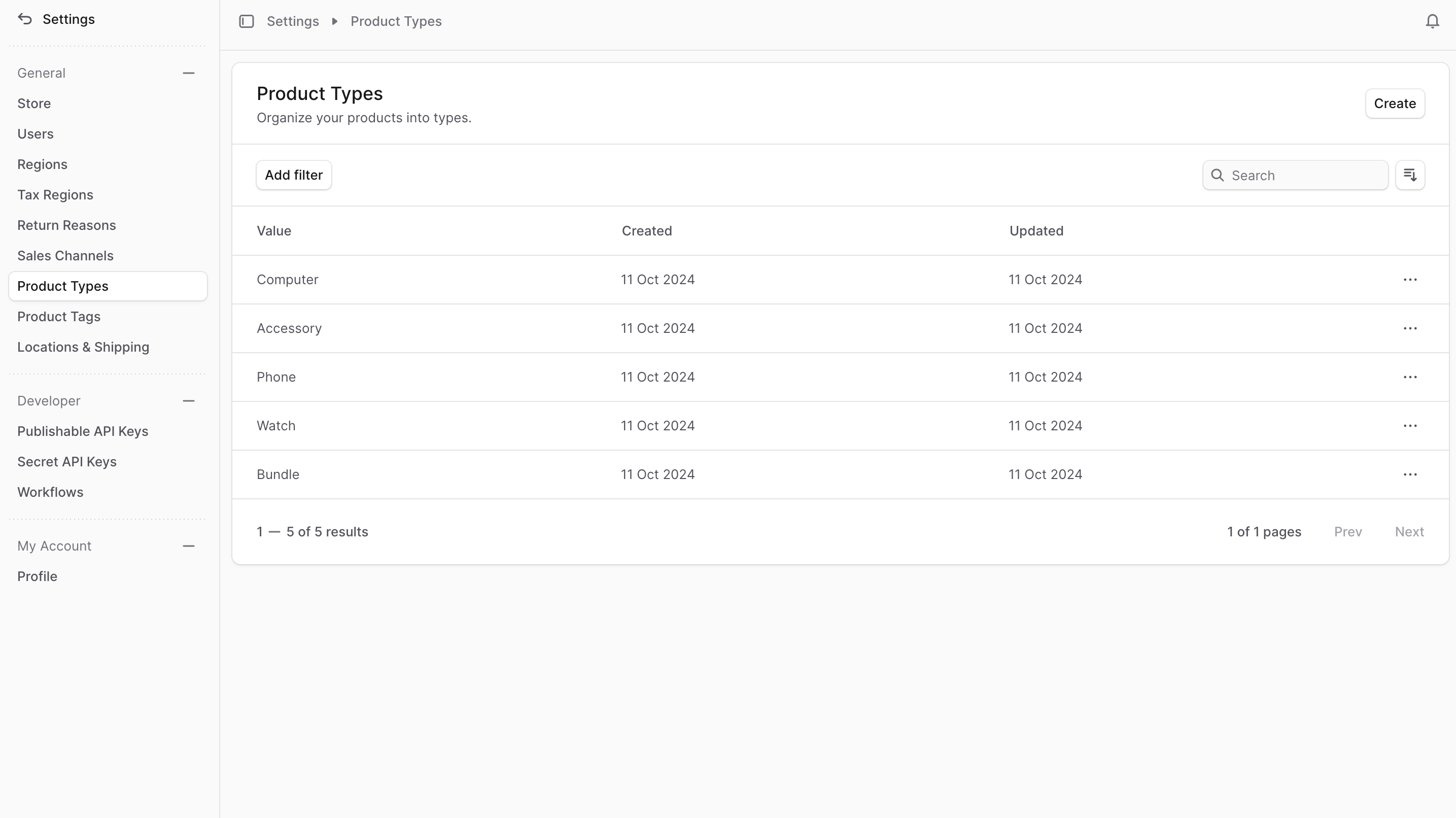
Create Product Type
To create a product type:- Go to Settings → Product Types.
- Click the Create button at the top right.
- In the form that opens, enter a value for the product type in the Value field. For example, “Digital”.
- Once you’re done, click the Create button.
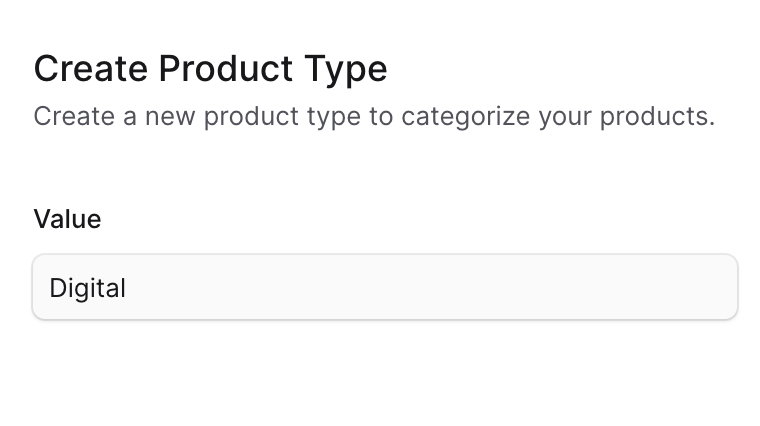
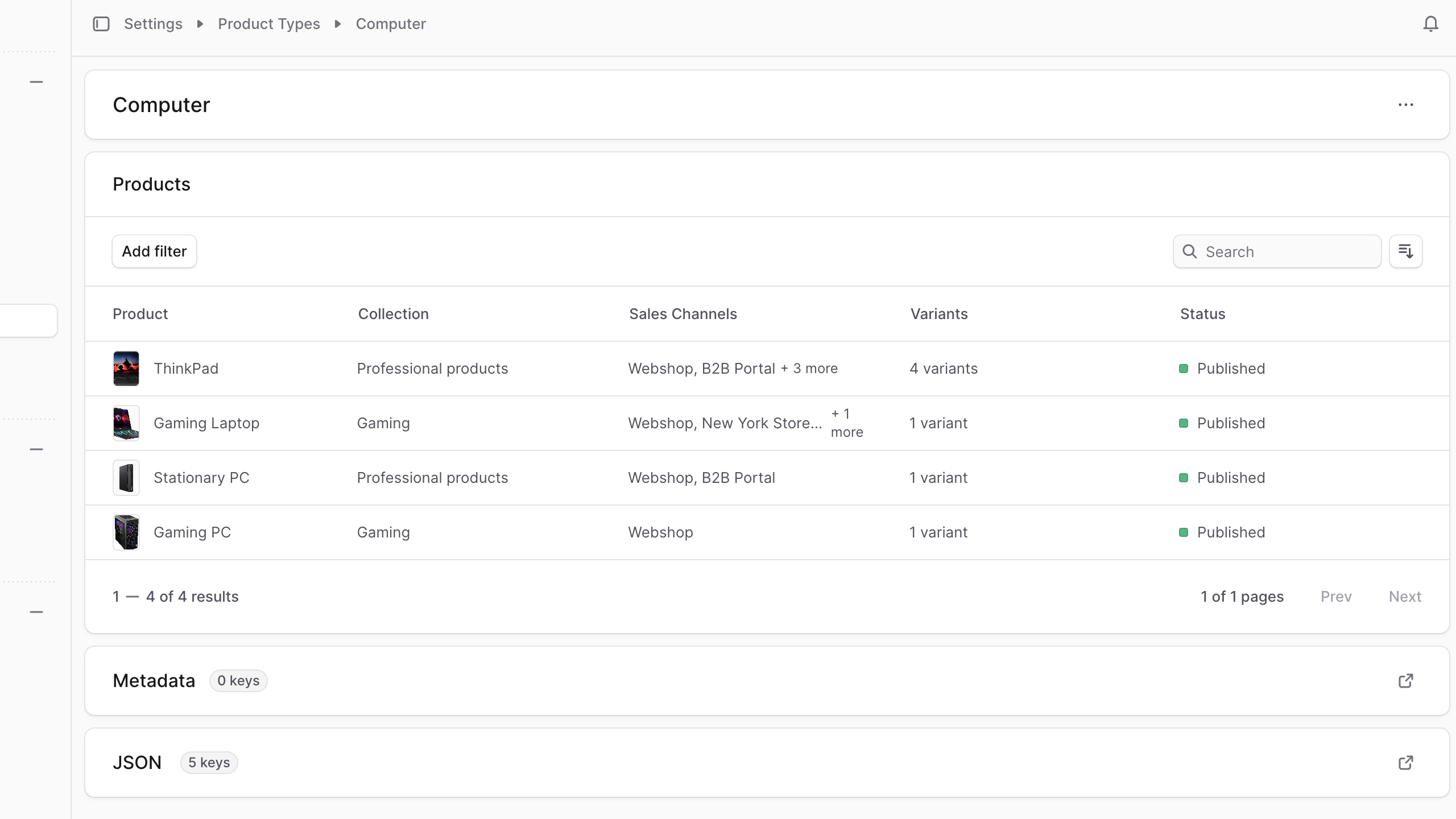
View Product Type Details
To view the details of a product type:- Go to Settings → Product Types.
- Click on a product type from the list.
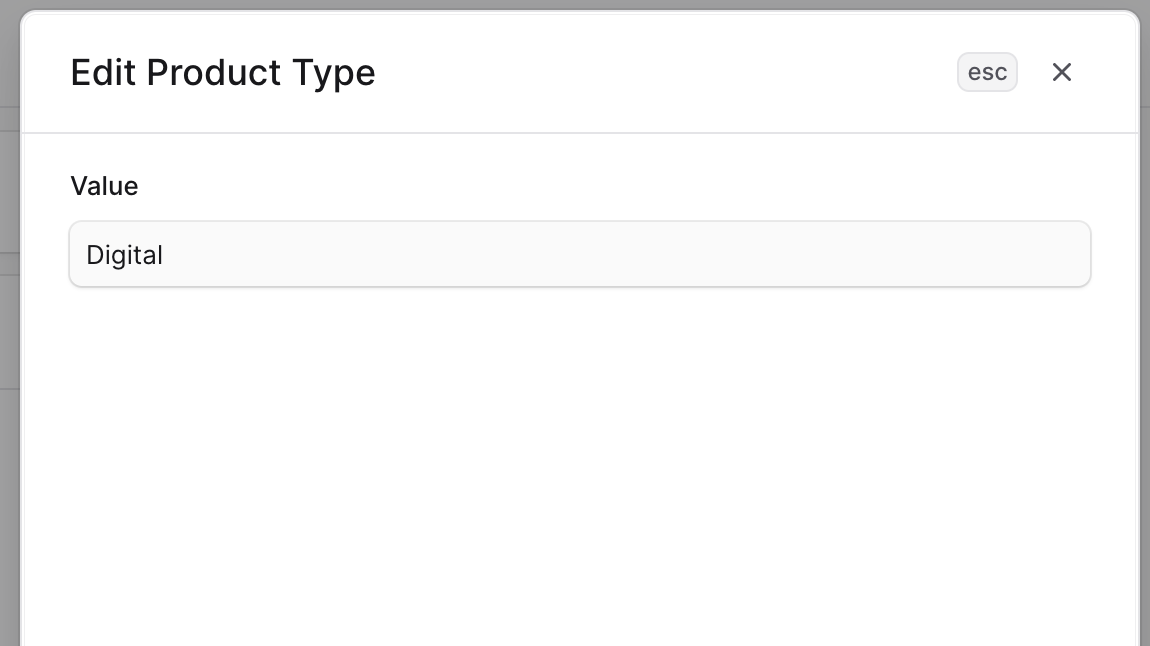
Edit Product Type Details
To edit the details of a product type:- Go to the product type’s details page.
- Click the ⋯ icon at the top right of the first section.
- Choose Edit from the dropdown.
- In the side window that opens, you can edit the product type’s value.
- Once you’re done, click the Save button.
Manage Products in Type
Product Type Assignment: Assign and manage product types through the product’s details page. Assignment Best Practices:- Choose the most specific applicable type
- Maintain consistency across similar products
- Consider customer search and filtering behavior
- Review and update types as product lines evolve
- Document type definitions for team reference
- Use import/export tools for large catalogs
- Implement automated type assignment rules
- Regular audits to ensure proper classification
- Training for team members on type standards
Manage Product Type Metadata
Product Type Metadata: Enhance product types with custom metadata for advanced functionality: Common Metadata Applications:- Integration settings for third-party services
- Custom display properties for storefronts
- Business rule parameters and flags
- Analytics tags and tracking codes
- Compliance and regulatory information
- Marketing automation triggers
- Use consistent naming conventions
- Document metadata purpose and usage
- Validate data formats and constraints
- Regular cleanup of obsolete metadata
- Security considerations for sensitive data
- Version control for metadata changes
- Click the ↗ icon at the right of the “Metadata” section.
- In the side window that opens:
- Manage the key-value pairs in the table.
- To add a new row of key-value pairs before or after a row:
- Hover over the row and click the ⋮ icon at its right.
- Choose “Insert row above” or “Insert row below” from the dropdown.
- To delete a row of key-value pairs:
- Hover over the row and click the ⋮ icon at its right.
- Choose “Delete row” from the dropdown.
- Once you’re done, click the Save button.
Delete Product Type
Deleting a product type is irreversible. To delete a product type:- Go to the product type’s details page.
- Click the ⋯ icon at the top right of the first section.
- Choose Delete from the dropdown.
- Confirm the deletion by clicking the Delete button in the pop-up.