

Tax Regions Management in BoxNCase Admin
Manage comprehensive tax calculations across different geographical regions with BoxNCase’s flexible tax region system. Configure region-specific tax rates, handle complex tax scenarios, and ensure compliance with local tax regulations.Overview
Tax regions provide:- Geographical tax rate management
- Complex tax calculation support
- Product-specific tax overrides
- Compliance with local regulations
- Automated tax collection processes
What is a Tax Region?
Tax Region Structure: Tax regions represent geographical areas with specific tax obligations: Multi-Level Tax Management:- Country-level tax regions for broad regulations
- State/province sublevel regions for local taxes
- City or municipal tax zones where applicable
- Special economic zones with unique rates
- Default tax rates for general products
- Product-specific tax overrides
- Product type-based tax rules
- Combinable tax rates for complex scenarios
- Create a “United States” tax region with federal considerations
- Add sublevel regions for each state (California, New York, etc.)
- Set product-specific overrides for items like digital goods
- Configure combinable rates for state + local taxes
View Tax Regions
To view tax regions in your store, go to Settings → Tax Regions. Here, you can see a list of all the tax regions you have set up in your store. You can also search, filter, and sort the tax regions to find the one you are looking for.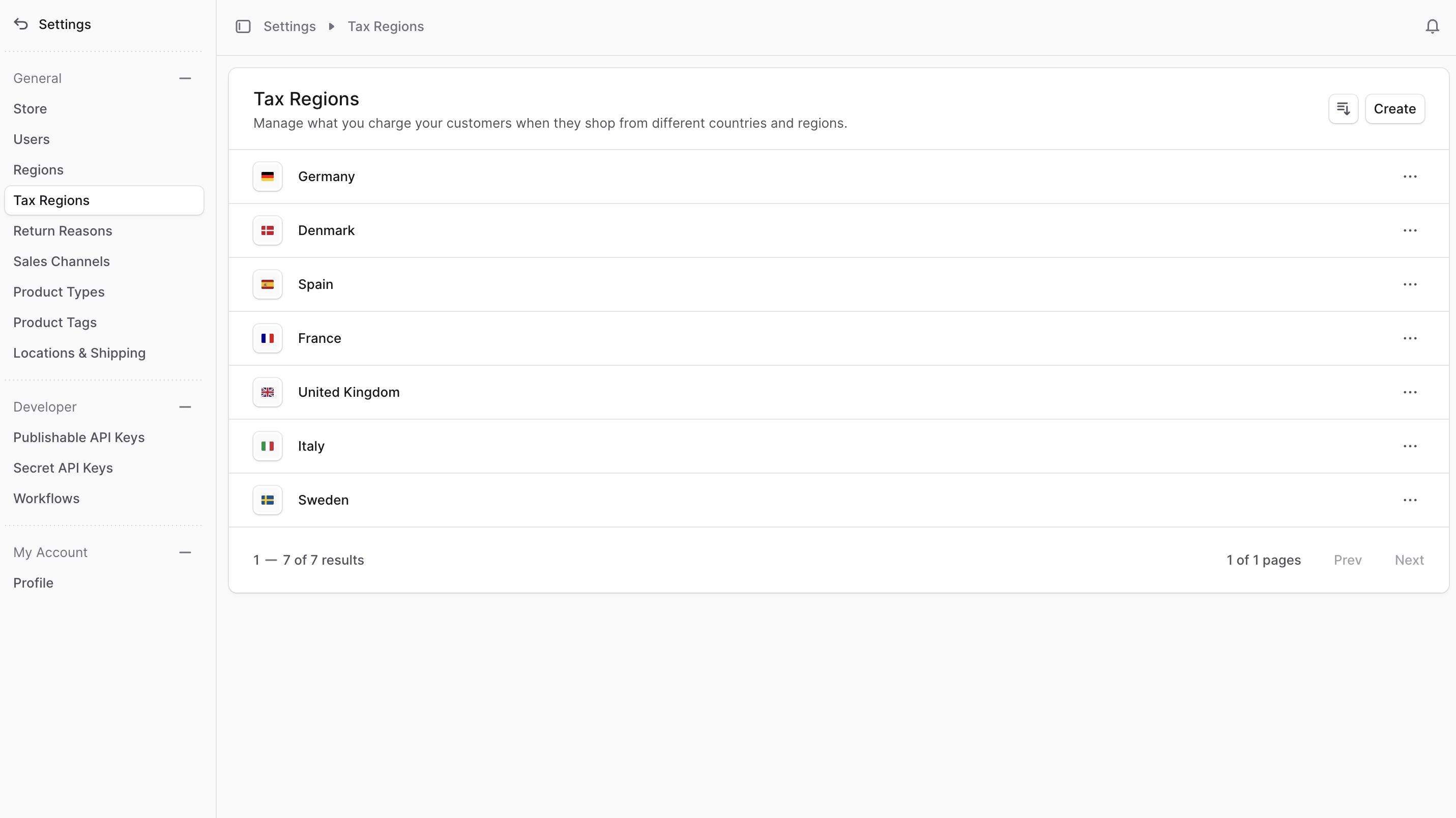
Create Tax Region
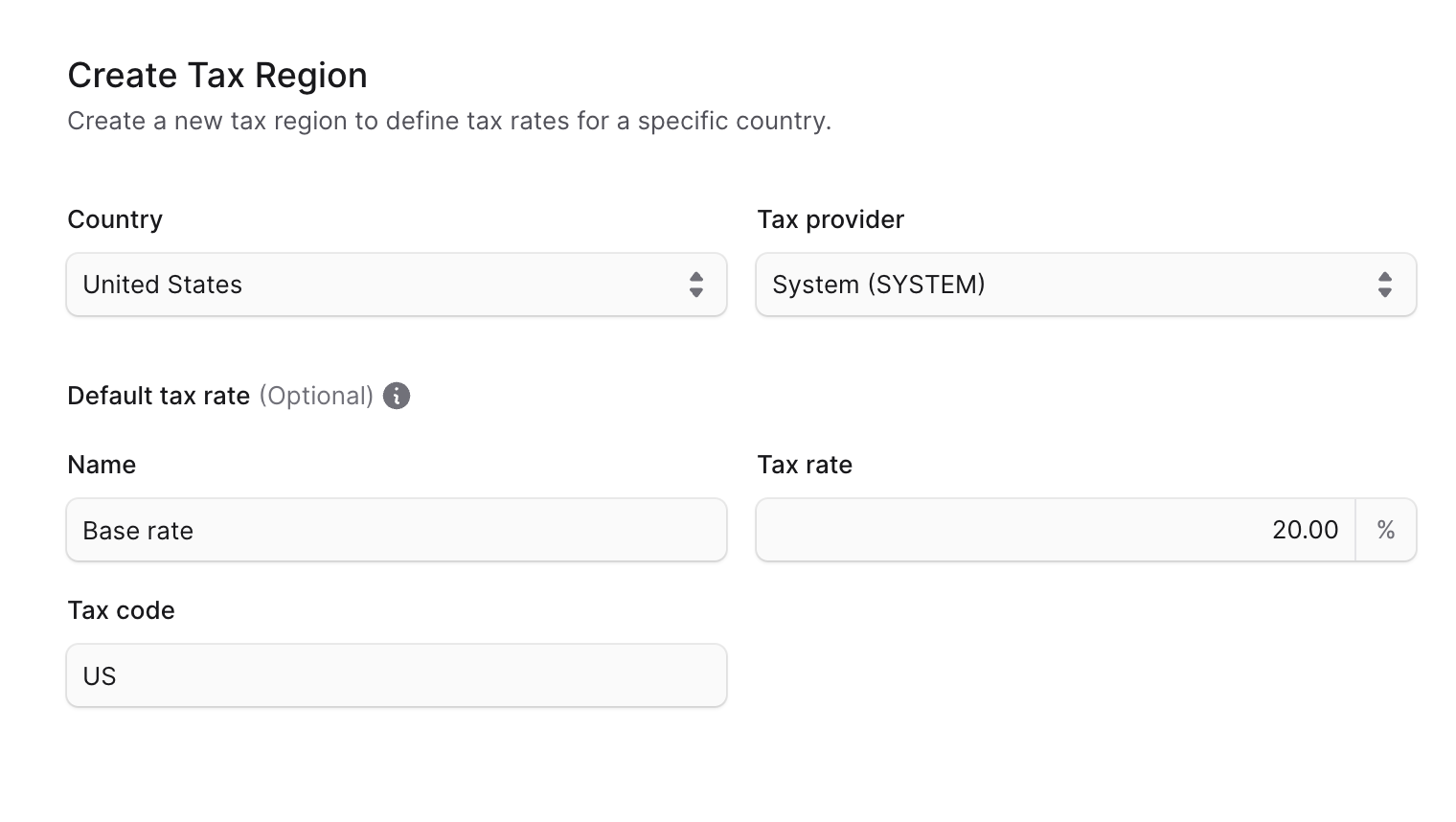
To create a tax region:- Go to Settings ’ Tax Regions.
- Click the Create button at the top right.
- In the form that opens:
- In the Country field, select the country that this tax region applies to.
- Under the “Default tax rate” section, you can optionally enter a name, tax rate, and tax code in their respective fields.
- Once you’re done, click the Save button.
View Tax Region Details
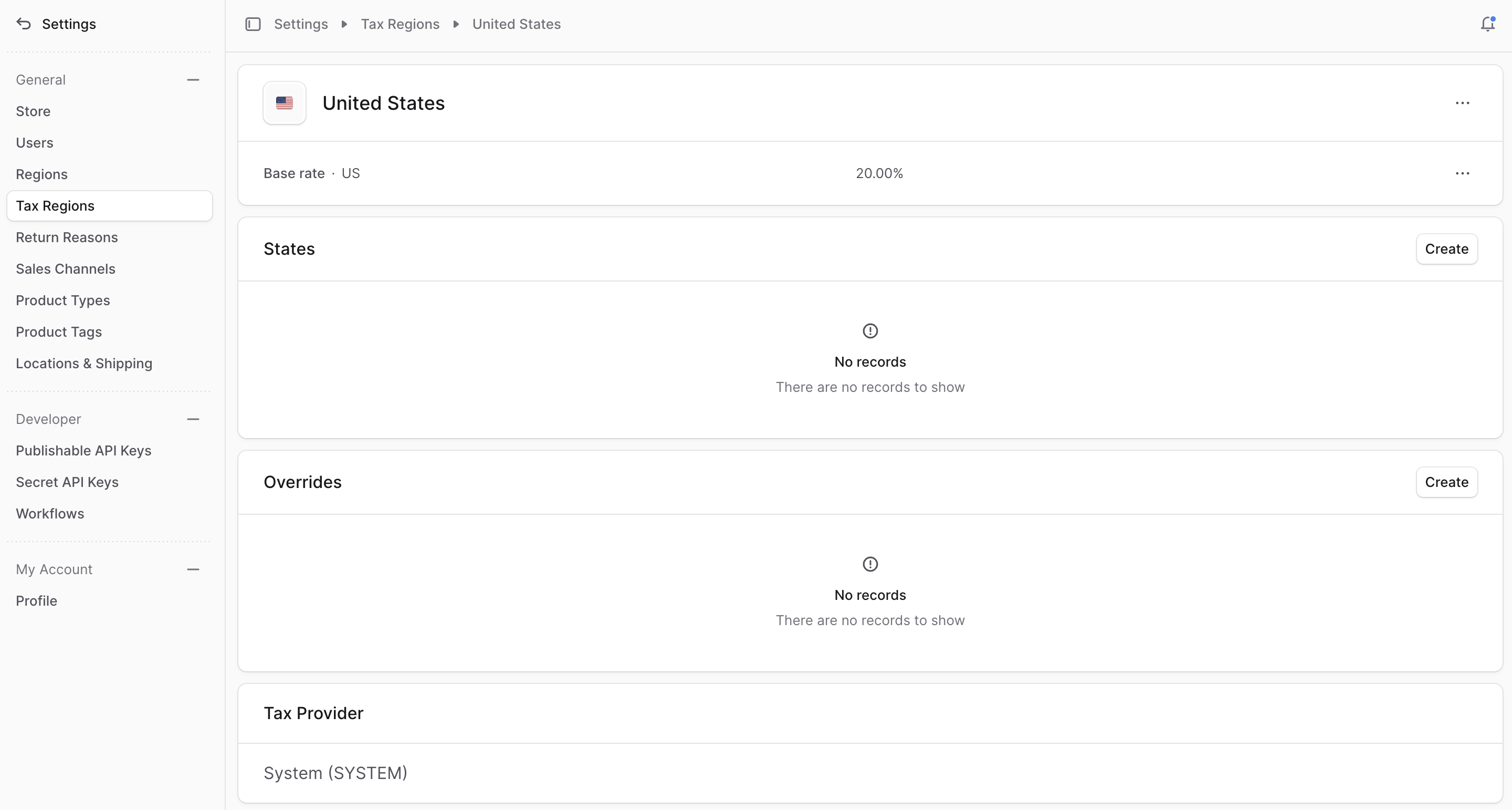
To view the details of a tax region:- Go to Settings ’ Tax Regions.
- Click on a tax region from the list.
Edit Tax Region
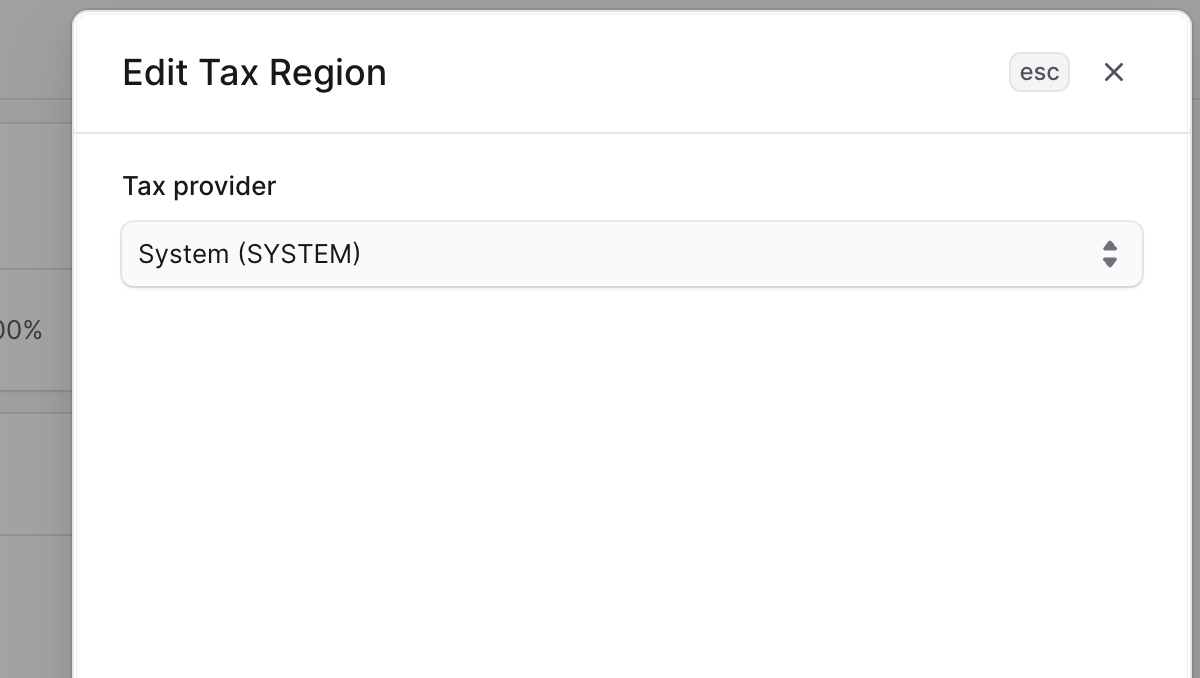
To edit a tax region:- Go to the tax region’s details page.
- Click the ⋯ icon at the right of the tax region’s name.
- Choose Edit from the dropdown.
- In the side window that opens, you can edit the tax region’s default tax provider.
- Once you’re done, click the Save button.
Edit Default Tax Rate
To edit the default tax rate of the region:- Go to the tax region’s details page.
- In the first section, you’ll find details of the default tax rate, including its tax rate and code. Click on the ⋯ icon at its right.
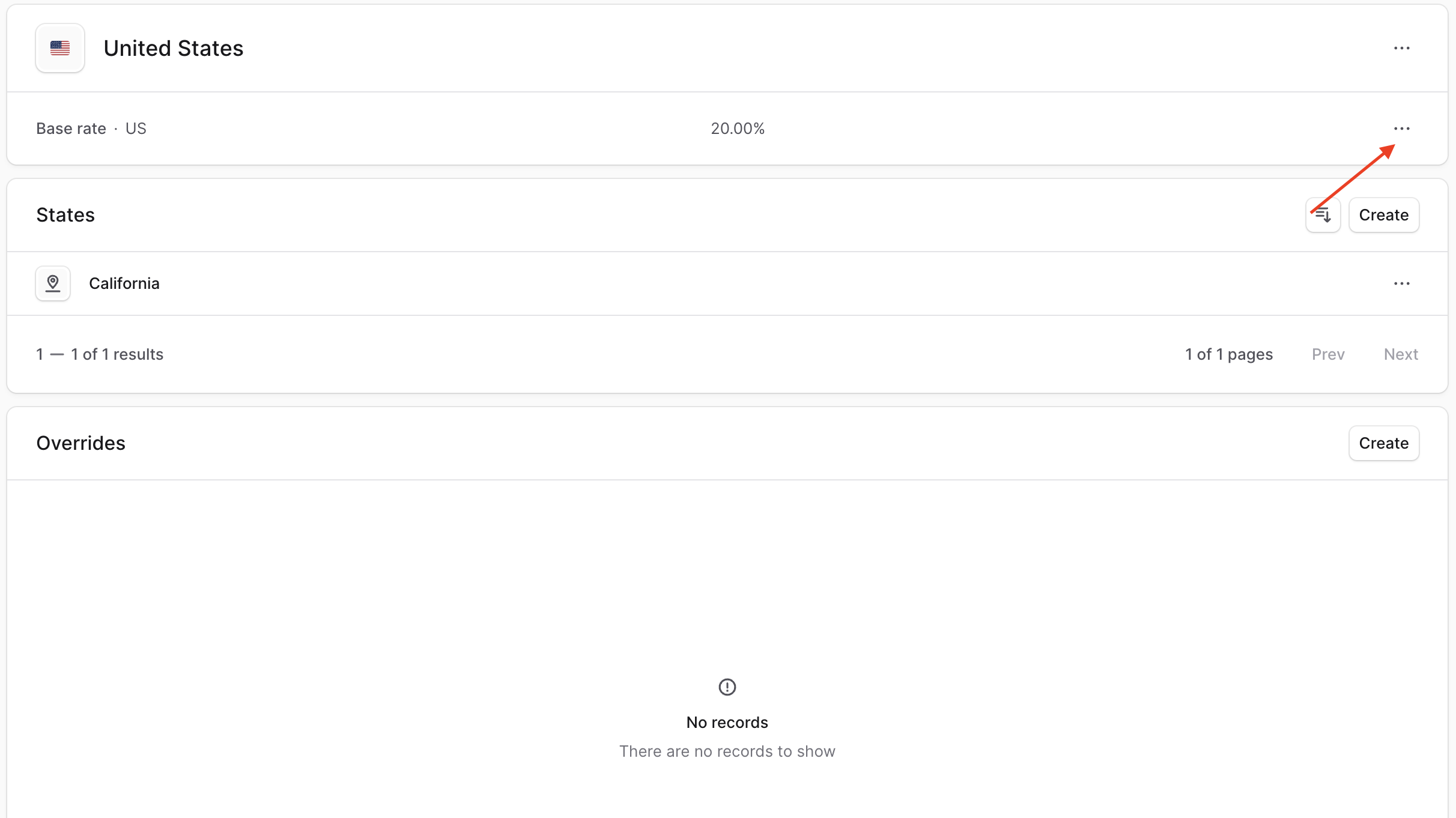
- Choose Edit from the dropdown.
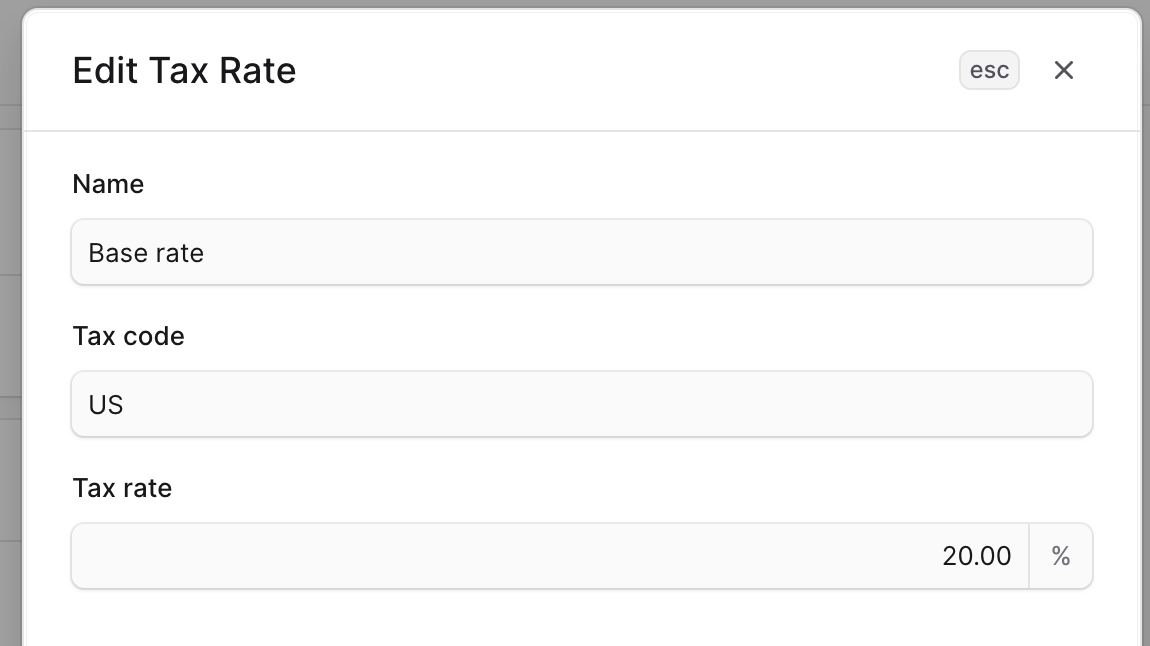
- In the side window that opens, you can edit the tax rate’s name, code, and rate to charge.
- Once you’re done, click the Save button.
Manage Tax Rate Overrides
Tax Rate Override System: Overrides provide flexibility for complex tax scenarios commonly encountered in e-commerce: Override Applications:- Luxury goods with higher tax rates
- Essential items with reduced or zero tax
- Digital products with special tax treatment
- Age-restricted items with additional taxes
- Environmentally harmful products with eco-taxes
- Individual product overrides for specific items
- Product type overrides for entire categories
- Combinable overrides for additive tax scenarios
- Both parent and sublevel region overrides
- Accurate tax calculation for all product types
- Compliance with complex tax regulations
- Reduced manual tax management overhead
- Automated handling of tax law changes
Create Tax Rate Override
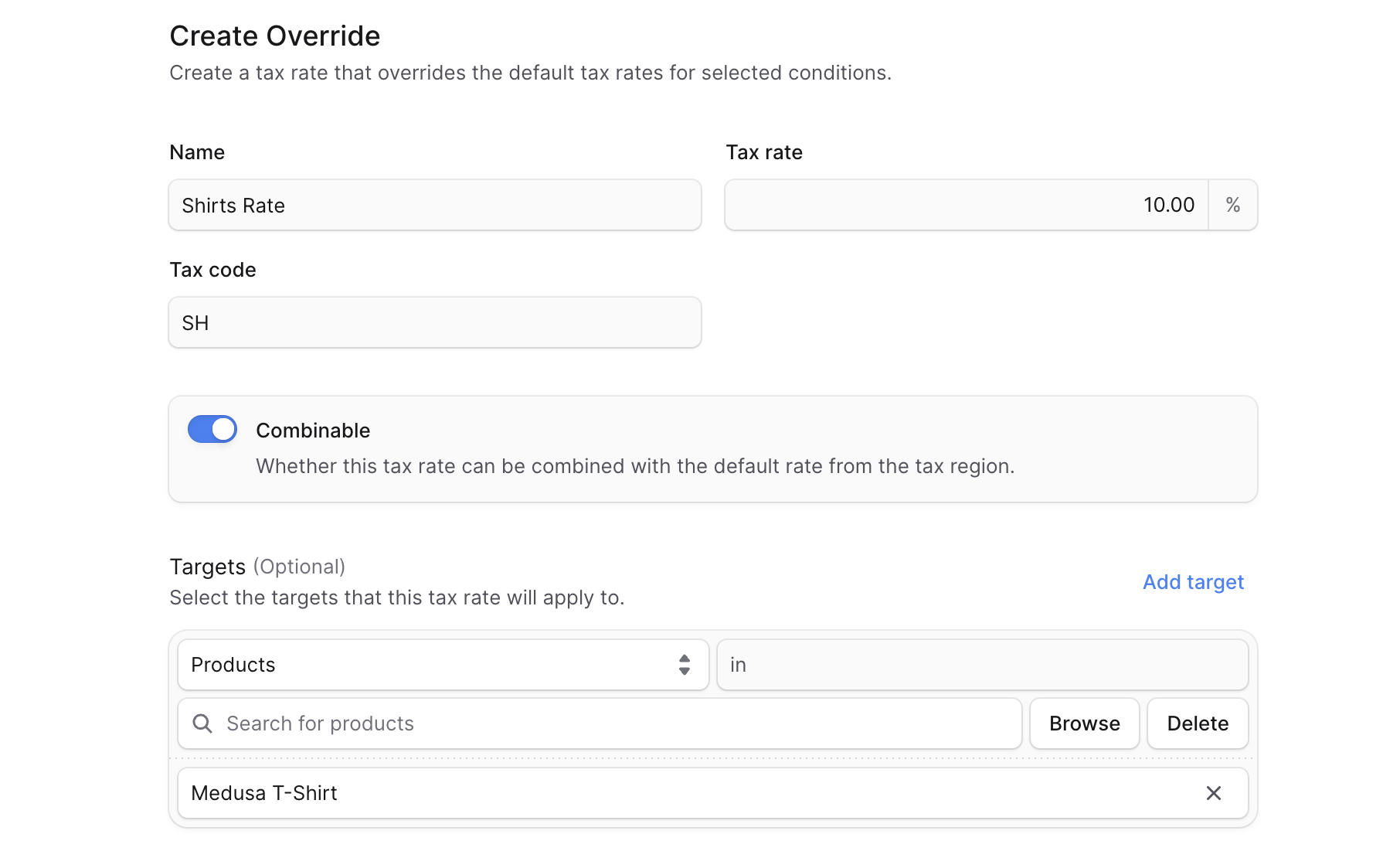
To create a tax rate override for a product or product type in a tax region:- Go to the region’s details page.
- In the “Overrides” section, click the Create button.
- In the form that opens:
- Enter the tax override’s name, rate, and code in their respective fields.
- If the override should be combined with the default tax rate, enable the “Combinable” toggle.
- Under the “Targets” section, you can select which products or product types this override applies to. You can add a target by clicking “Add target”. For each target:
- Choose the target type (Product or Product Type).
- Choose the product or product types that the override applies to, based on the target type you chose.
- Once you’re done, click the Save button.
Edit Tax Rate Override
To edit a tax rate override:- Go to the region’s details page.
- In the “Overrides” section, click the ⋯ icon at the right of the override you want to edit.
- Choose Edit from the dropdown.
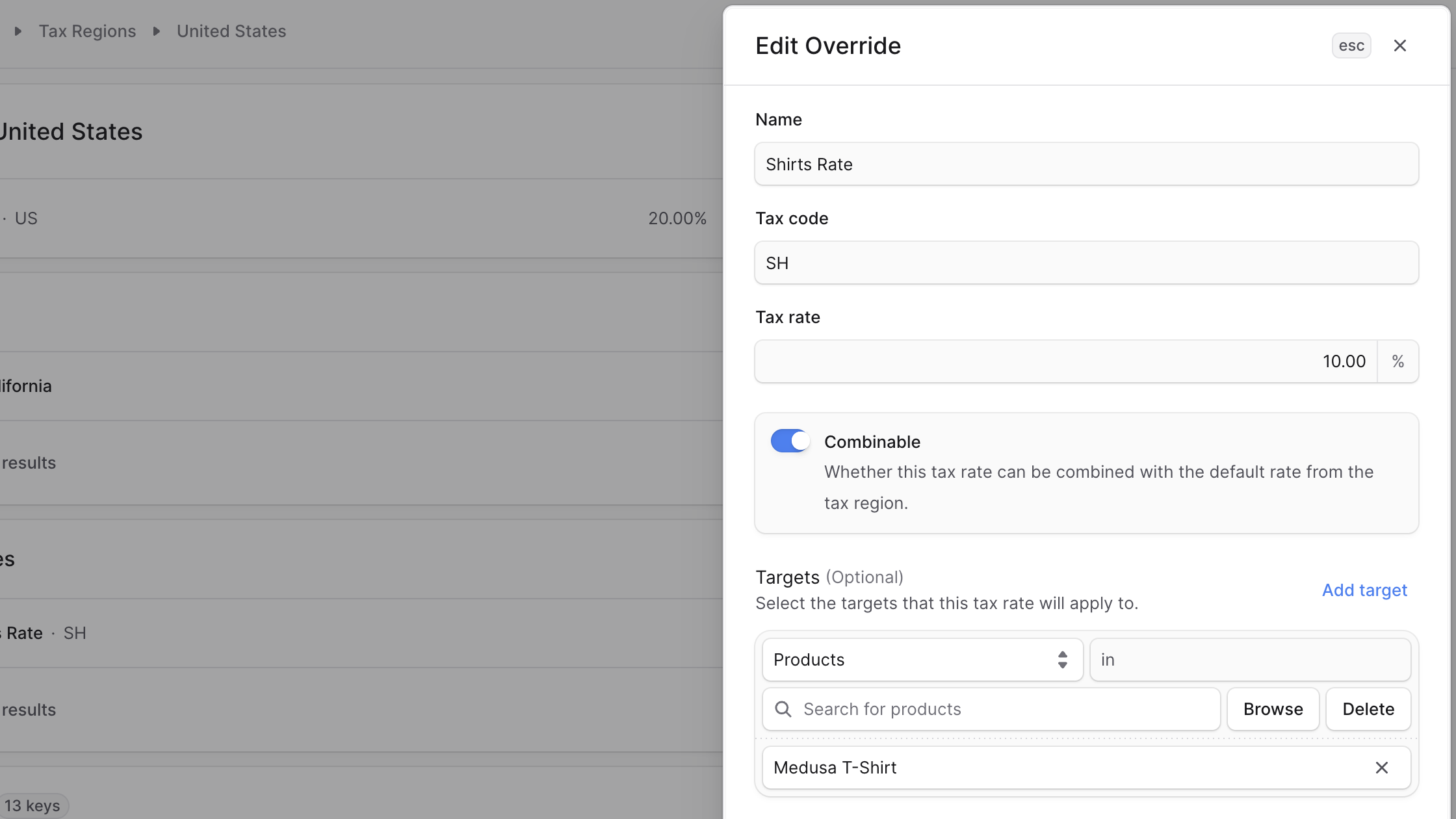
- In the side window that opens, you can edit the override’s name, rate, code, and whether the tax rate should be combined with the default rate. You can also edit the targets of the override.
- Once you’re done, click the Save button.
Delete Tax Rate Override
Deleting a tax rate override is irreversible. To delete a tax rate override:- Go to the region’s details page.
- In the “Overrides” section, click the ⋯ icon at the right of the override you want to delete.
- Choose Delete from the dropdown.
- Confirm deleting the override by clicking the Delete button in the pop-up.
Sublevel Tax Regions
Tax regions for some countries like the United States have a States, Province, or Cantons section in the tax region details page. Here, you can add sublevel regions for the country.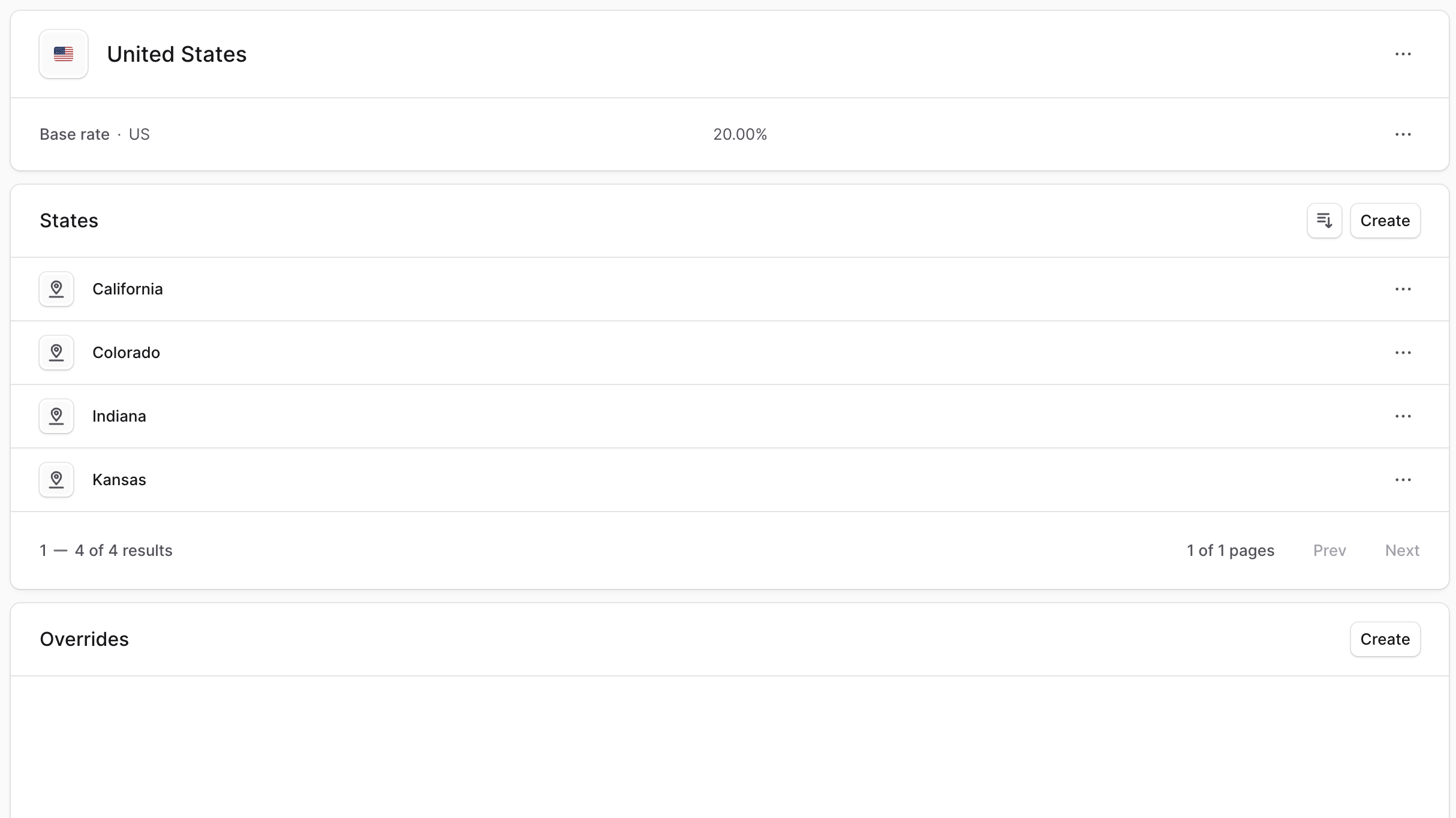 You can also enable it for other countries that don’t show this section by default. For those countries, you’ll find a note at the top of the page where you can enable the sublevel regions.
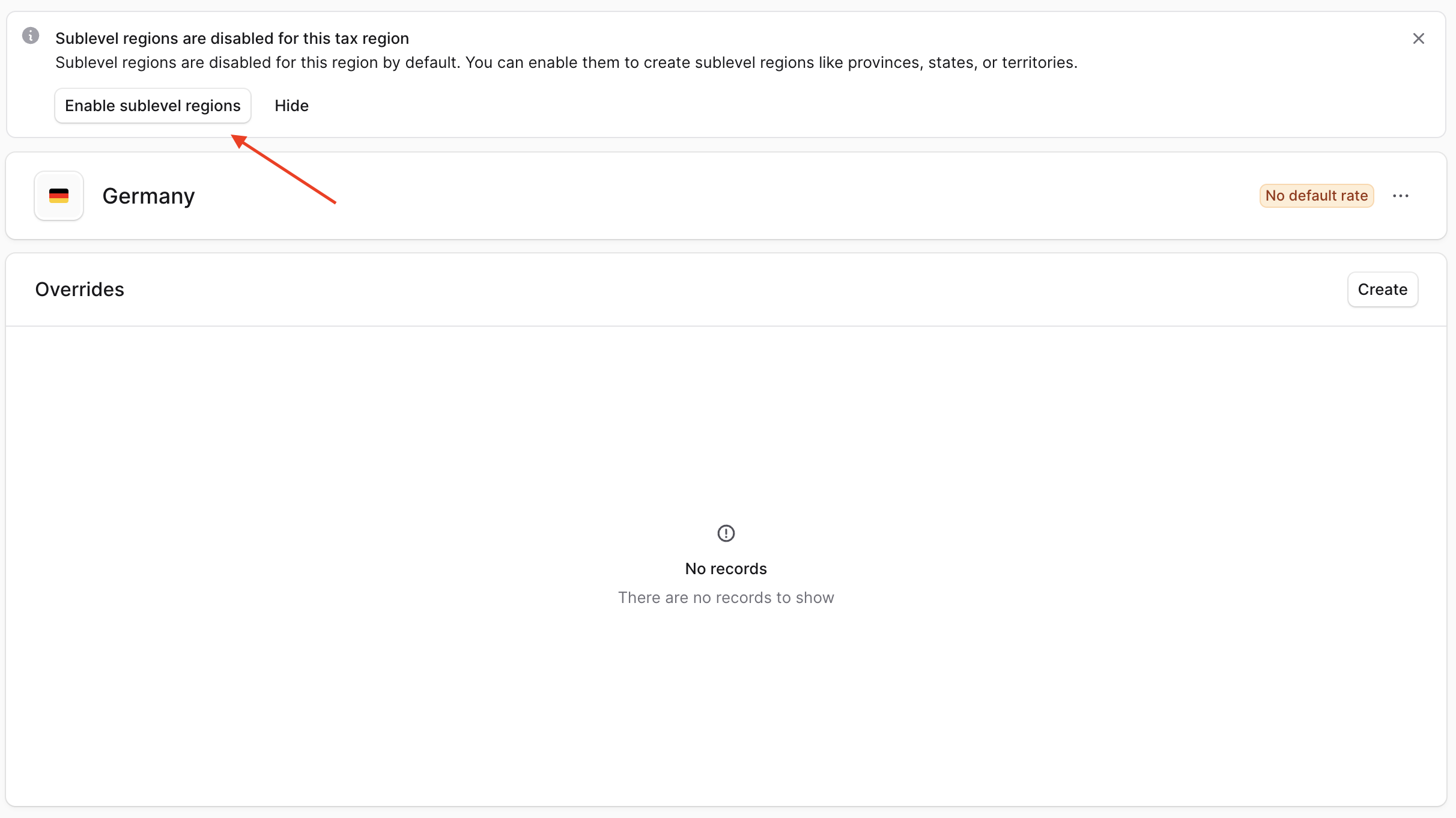 After enabling this setting, you’ll find a “Sublevels” section in the tax region details page where you can add sublevel regions.
Create Sublevel Tax Region
To create a sublevel tax region in a tax region:- Go to the tax region’s details page.
- In the “Sublevels” section or its equivalent (such as States, Province, or Cantons), click the “Create” button.
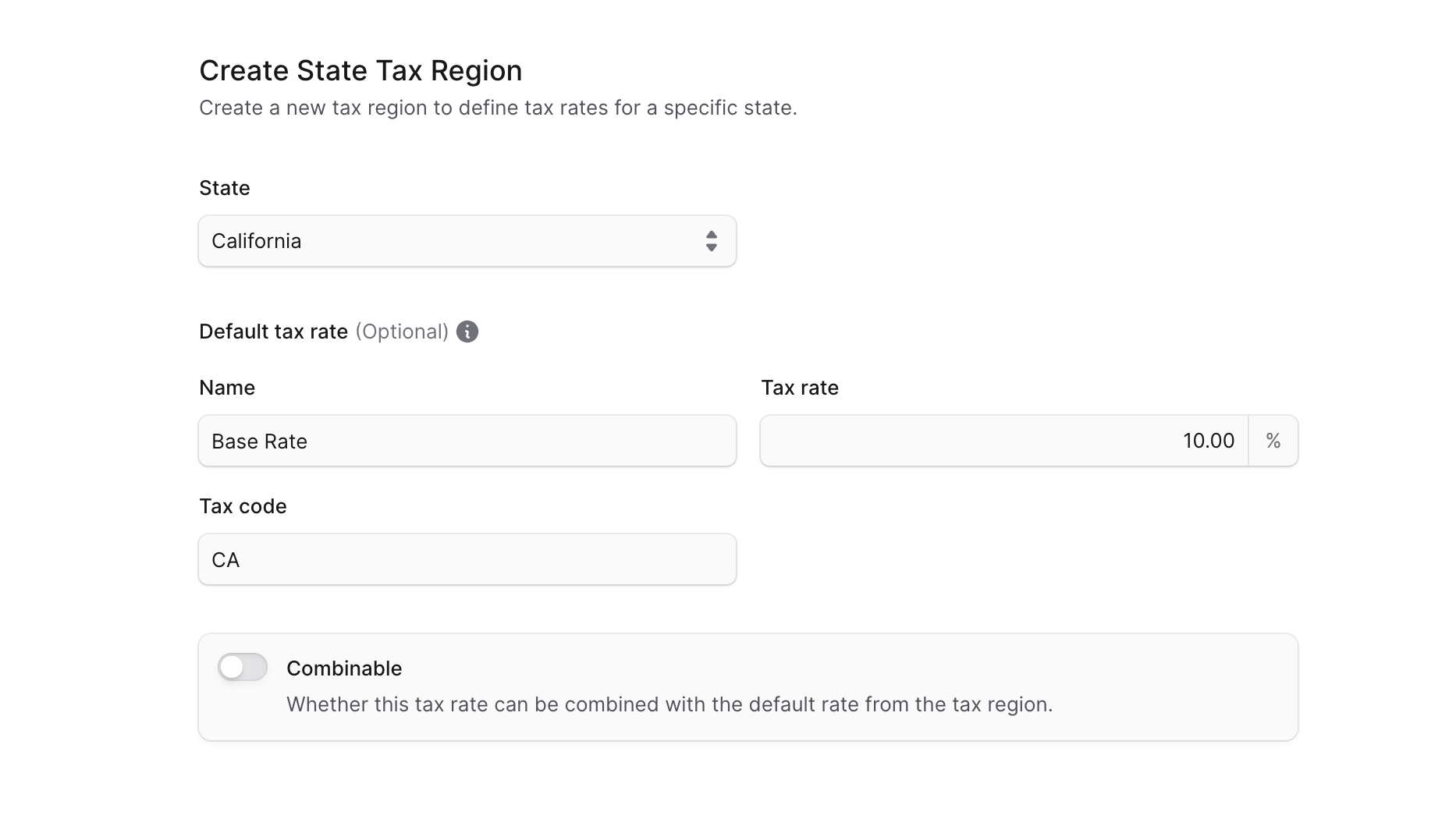
- In the form that opens:
- If the country supports a sublevel by default, you’ll find an input to select a state, province, or canton.
- If the country doesn’t support a sublevel by default, you’ll find an input to enter the lower-case ISO 3166-2 code of the sublevel.
- Under the “Default tax rate” section, you can optionally enter a name, tax rate, and tax code in their respective fields.
- If the tax region’s rates should be combined with the parent’s rates, enable the “Combinable” toggle.
- Once you’re done, click the Save button.
View Sublevel Tax Region Details
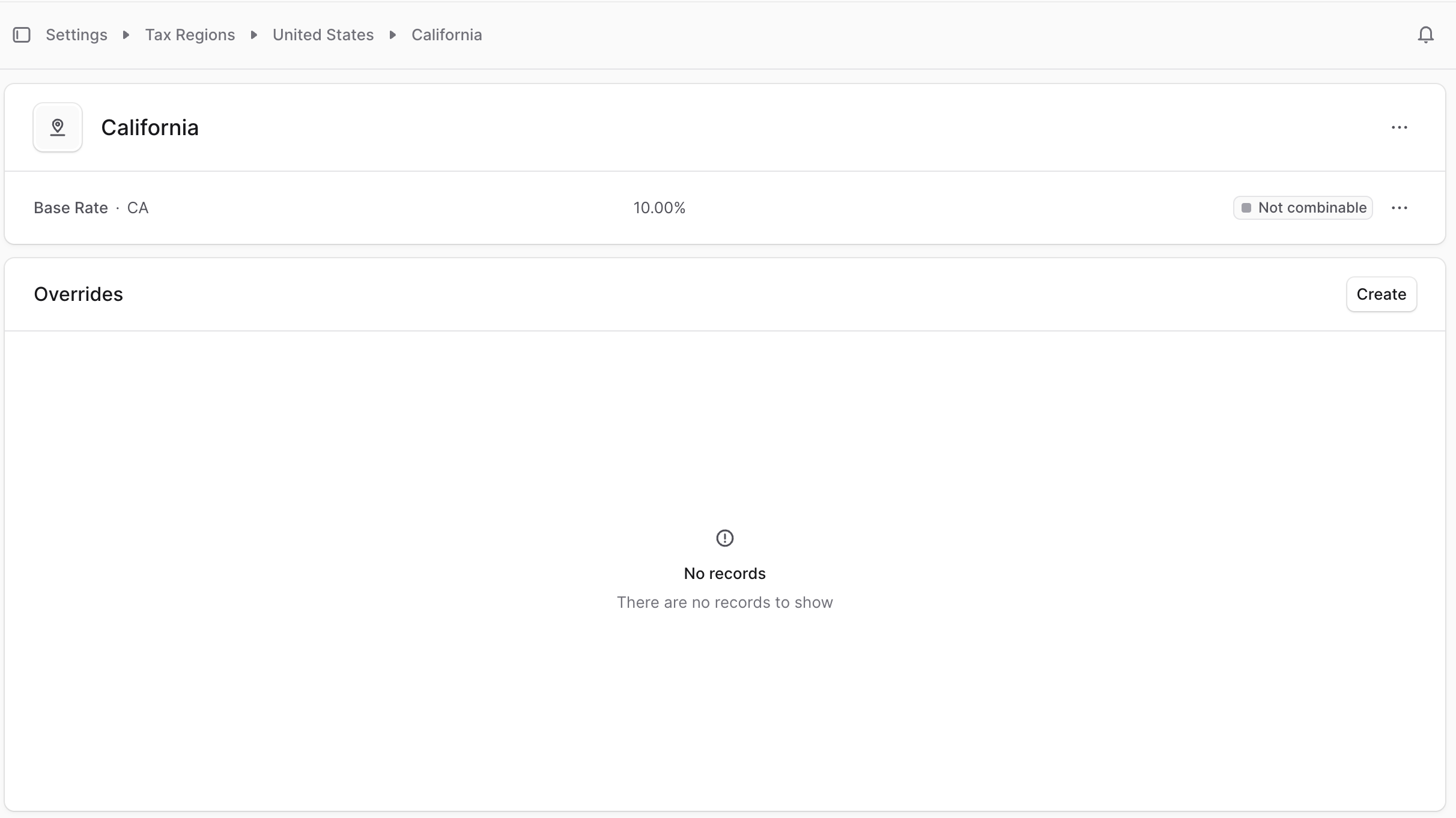
To view the details of a sublevel tax region:- Go to the tax region’s details page.
- Under the “Sublevels” section or its equivalent, click on a sublevel tax region.
Manage Sublevel Tax Region’s Rates
You can manage the sublevel tax region’s default and override rates the same way you manage the parent tax region’s rates.Delete Sublevel Tax Region
Deleting a sublevel tax region is irreversible. To delete a sublevel tax region:- Go to the sublevel tax region’s details page.
- Click the ⋯ icon at the right of the sublevel tax region’s name.
- Choose Delete from the dropdown.
- Confirm deleting the sublevel tax region by clicking the Delete button in the pop-up.
Delete Tax Region
Deleting a tax region is irreversible. To delete a tax region:- Go to the tax region’s details page.
- Click the ⋯ icon at the right of the tax region’s name.
- Choose Delete from the dropdown.
- Confirm deleting the tax region by clicking the Delete button in the pop-up.