

Reset Password in BoxNCase Partners Admin
In this guide, you’ll learn how to securely reset your admin user password using the BoxNCase Partners Admin dashboard. Discover security best practices, troubleshooting techniques, and password requirements to maintain account security.1. Request to Reset Password
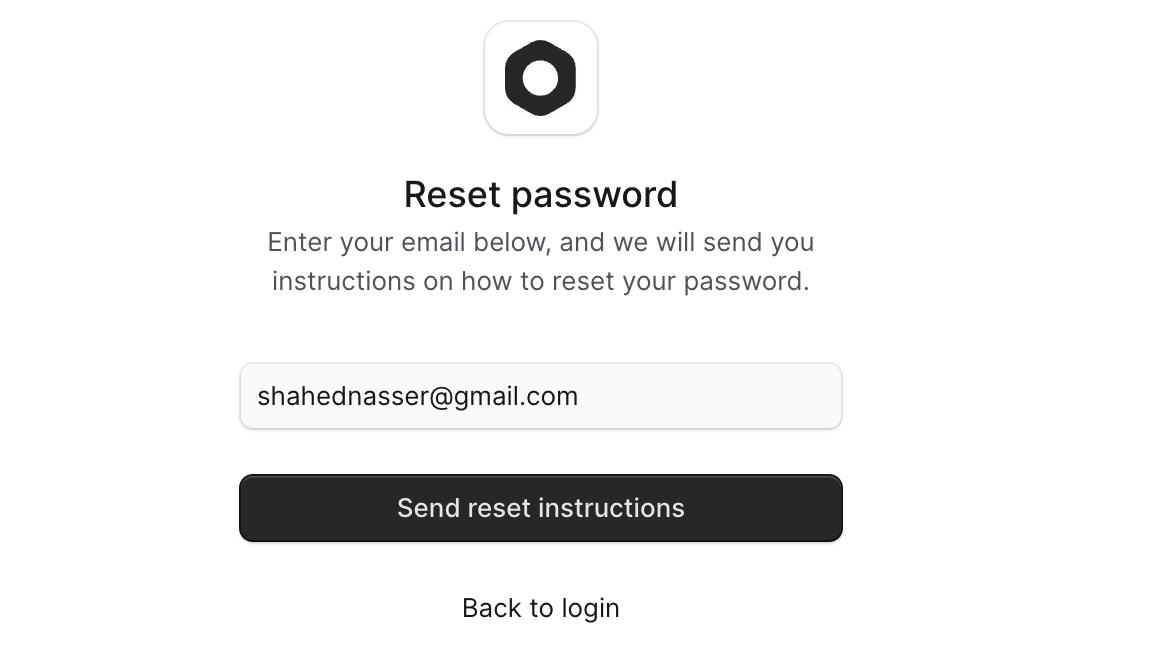
Before resetting your password, you must request the reset, which will send you an email with instructions to reset your password. To reset your password:- Open the BoxNCase Partners Admin dashboard.
- Click on “Reset” below the login form.
- In the Reset Password form, enter your email address.
- Click the “Send reset instructions” button.
2. Reset Password
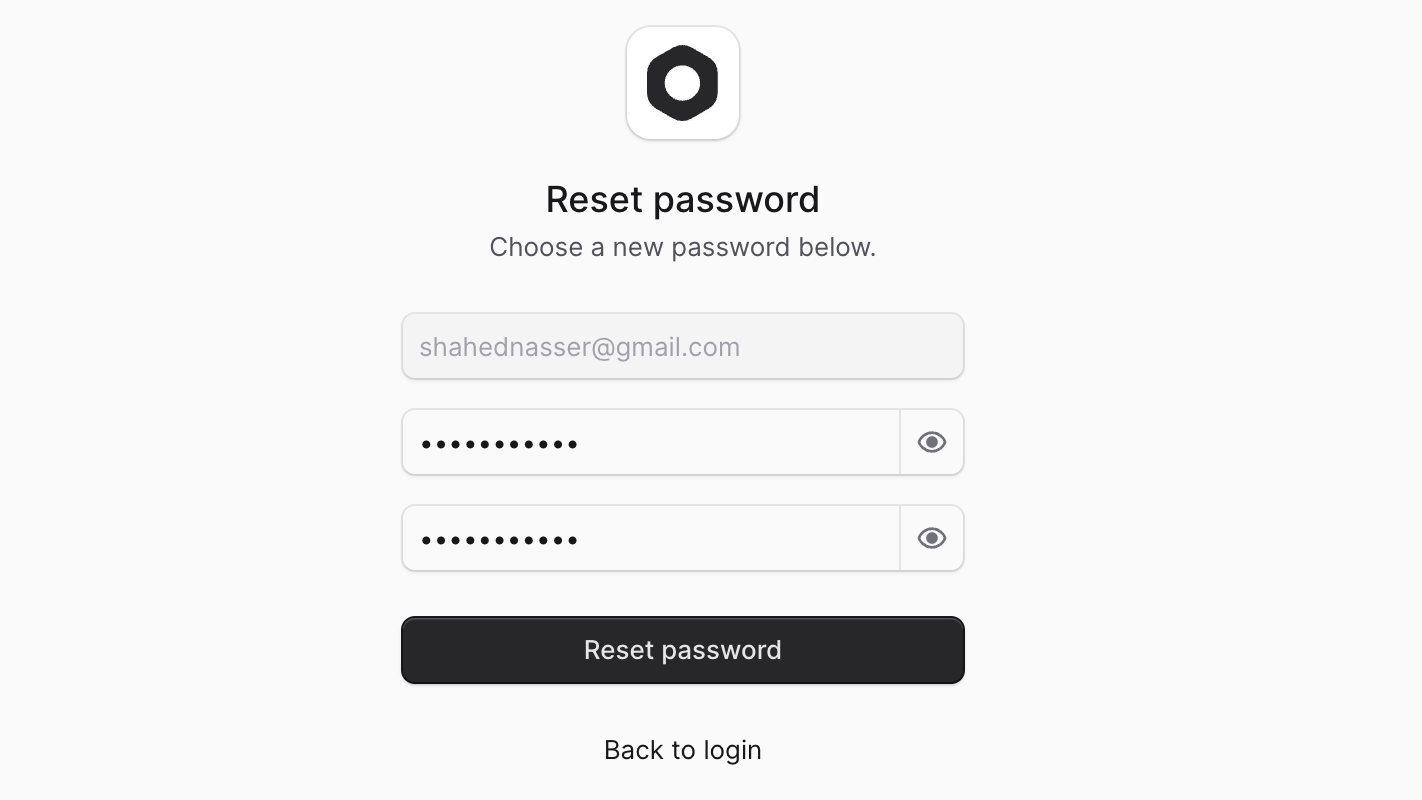
After you’ve requested to reset the password, you can reset your password using the link in the email you received. To reset your password:- Open the link in the email you received.
- In the Reset Password form, enter your new password and confirm it.
- Click the “Reset password” button.
Password Requirements
Create a strong password that meets these security requirements:Minimum Requirements
- Length: At least 8 characters (12+ characters recommended)
- Uppercase Letters: Include at least one uppercase letter (A-Z)
- Lowercase Letters: Include at least one lowercase letter (a-z)
- Numbers: Include at least one numeric digit (0-9)
- Special Characters: Include at least one special character (!@#$%^&*)
Password Strength Guidelines
- Avoid Common Passwords: Don’t use easily guessable passwords like “password123”
- No Personal Information: Avoid using your name, email, or business information
- Unique Password: Use a different password than your other accounts
- Regular Updates: Consider changing your password every 90 days
Recommended Password Patterns
- Passphrase Method: Combine 4-5 random words with numbers and symbols
- Character Substitution: Replace letters with numbers and symbols (@ for a, 3 for e)
- Mixed Case Pattern: Alternate between uppercase and lowercase letters
- Sequential Complexity: Gradually increase complexity from left to right
Security Best Practices
Account Security
Follow these practices to maintain account security:Password Management
- Use a Password Manager: Store complex passwords securely
- Enable Two-Factor Authentication: Add an extra layer of security when available
- Regular Password Updates: Change passwords periodically
- Secure Password Storage: Never store passwords in plain text files
Login Security
- Secure Networks: Only access admin accounts from trusted networks
- Public Wi-Fi Caution: Avoid accessing admin accounts on public Wi-Fi
- Browser Security: Keep your browser updated with latest security patches
- Session Management: Log out when finished, especially on shared computers
Account Monitoring
- Login Alerts: Monitor email for unauthorized login attempts
- Activity Reviews: Regularly review account activity logs
- Suspicious Activity: Report any unusual account activity immediately
- Regular Audits: Periodically review and update security settings
Email Security
Protect the email account associated with your admin login:- Strong Email Password: Use a strong, unique password for your email
- Email Two-Factor Authentication: Enable 2FA on your email account
- Regular Email Monitoring: Check for suspicious login attempts
- Secure Email Providers: Use reputable email service providers
Troubleshooting Common Issues
Not Receiving Reset Email
If you don’t receive the password reset email:Check Email Settings
- Spam Folder: Check your spam/junk folder for the reset email
- Email Filters: Verify that emails from BoxNCase Partners aren’t being filtered
- Email Address: Confirm you entered the correct email address
- Email Capacity: Ensure your mailbox isn’t full
Server Configuration Issues
- Notification Module: Verify your technical team has installed the notification module
- Email Provider: Check that your email provider allows emails from BoxNCase Partners
- DNS Configuration: Ensure proper DNS configuration for email delivery
- Firewall Settings: Verify firewall isn’t blocking email delivery
Alternative Solutions
- Contact Administrator: Reach out to your system administrator
- Different Email: Try using an alternative email address if available
- Manual Reset: Request manual password reset from technical support
- Account Recovery: Use alternative account recovery methods if configured
Reset Link Not Working
If the password reset link doesn’t work:Link Issues
- Link Expiration: Reset links typically expire after 1 hour - request a new one
- Complete URL: Ensure you copied the complete reset link from the email
- Browser Compatibility: Try opening the link in a different browser
- Incognito Mode: Try opening the link in a private/incognito browser window
Technical Problems
- Clear Browser Cache: Clear your browser cache and cookies
- Disable Extensions: Temporarily disable browser extensions
- JavaScript Enabled: Ensure JavaScript is enabled in your browser
- Network Connectivity: Check your internet connection stability
Password Reset Form Issues
If the reset form isn’t working properly:Form Validation
- Password Requirements: Ensure your new password meets all requirements
- Password Confirmation: Verify password and confirmation match exactly
- Special Characters: Check that special characters are properly encoded
- Field Completion: Ensure all required fields are filled out
Browser Issues
- Browser Updates: Update your browser to the latest version
- Cookie Settings: Enable cookies for the BoxNCase Partners domain
- Pop-up Blockers: Disable pop-up blockers for the admin site
- Browser Compatibility: Use supported browsers (Chrome, Firefox, Safari, Edge)
Password Security Tips
Creating Strong Passwords
Passphrase Method
Create memorable yet secure passwords using passphrases:- Choose Random Words: Select 4-5 unrelated words
- Add Numbers: Include meaningful numbers (but not birth dates)
- Include Symbols: Add special characters between or within words
- Example:
Coffee#Mountain92$River!
Character Substitution
Replace common letters with numbers and symbols:- Replace ‘a’ with ’@’ or ‘4’
- Replace ‘e’ with ‘3’
- Replace ‘i’ with ’!’ or ‘1’
- Replace ‘o’ with ‘0’
- Replace ‘s’ with ’$’ or ‘5’
Password Storage
Password Managers
Use reputable password managers for secure storage:- LastPass: Cross-platform password management
- 1Password: Comprehensive security solution
- Bitwarden: Open-source password manager
- Dashlane: User-friendly password management
Browser Password Storage
If using browser password storage:- Master Password: Set a master password for browser password storage
- Sync Security: Use secure sync across devices
- Regular Updates: Keep browser updated for security patches
- Backup Strategy: Maintain backup of stored passwords
Recovery Planning
Backup Access Methods
Prepare alternative access methods before you need them:Secondary Email
- Configure Backup Email: Set up an alternative email address for password resets
- Regular Access: Periodically check your backup email account
- Security Updates: Keep backup email account secure and updated
- Documentation: Document backup email access for your records
Recovery Contacts
- Admin Contacts: Maintain contact information for system administrators
- IT Support: Keep technical support contact information accessible
- Business Contacts: Ensure business partners can assist with account recovery
- Emergency Procedures: Document emergency access procedures
Account Documentation
- Account Information: Securely document account details and access methods
- Security Questions: Keep record of security question answers
- Access History: Maintain log of account access and changes
- Contact Lists: Keep updated contact information for support resources
Business Continuity
Ensure password issues don’t disrupt business operations:Team Access
- Multiple Administrators: Have multiple team members with admin access
- Role Distribution: Distribute administrative roles across team members
- Access Procedures: Document procedures for account access issues
- Communication Plans: Establish communication plans for access emergencies
Backup Systems
- Alternative Access: Maintain alternative methods for critical functions
- System Backups: Regular backups of system configurations and data
- Recovery Procedures: Document step-by-step recovery procedures
- Testing: Regularly test backup and recovery procedures
Related Guides
- User Account Management - Learn about managing user accounts and permissions
- Security Settings - Configure security settings for your store
- Profile Management - Update your profile and account preferences
- Two-Factor Authentication - Set up additional security layers
- Admin Access Control - Understand admin permission levels