

Manage Product Variants in BoxNCase Admin
Product variant management is a crucial component of BoxNCase’s flexible product system. This comprehensive guide covers all aspects of variant management, from viewing and creating variants to managing complex inventory and pricing configurations across multiple currencies and regions.Viewing Product Variants
The variant viewing system provides comprehensive oversight of all product variations with advanced management capabilities.Accessing Variant Information
- Navigate to the Products section from the sidebar menu
- Select your target product to open its detailed management page
- Locate the Variants section displaying all product variations
- Use search and filtering tools to locate specific variants
- Click any variant to access its individual detailed management page
Variant Display Features
- Comprehensive Listing: View all variants with key details at a glance
- Advanced Search: Quickly locate variants by title, SKU, or attributes
- Flexible Filtering: Filter by status, inventory levels, pricing, or custom criteria
- Bulk Operations: Perform actions on multiple variants simultaneously
- Detailed View: Access complete variant configuration and history
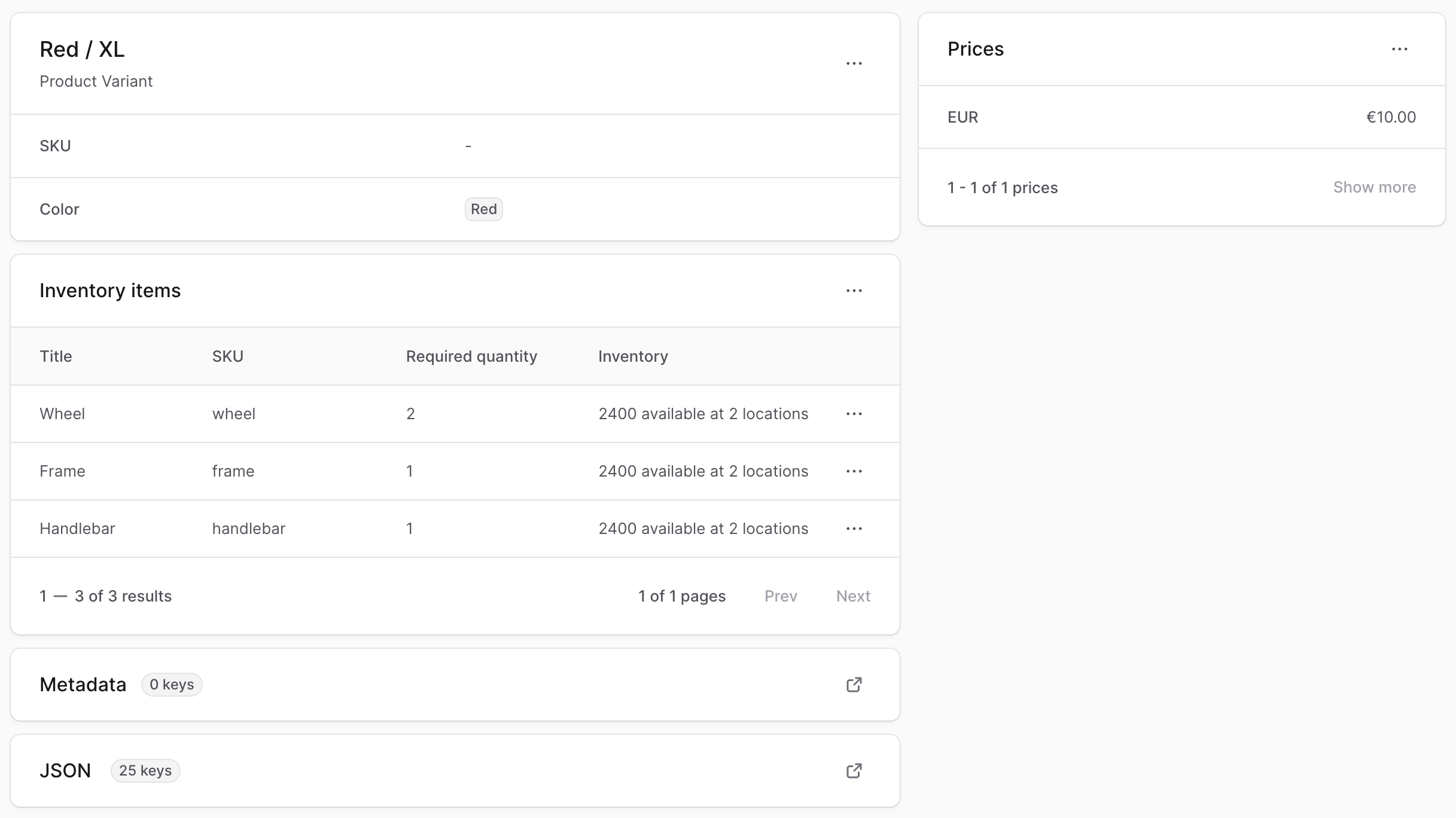
Create Product Variant
You can only create a product variant if there are option combinations that aren’t created as a variant yet. For example, if you [created a new option](https://docs.BoxNCase Partnersjs.com/products/edit#create-options) or deleted an existing variant, you can create a new variant. To create a product variant: You can create a variant to be multi-part or a bundle, as explained in [this guide](https://docs.BoxNCase Partnersjs.com/products/create#types-of-products-to-create).- Click the “Create” button at the top right of the Variants section.
- In the form that opens, there are two steps:
- Details step:
- Enter the variant’s title and optionally SKU.
- For each option, such as Color and Size, choose the variant’s value.
- Enable the “Manage Inventory” toggle if you want BoxNCase Partners to track the inventory of this variant. If disabled, the variant is always considered in stock.
- Enable “Allow backorders” if you want to allow customers to purchase the variant even if it’s out of stock.
- Enable “Has inventory kit” if you want to add multi-part or bundled products. This will show a third step “Inventory Kits” after the Prices step.
- Prices step: Use the [Bulk Editor](https://docs.BoxNCase Partnersjs.com/tips/bulk-editor) to set the variant’s prices for each currency and region in your store.
- Inventory Kits step (optional): If you enabled “Has inventory kit”, you can add the parts of the kit in this step.
- Choose an existing inventory item to be part of the kit.
- Enter the quantity required for a single item of the variant. For example, if the variant is a bicycle and the inventory item is a wheel, you can enter
2in the Quantity field to indicate that the variant requires two wheels. - To add more inventory items, click the “Add” button.
- Details step:
- Once you’re done, click the “Save” button.
- Price columns that have the 🗋 icon are tax-exclusive prices. BoxNCase Partners will calculate taxes during checkout and add them to this price.
- Price columns that have the 🗊 icon are tax-inclusive prices. BoxNCase Partners will calculate taxes during checkout as part of this price.
Edit Product Variant Details
To edit a product variant’s general details:- Go to its product’s details page.
- In the Variants section, click on the ⋮ at the variant’s right.
- Choose “Edit” from the dropdown.
- In the side window that opens:
- You can edit the variant’s title, materials, option values (such as color or size), SKU, EAN, UPC, and barcode.
- You can modify managing inventory, enabling or disabling managing inventory quantity in different locations.
- You can modify allowing backorders, enabling or disabling customers from purchasing the variant even if it’s out of stock.
- You can edit the variant’s attributes, including the variant’s weight, height, width, length, MID code, HS code, and country of origin.
- Once you’re done, click the “Save” button.
Edit Product Variant Prices
To edit the prices of product variants:- Go to its product’s details page.
- Click on the ⋮ at the top right of the section.
- Choose “Edit Prices” from the dropdown.
- In the [bulk editor](https://docs.BoxNCase Partnersjs.com/tips/bulk-editor), you can edit the price of each variant for the currencies and regions in your store.
- Once you’re done, click the “Save” button.
- Price columns that have the 🗋 icon are tax-exclusive prices. BoxNCase Partners will calculate taxes during checkout and add them to this price.
- Price columns that have the 🗊 icon are tax-inclusive prices. BoxNCase Partners will calculate taxes during checkout as part of this price.
Manage Product Variant Inventory
There are many ways to manage the inventory of a product variant. From the product’s details page, you can manage the inventory of its variants using the [bulk editor](https://docs.BoxNCase Partnersjs.com/tips/bulk-editor), providing you with an intuitive interface.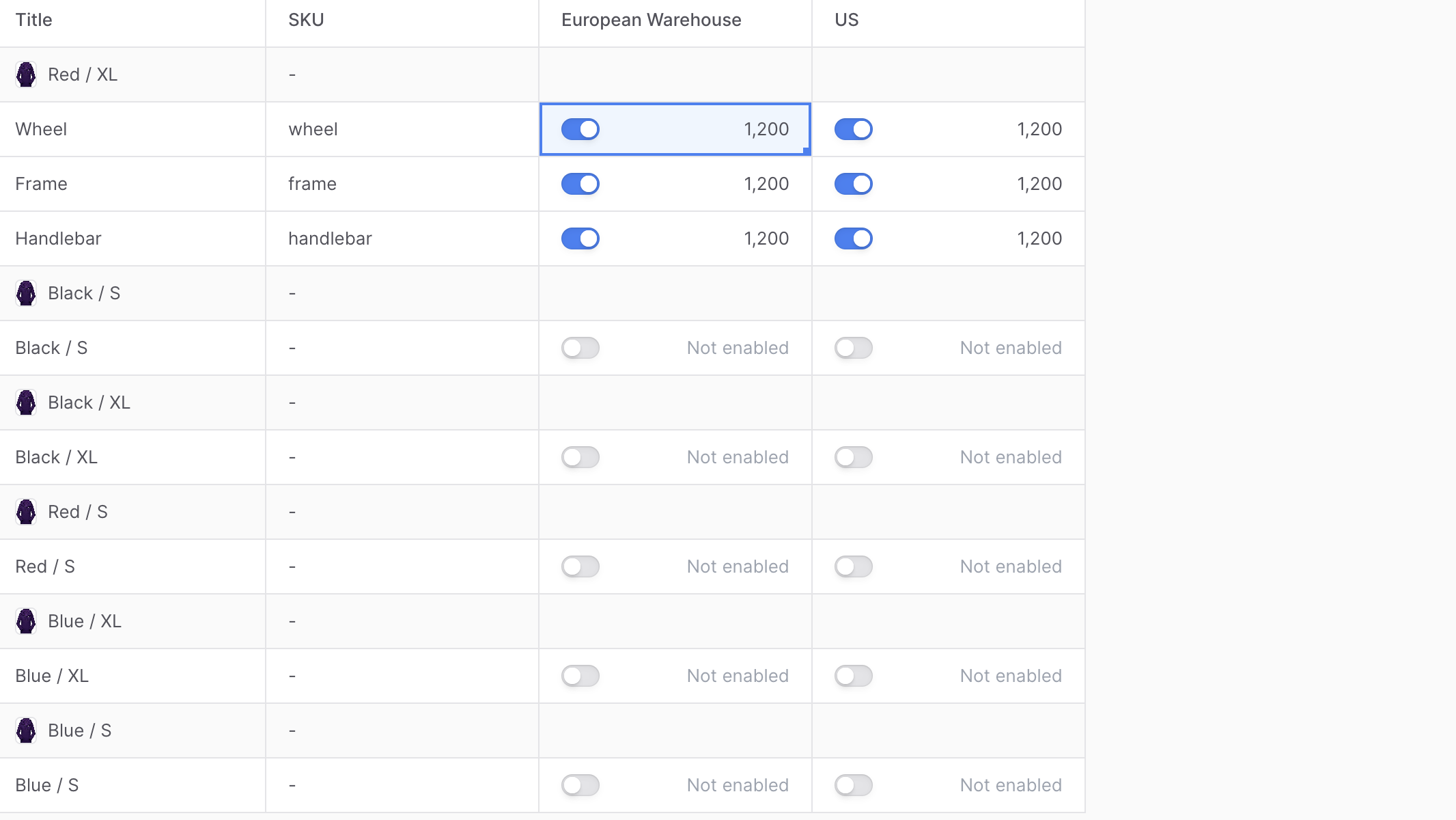 To manage the inventory of a product’s variants:
- Go to its product’s details page.
- Click on the ⋮ at the top right of the section.
- Choose “Edit stock levels” from the dropdown.
- In the bulk editor, the rows are the inventory item(s) of each product variant, and the columns are inventory-related fields to edit, such as SKU and quantity in each stock location.
- Once you’re done, click the “Save” button.
Manage Product Variant Metadata
Metadata is custom data that can be associated with the product variant in key-value pairs. This is usually used by developers for custom integrations or to store additional information about the variant. To manage the metadata of a product variant:- Go to its product’s details page.
- In the Variants section, click on a variant to go to its details page.
- Click on the ↗ at the right of the section.
- In the side window that opens:
- Manage the key-value pairs in the table.
- To add a new row of key-value pairs before or after a row:
- Hover over the row and click the ⋮ icon at its right.
- Choose “Insert row above” or “Insert row below” from the dropdown.
- To delete a row of key-value pairs:
- Hover over the row and click the ⋮ icon at its right.
- Choose “Delete row” from the dropdown.
- Once you’re done, click the Save button.
Product Variant JSON Section
The JSON section is useful for developers to view the raw product variant data in JSON structure. Developers can use this section to debug and troubleshoot issues related to the variant. To view the JSON structure, click on the ↗ icon.Variant Deletion
Variant removal provides cleanup capabilities for obsolete or unwanted product variations.Warning: Variant deletion is irreversible and permanently removes all associated data including pricing, inventory history, and order references.
Prerequisites for Deletion
- Ensure variant is not referenced in pending or recent orders
- Verify inventory levels are properly handled
- Confirm no dependent integrations rely on the variant
- Go to its product’s details page.
- In the Variants section, click on the ⋮ at the variant’s right.
- Choose “Delete” from the dropdown.
- Confirm deletion by clicking “Delete” in the confirmation dialog
- Review the warning about irreversible action
- Ensure you have selected the correct variant
- Consider the impact on existing orders and inventory
Best Practices
Variant Organization
- Consistent Naming: Use systematic naming conventions for variant titles
- Logical SKU Structure: Implement organized SKU patterns for easy identification
- Complete Information: Fill all relevant variant fields for optimal functionality
Inventory Management
- Regular Monitoring: Track inventory levels and stock movements
- Location Coordination: Maintain accurate inventory across multiple locations
- Threshold Management: Set appropriate reorder points and stock alerts
Pricing Strategy
- Competitive Analysis: Regular review of variant pricing vs market conditions
- Regional Considerations: Configure appropriate regional pricing variations
- Tax Compliance: Ensure correct tax configuration for all jurisdictions
Performance Optimization
- Bulk Operations: Use bulk editors for efficient multi-variant management
- Regular Cleanup: Archive or remove obsolete variants to maintain system performance
- Integration Testing: Verify variant changes don’t impact integrated systems
Important: Variants are core components of your product catalog. Changes to variant structure, pricing, or availability can significantly impact customer experience and order fulfillment. Plan modifications carefully and test thoroughly before implementing changes in production.