Manage Order Fulfillments in BoxNCase Partners Admin
In this guide, you’ll learn about order fulfillments and how to manage them, including how to create fulfillments and mark them as shipped.
Overview
A fulfillment represents the process of picking, packing, and shipping items to a customer. You can fulfill all items in an order at once, or fulfill them separately. Then, for each fulfillment, you create a shipment that can have a tracking number, and finally mark the fulfillment as delivered.
Fulfillment processes are handled by the fulfillment provider, such as UPS, associated with the shipping option that the customer has chosen during checkout. You can also use a different shipping option if necessary.
Fulfillments can also be created for order changes like item edits and exchanges.
Order Fulfillment Statuses
At the top of the order details page, you can see the fulfillment status of the order. The fulfillment status can be one of the following:
| Status | Description |
|---|
| Not Fulfilled | No items have been fulfilled |
| Partially Fulfilled | Some items have been fulfilled |
| Fulfilled | All items have been fulfilled |
| Partially Shipped | Some fulfilled items have been shipped |
| Shipped | All fulfilled items have been shipped |
| Partially Delivered | Some shipped items have been delivered |
| Delivered | All items have been delivered or picked up |
| Partially Returned | Some items have been returned |
| Returned | All items have been returned |
| Canceled | Fulfillment has been canceled |
Create Fulfillment
To create a fulfillment for an order:
- Open the order’s details page.
- Scroll down to the Unfulfilled Items section.
- Click on the ⋯ icon.
- Choose “Fulfill items” from the dropdown.
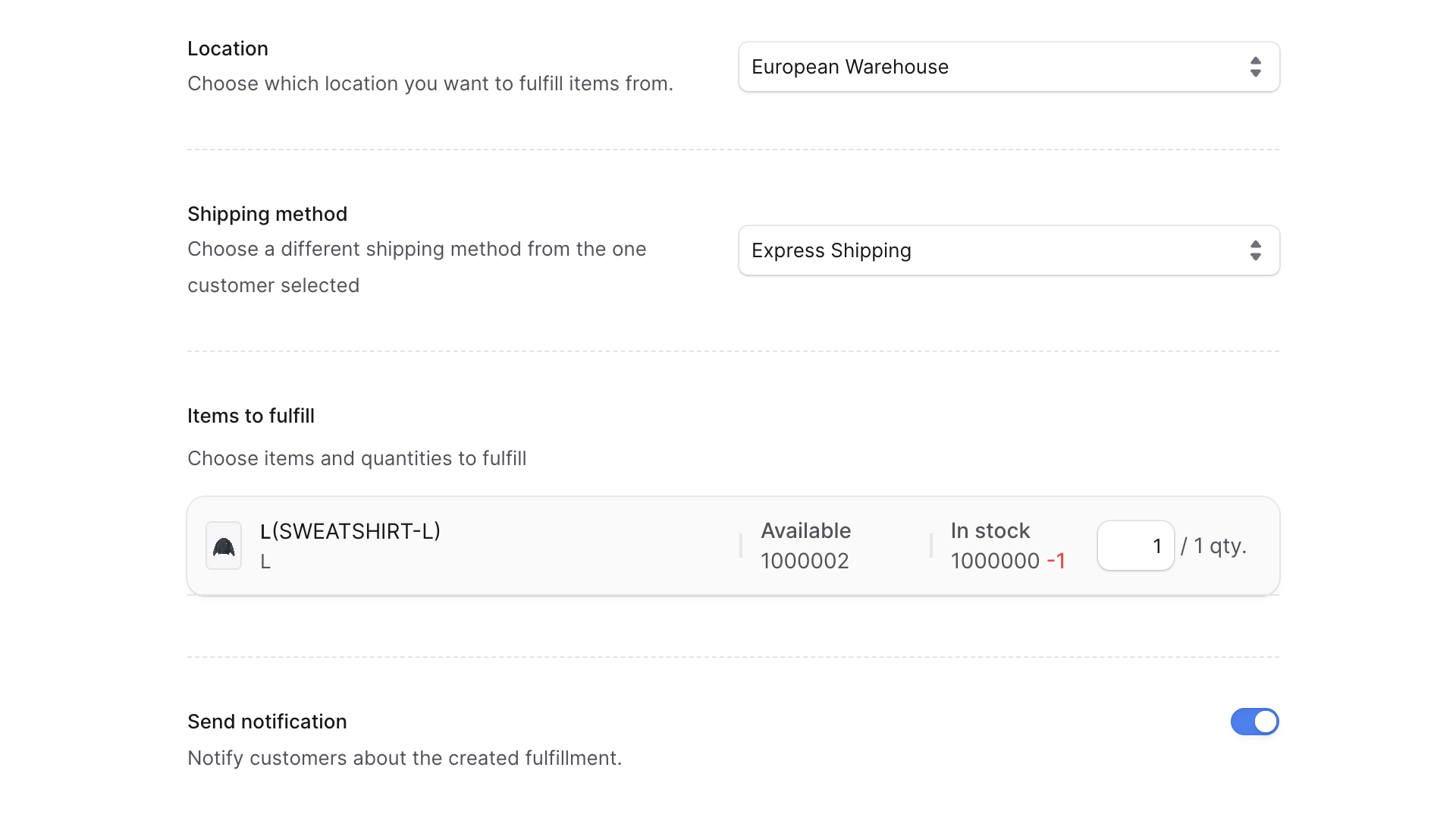
- In the form that opens:
- For Location, choose the location you want to fulfill the items from. By default, the location is set to that associated with the chosen shipping method.
- If you change the location, the available shipping methods will also change and that will impact which stock locations the items are fulfilled from. If the item doesn’t have stock in the chosen location, the fulfillment will fail.
- For Shipping method, choose the shipping method to fulfill the items with. By default, the shipping method is set to that chosen by the customer during checkout.
- The shipping methods available are based on the location you choose. If you want to choose a shipping method that isn’t available, you need to change the location first.
- If you choose a shipping method with a different price, BoxNCase Partners doesn’t change the shipping total of the order.
- Under Items to fulfill, enter the quantity to fulfill for each item. This is also the quantity subtracted from the stock in the chosen location if BoxNCase Partners manages the variant’s inventory.
- If you don’t want to fulfill an item, change its quantity to 0.
- If you don’t want the customer to receive a notification that a fulfillment has been created, uncheck the Send notifications toggle.
- Once done, click on the Create Fulfillment button.
 After creating the fulfillment, a new section is shown with the header “Fulfillment #1”, where
 #1 is the number of the fulfillment in the order. If there are no unfulfilled items, the “Unfulfilled Items” section is removed.
This can also change the order’s fulfillment status to Partially Fulfilled or Fulfilled depending on the items fulfilled.
Add a Shipment to a Fulfillment
You can only add a shipment to a fulfillment if its shipping option isn’t a pickup option.
After you create a fulfillment, you can add a shipment to it. A shipment can have a tracking number and marks the fulfillment as shipped.
⚠️ Adding a shipment to a fulfillment is irreversible. You can’t cancel the fulfillment or the order afterwards.
To add a shipment for a fulfillment:
- Open the order’s details page.
- Scroll down to the Fulfillment’s section. If you have more than one fulfillment, find the fulfillment you’re looking for.
- Click on the Mark as shipped button at the bottom right of the section.
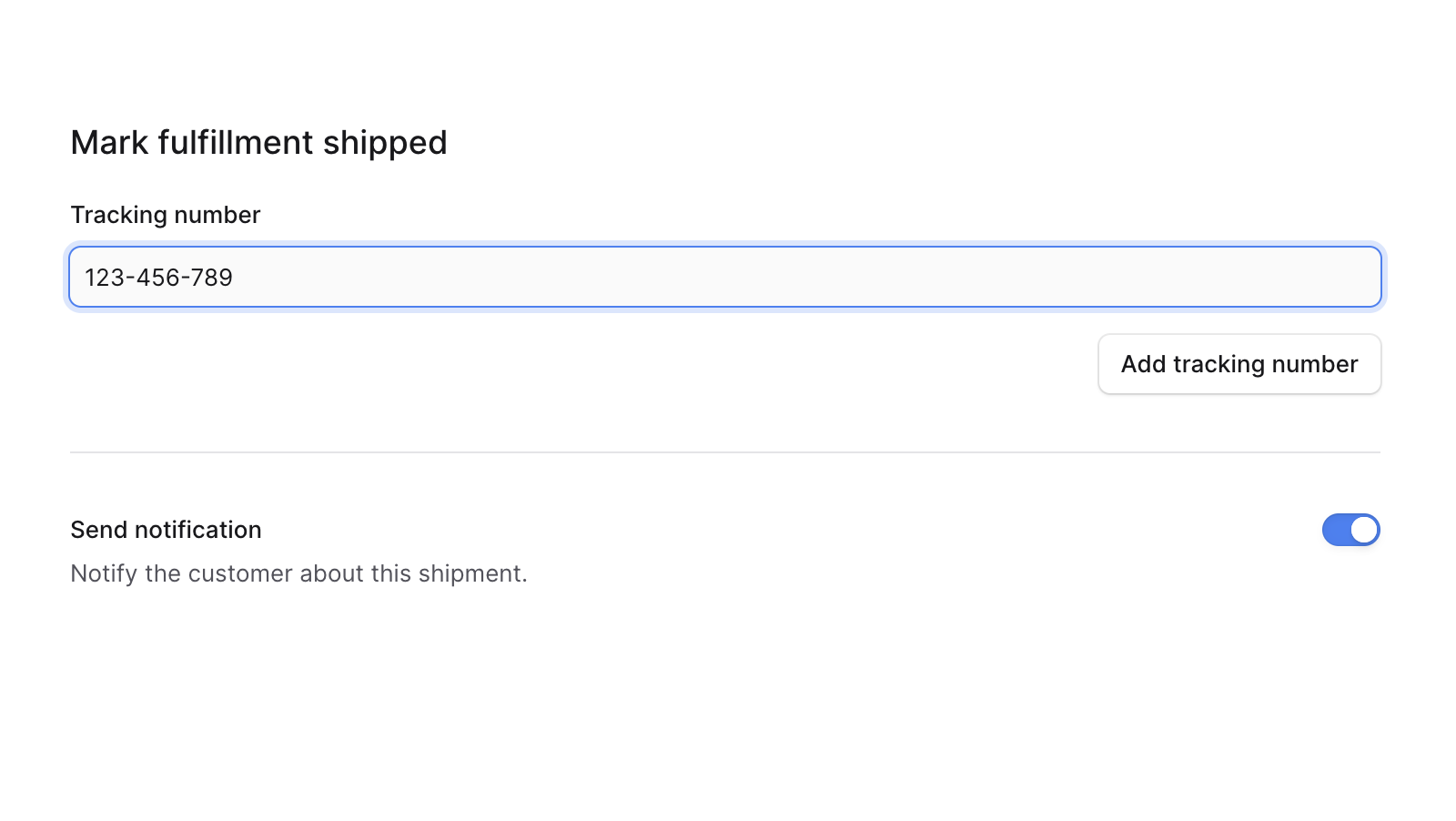
- In the form that opens:
- To add a tracking number, click on the Add tracking number button, then enter a tracking number.
- If you don’t want the customer to receive a notification that the fulfillment has been shipped, uncheck the Send notifications toggle.
- Once you’re done, click the Save button.
 This changes the order’s fulfillment status to Partially Shipped or Shipped depending on the items shipped.
Mark Fulfillment as Delivered
You can only mark a fulfillment as delivered if its shipping option isn’t a pickup option.
You can mark a fulfillment as delivered, even if it hasn’t been shipped. This can be useful if you deliver items to the customer using external methods.
⚠️ Marking a fulfillment as delivered is irreversible. You can’t cancel the fulfillment or the order afterwards, and you can’t add shipments to the fulfillment.
To mark the fulfillment as delivered:
- Open the order’s details page.
- Scroll down to the Fulfillment section. If you have more than one fulfillment, find the fulfillment you’re looking for.
- Click on the Mark as delivered button at the bottom right of the section.
- Confirm marking the fulfillment as delivered by clicking the Continue button in the pop-up.
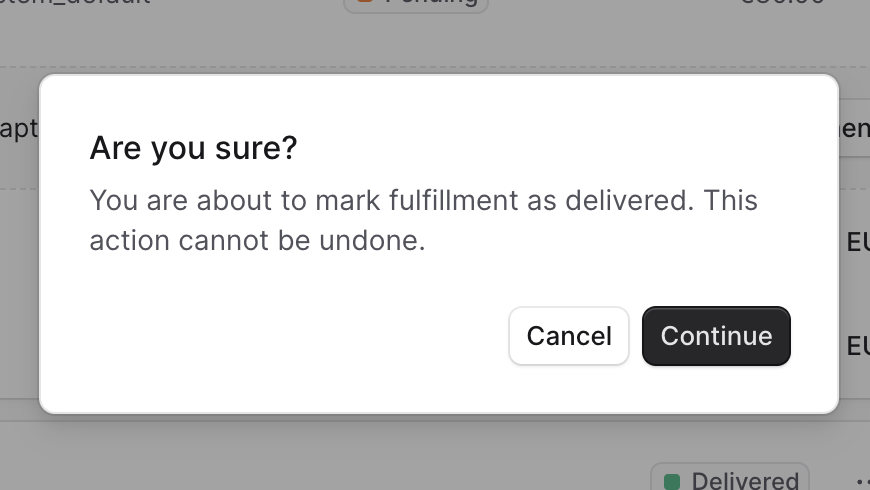 This changes the order’s fulfillment status to Partially Delivered or Delivered depending on the items delivered.
Mark Fulfillment as Picked Up
If the fulfillment’s shipping option is a pickup option, you can mark the fulfillment as picked up. This can be useful if the customer picks up the items in person.
⚠️ Marking a fulfillment as picked up is irreversible. You can’t cancel the fulfillment or the order afterwards.
To mark the fulfillment as picked up:
- Open the order’s details page.
- Scroll down to the Fulfillment section. If you have more than one fulfillment, find the fulfillment you’re looking for.
- Click on the Mark as picked up button at the bottom right of the section.
- Confirm marking the fulfillment as picked up by clicking the Continue button in the pop-up.
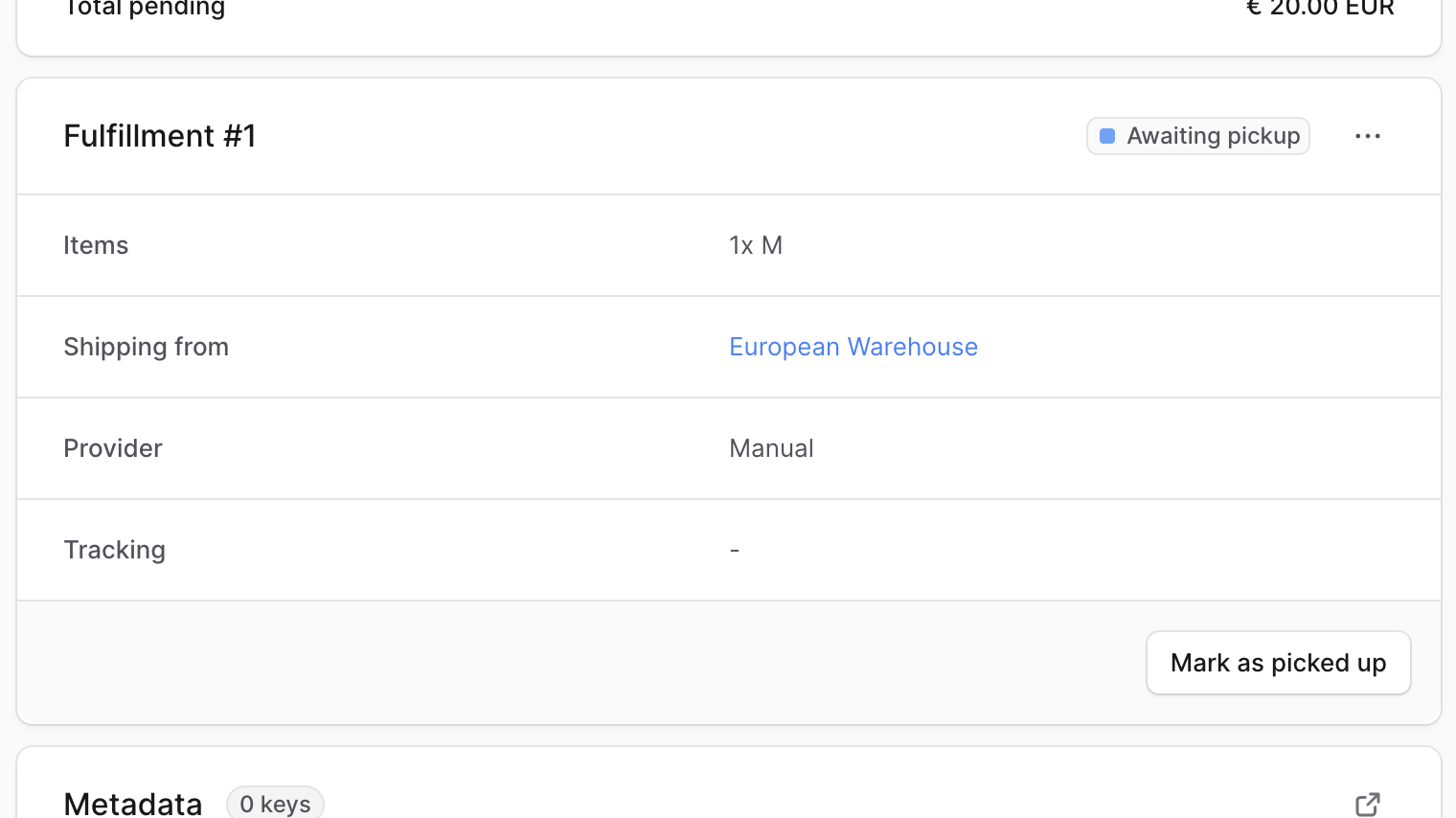 This changes the order’s fulfillment status to Partially Delivered or Delivered depending on the items picked up.
Cancel a Fulfillment
You can cancel a fulfillment if you haven’t shipped or marked it as delivered yet. This can be useful if you need to change the items fulfilled or if the customer cancels the order.
To cancel a fulfillment in an order:
- Open the order’s details page.
- Scroll down to the Fulfillment section. If you have more than one fulfillment, find the fulfillment you’re looking for.
- Click on the ⋯ icon at the top right of the section.
- Click on Cancel in the dropdown.
- Confirm canceling the fulfillment by clicking the Continue button in the pop-up.
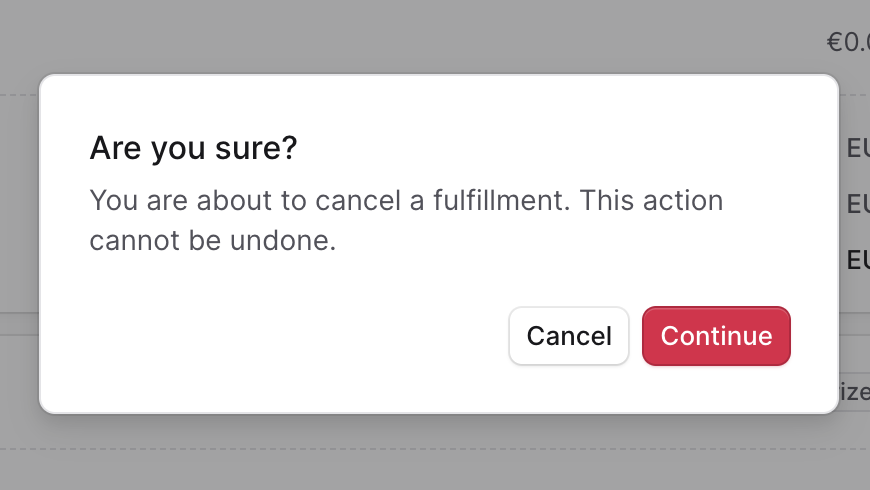 This changes the order’s fulfillment status to Canceled. Also, the Unfulfilled Items section is shown again, and you can create a new fulfillment.
Key Features
BoxNCase fulfillment management offers:
- Flexible Fulfillment: Fulfill entire orders or partial quantities
- Multiple Fulfillments: Create separate fulfillments for different items
- Location Management: Choose which location to fulfill items from
- Shipping Integration: Work with various shipping providers and methods
- Tracking Support: Add shipment tracking numbers for customer visibility
- Status Updates: Track fulfillment progress from creation to delivery
- Inventory Integration: Automatically update stock levels when fulfilling
- Customer Notifications: Keep customers informed of fulfillment status
Fulfillment Workflow
The typical fulfillment process follows these steps:
- Create Fulfillment: Select items, location, and shipping method
- Pick & Pack: Prepare items for shipment (handled by your team)
- Add Shipment: Mark as shipped and add tracking information
- Track Progress: Monitor shipment status
- Mark as Delivered/Picked Up: Complete the fulfillment process
Once you mark a fulfillment as shipped, delivered, or picked up, you cannot cancel it or the order. Make sure all details are correct before confirming these actions.
Best Practices
- Verify Stock Levels: Check available inventory before creating fulfillments
- Choose Correct Location: Ensure the fulfillment location has adequate stock
- Update Tracking: Add tracking numbers promptly for better customer experience
- Monitor Status: Regularly check fulfillment progress to identify issues
- Coordinate with Warehouse: Ensure your fulfillment team understands the process
- Handle Exceptions: Address inventory shortages or shipping issues quickly

