

Product Tags Management in BoxNCase Admin
Enhance your BoxNCase store’s product discoverability with flexible tagging systems. Create dynamic classification methods that improve searchability, enable advanced filtering, and provide customers with intuitive product navigation.Overview
Product tags enable:- Flexible product classification beyond types
- Enhanced search and filtering capabilities
- Dynamic product grouping and associations
- Improved customer navigation experience
- Advanced marketing and promotional targeting
View Product Tags
Product Tag Flexibility: Tags provide dynamic, multi-dimensional product classification: Tag Examples by Category:- Attributes: waterproof, organic, handmade, vintage
- Occasions: wedding, birthday, holiday, graduation
- Demographics: men, women, kids, seniors
- Features: wireless, rechargeable, portable, premium
- Styles: modern, classic, trendy, minimalist
- Seasons: summer, winter, back-to-school, holiday
- Multiple tags per product (vs. single type)
- Easy addition and removal without restructuring
- Customer-facing filtering and search enhancement
- Marketing campaign targeting capabilities
- Trend-based categorization flexibility
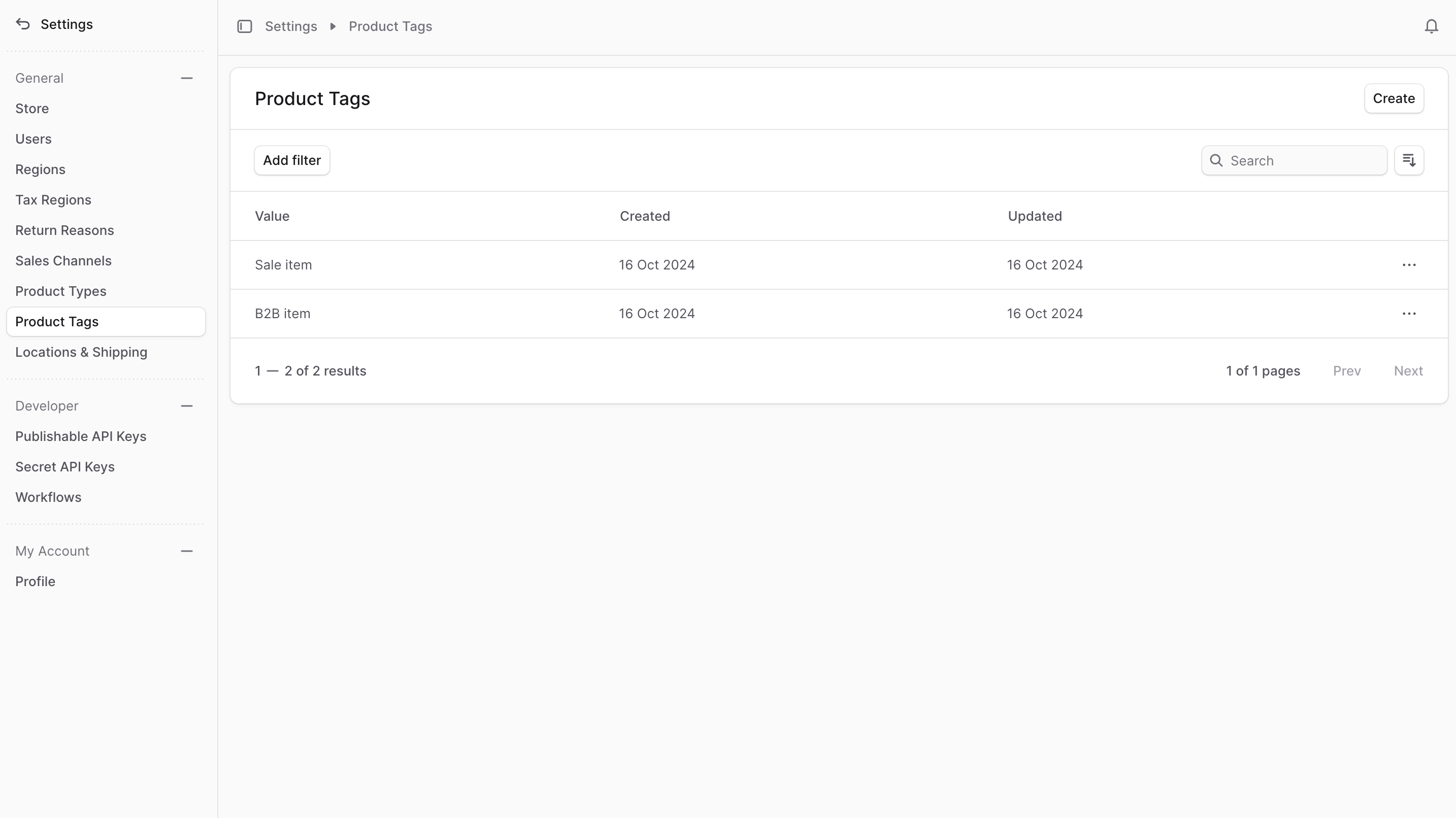
Create Product Tag
To create a product tag:- Go to Settings → Product Tags.
- Click the Create button at the top right.
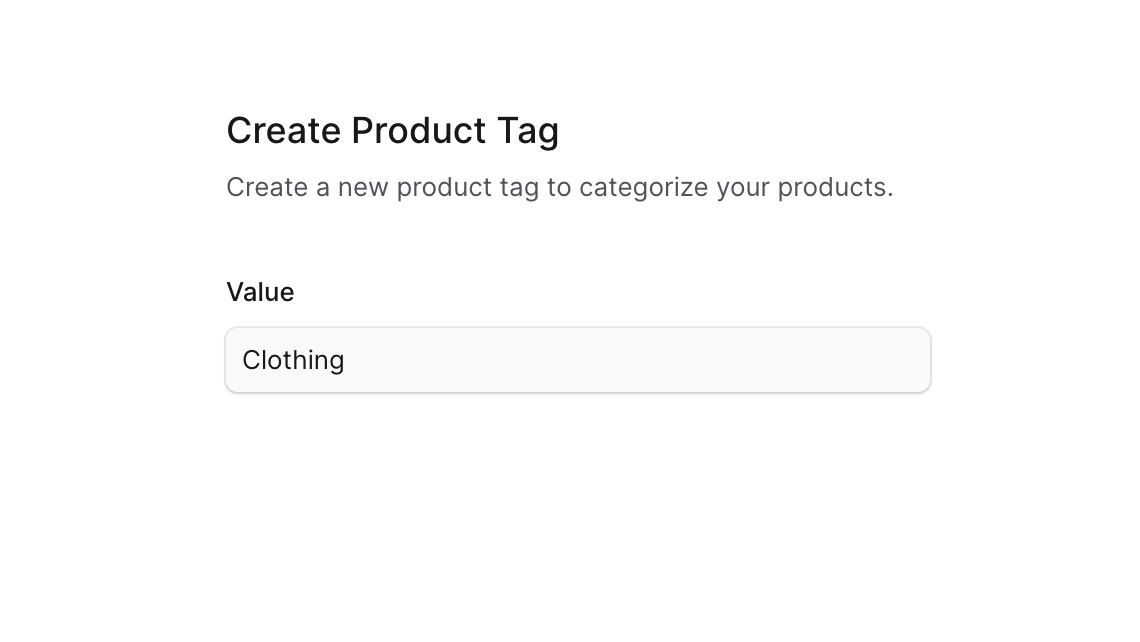
- In the form that opens, enter a value for the product tag in the Value field. For example, “Digital”.
- Once you’re done, click the Create button.
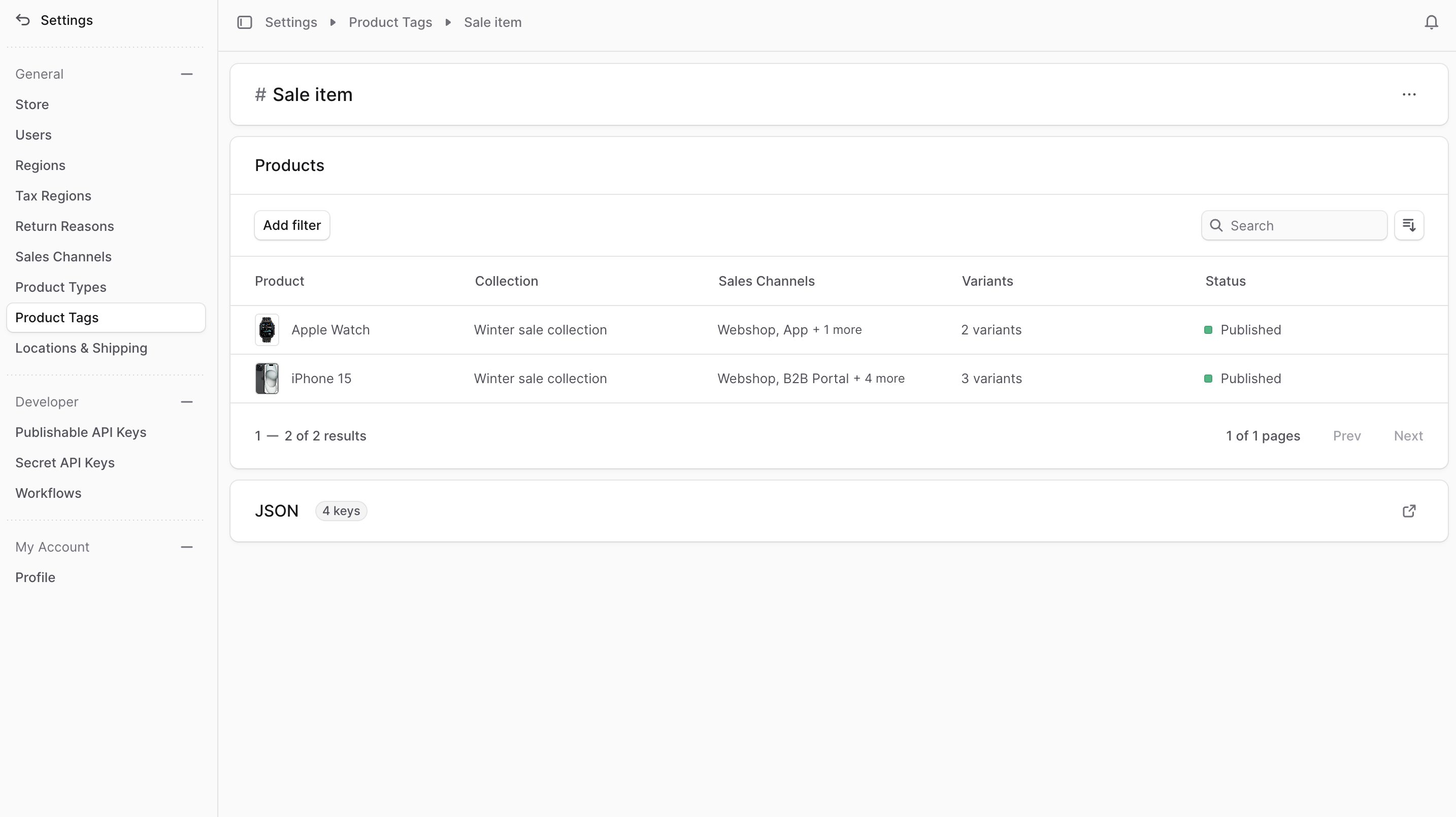
View Product Tag Details
To view the details of a product tag:- Go to Settings → Product Tags.
- Click on a product tag from the list.
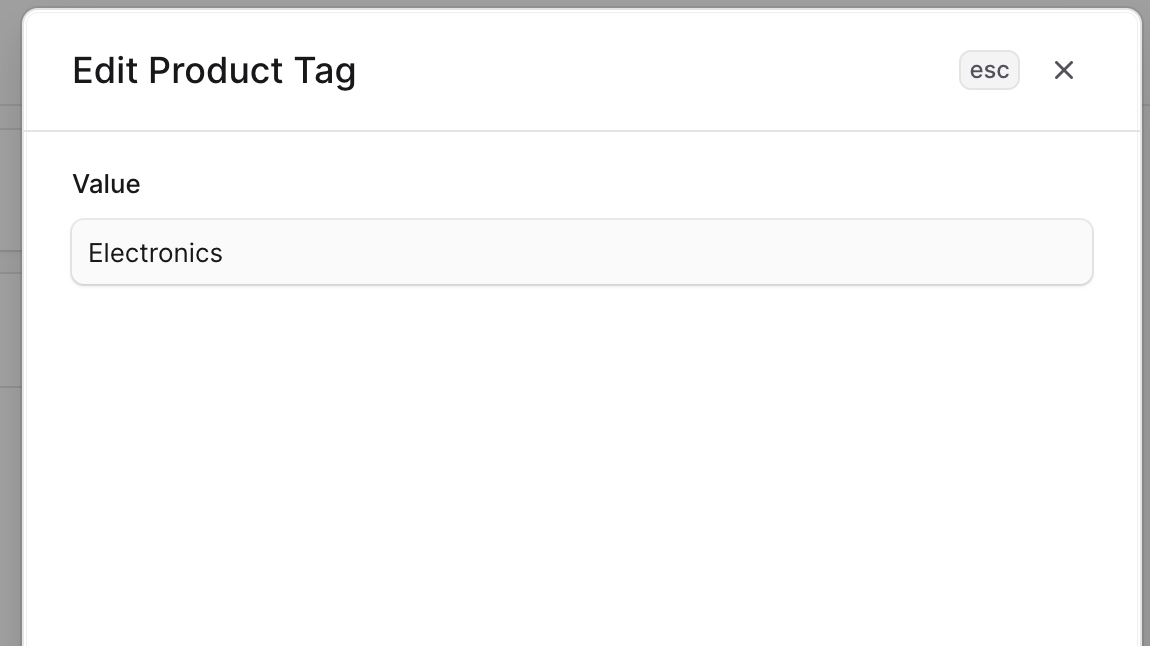
Edit Product Tag Details
To edit the details of a product tag:- Go to the product tag’s details page.
- Click the ⋯ icon at the top right of the first section.
- Choose Edit from the dropdown.
- In the side window that opens, you can edit the product tag’s value.
- Once you’re done, click the Save button.
Manage Products in Tag
Product Tag Management: Manage product tags through the product’s details page. Tagging Best Practices:- Use consistent, standardized tag names
- Create a tag taxonomy guide for your team
- Regularly review and consolidate similar tags
- Consider customer search behavior when creating tags
- Use descriptive, customer-friendly tag names
- Implement tag approval workflows for consistency
- Seasonal promotions and collections
- Cross-selling and upselling opportunities
- Customer segmentation and personalization
- Inventory management and reporting
- SEO optimization and content marketing
- Establish naming conventions
- Regular tag audits and cleanup
- Team training on tag standards
- Monitor tag performance and usage
- Retire obsolete or underused tags
Delete Product Tag
Deleting a product tag is irreversible. To delete a product tag:- Go to the product tag’s details page.
- Click the ⋯ icon at the top right of the first section.
- Choose Delete from the dropdown.
- Confirm the deletion by clicking the Delete button in the pop-up.