

Manage Reservations in BoxNCase Partners Admin
Learn how to effectively manage inventory reservations in your BoxNCase Partners store. The reservation system ensures accurate inventory allocation and prevents overselling by automatically reserving stock when customers make purchases.What is a Reservation?
A reservation is a reserved quantity of an inventory item that ensures specific stock is allocated and unavailable for other sales. BoxNCase Partners uses reservations to maintain inventory accuracy and prevent overselling.Automatic Reservations
BoxNCase Partners automatically creates reservations for inventory items when:- Customers make purchases: Stock is immediately reserved upon order placement
- Order processing begins: Ensures inventory isn’t sold to other customers
- Payment is processed: Maintains stock allocation during fulfillment
Manual Reservations
You can manually create reservations for various business scenarios:- Offline sales: Reserve items for in-store or phone orders
- Special customer requests: Hold items for VIP customers or special orders
- Event planning: Reserve inventory for trade shows or promotional events
- B2B orders: Hold stock for wholesale or bulk order negotiations
View Reservations
To view reservations, go to Inventory from the sidebar, then click the Reservations sub-item shown in the sidebar. In the list, you can see reservation details such as the SKU and reserved quantity. You can also search, filter, and sort the reservations to find the specific item you are looking for.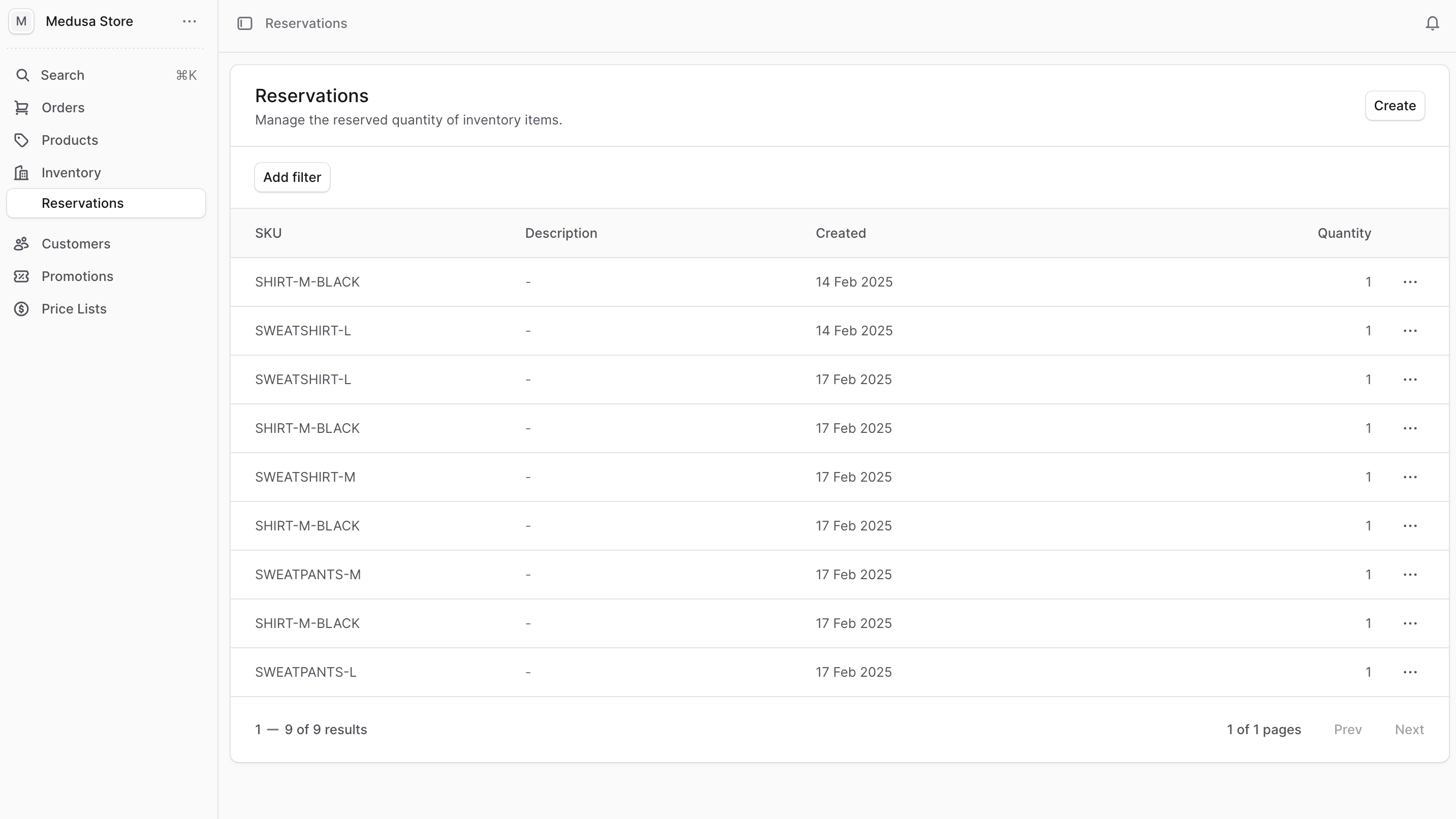
Create a Reservation
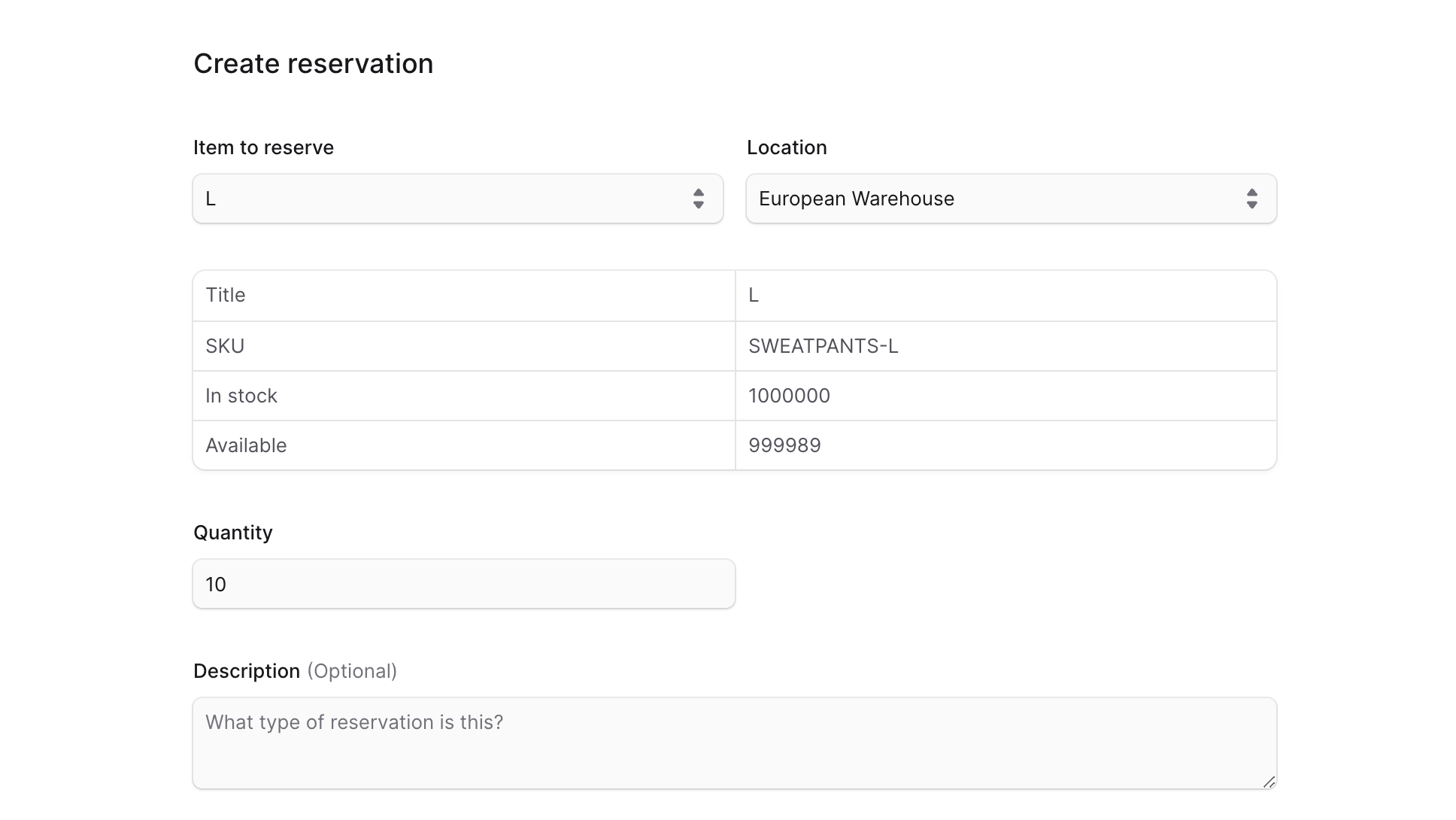
To create a reservation manually:- Go to Inventory → Reservations.
- Click on the Create button at the top right.
- In the form that opens:
- For the Item to reserve field, enter or choose the SKU of the item you want to create a reservation for.
- For the Location field, select the location where the reservation is created.
- Set the reserved quantity in the “Quantity” field.
- The table above the field shows you how many available quantities of the item are in the chosen location. When you make changes to the Quantity field, the availability will be updated in the table to reflect the change.
- You can optionally add a description in the Description field.
- Once you’re done, click the Create button.
View Reservation Details
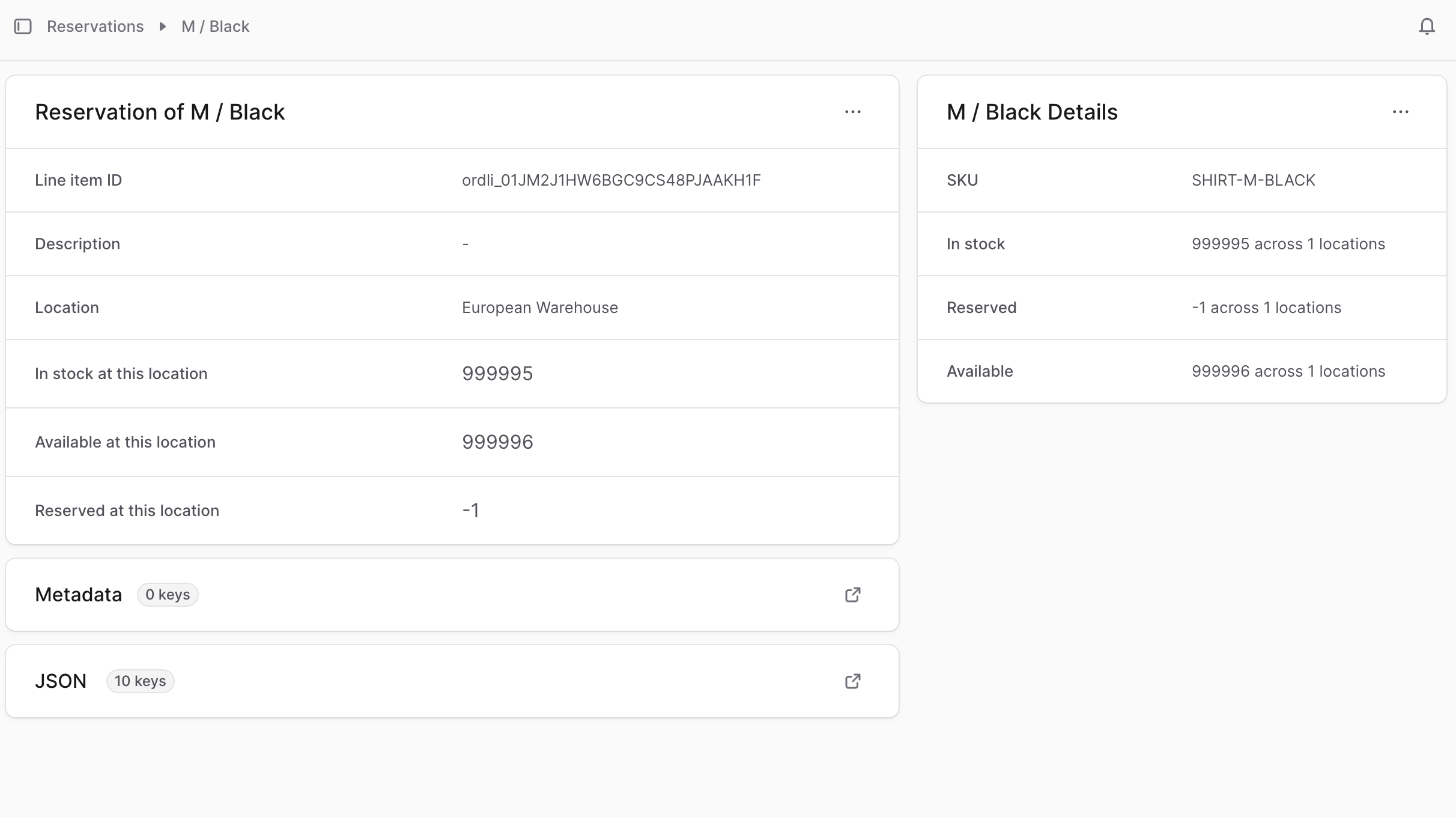
To view a reservation’s details:- Go to Inventory ’ Reservations.
- Click on the reservation you want to view.
Edit Reservation
To edit a reservation:- Go to Inventory → Reservations.
- Find the reservation you want to edit, and click the ⋯ icon on its right.
- Choose Edit from the dropdown.
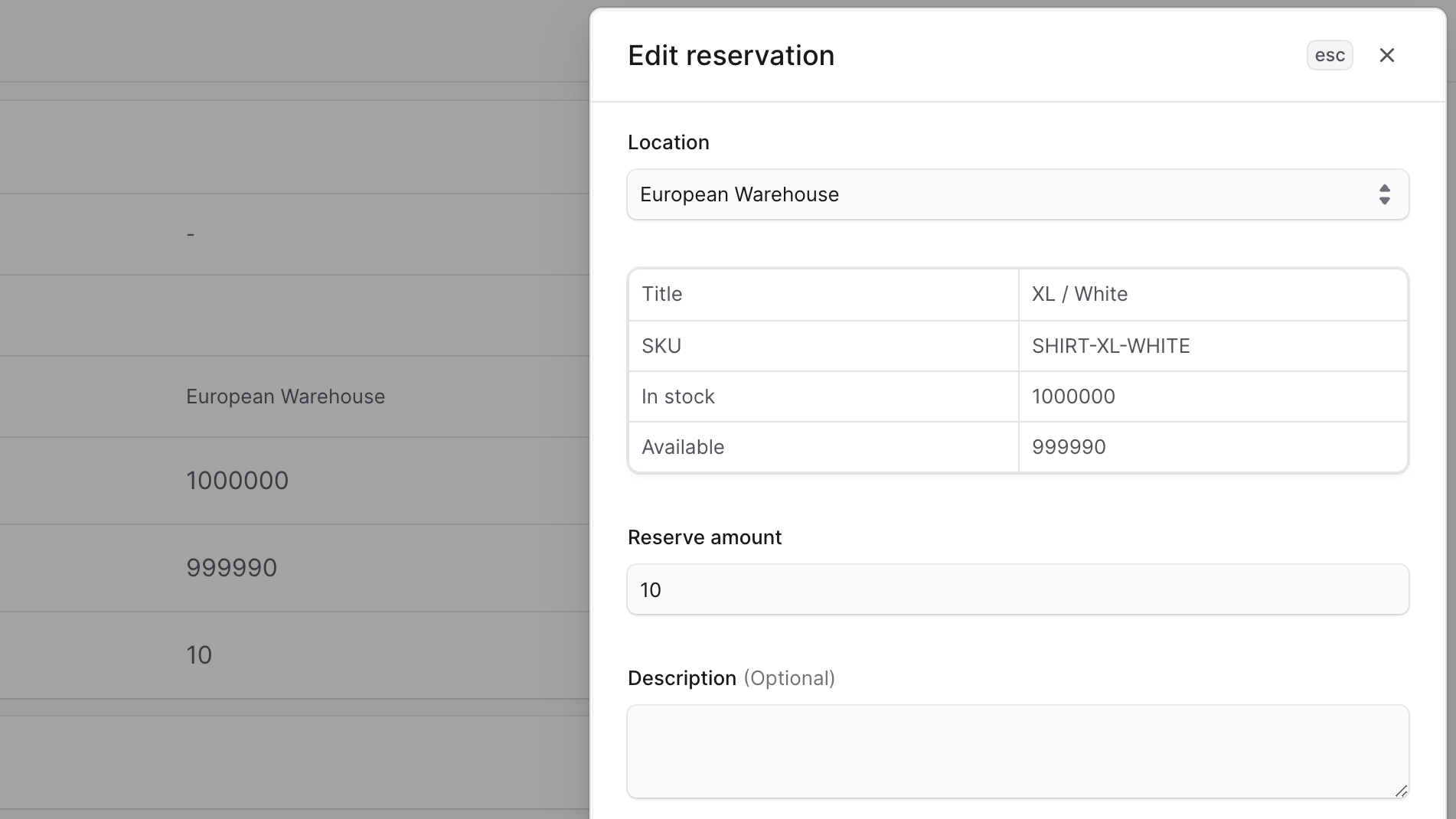
- In the side window that opens, you can edit the reservation’s location, reserved quantity, and description.
- Once you’re done, click the Save button.
Edit Reservation Metadata
Metadata is custom data that can be associated with the reservation in key-value pairs. This is usually used by developers for custom integrations or to store additional information about the reservation. To edit the reservation’s metadata:- Go to the reservation’s details page.
- Click the ↗ icon at the right of the “Metadata” section.
- In the side window that opens:
- Manage the key-value pairs in the table.
- To add a new row of key-value pairs before or after a row:
- Hover over the row and click the ⋮ icon at its right.
- Choose “Insert row above” or “Insert row below” from the dropdown.
- To delete a row of key-value pairs:
- Hover over the row and click the ⋮ icon at its right.
- Choose “Delete row” from the dropdown.
- Once you’re done, click the Save button.
Delete Reservation
Deleting a reservation is irreversible. If you delete a reservation created for an order, you may need to [allocate the item in the order again](https://docs.BoxNCase Partnersjs.com/orders/manage#allocate-order-items-manually). To delete a reservation:- Go to Inventory → Reservations.
- Find the reservation you want to delete, and click the ⋯ icon on its right.
- Choose Delete from the dropdown.
- Confirm deleting the reservation by clicking the Delete button in the pop-up.