

Manage Product Collections in BoxNCase Admin
Product collections are powerful organizational tools that group products sharing common themes or purposes. This comprehensive guide covers collection creation, management, and best practices for leveraging collections to enhance customer browsing and marketing effectiveness.Understanding Product Collections
Product collections serve as thematic organizational structures that group related products together, enhancing both customer experience and marketing capabilities.Collection Purpose and Benefits
Customer Experience Enhancement- Curated Discovery: Help customers find related products easily
- Thematic Browsing: Enable browsing by season, style, or purpose
- Simplified Navigation: Reduce overwhelming product choice with organized groupings
- Promotional Campaigns: Create targeted collections for seasonal sales
- Brand Storytelling: Showcase product relationships and lifestyle themes
- Inventory Management: Organize products for easier internal management
Collection Characteristics
- Single Collection Membership: Each product belongs to only one collection
- Flexible Themes: Collections can be seasonal, category-based, or promotional
- URL-Friendly Structure: Collections have unique handles for SEO-friendly URLs
- Metadata Support: Store additional information for custom integrations
Note: Product collection assignment is managed through the product organization settings.
Product Collections List
To view all product collections, go to the Products → Collections page. From here, you can see a list, filter, and search through all collections.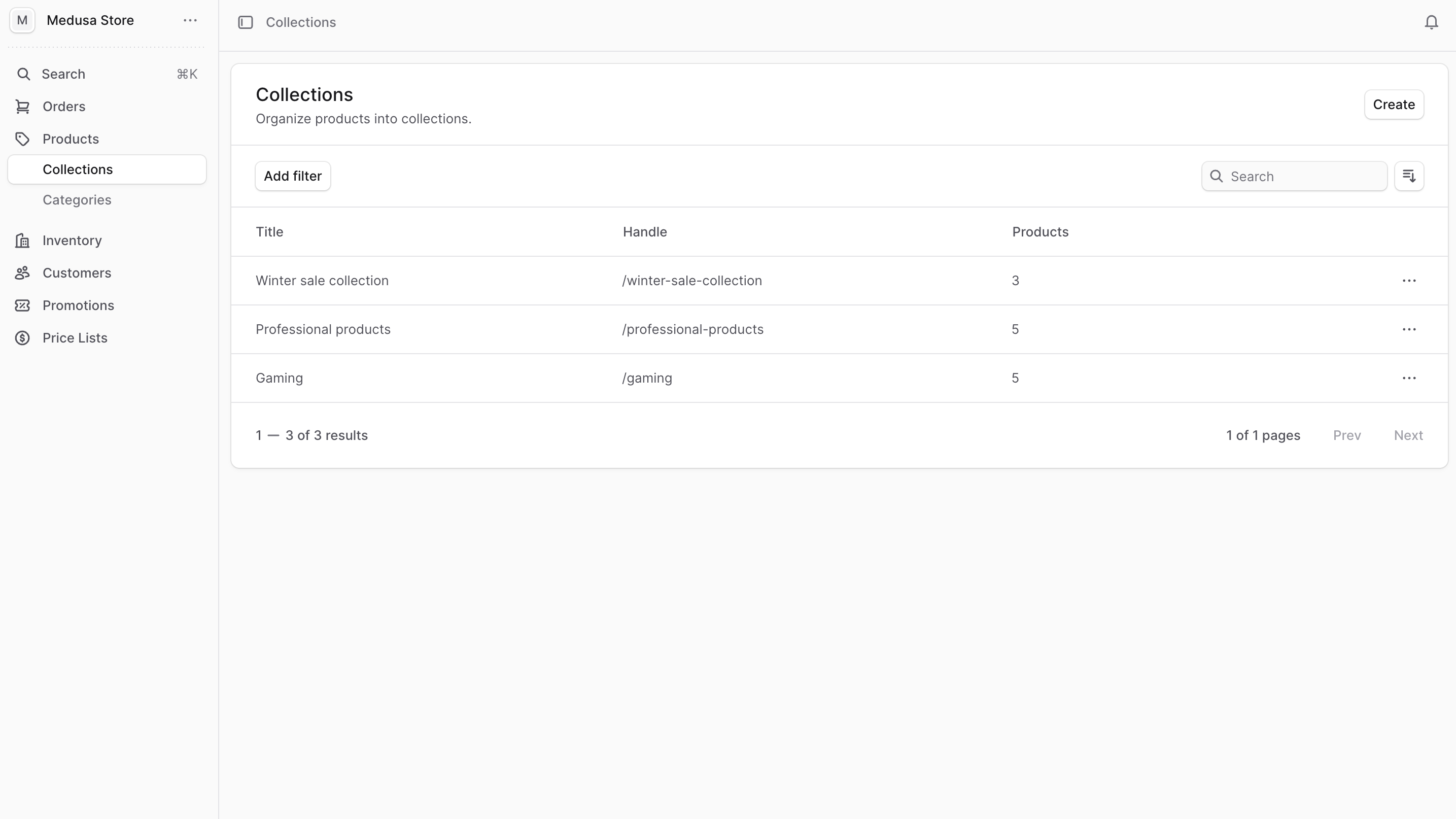
Create Product Collection
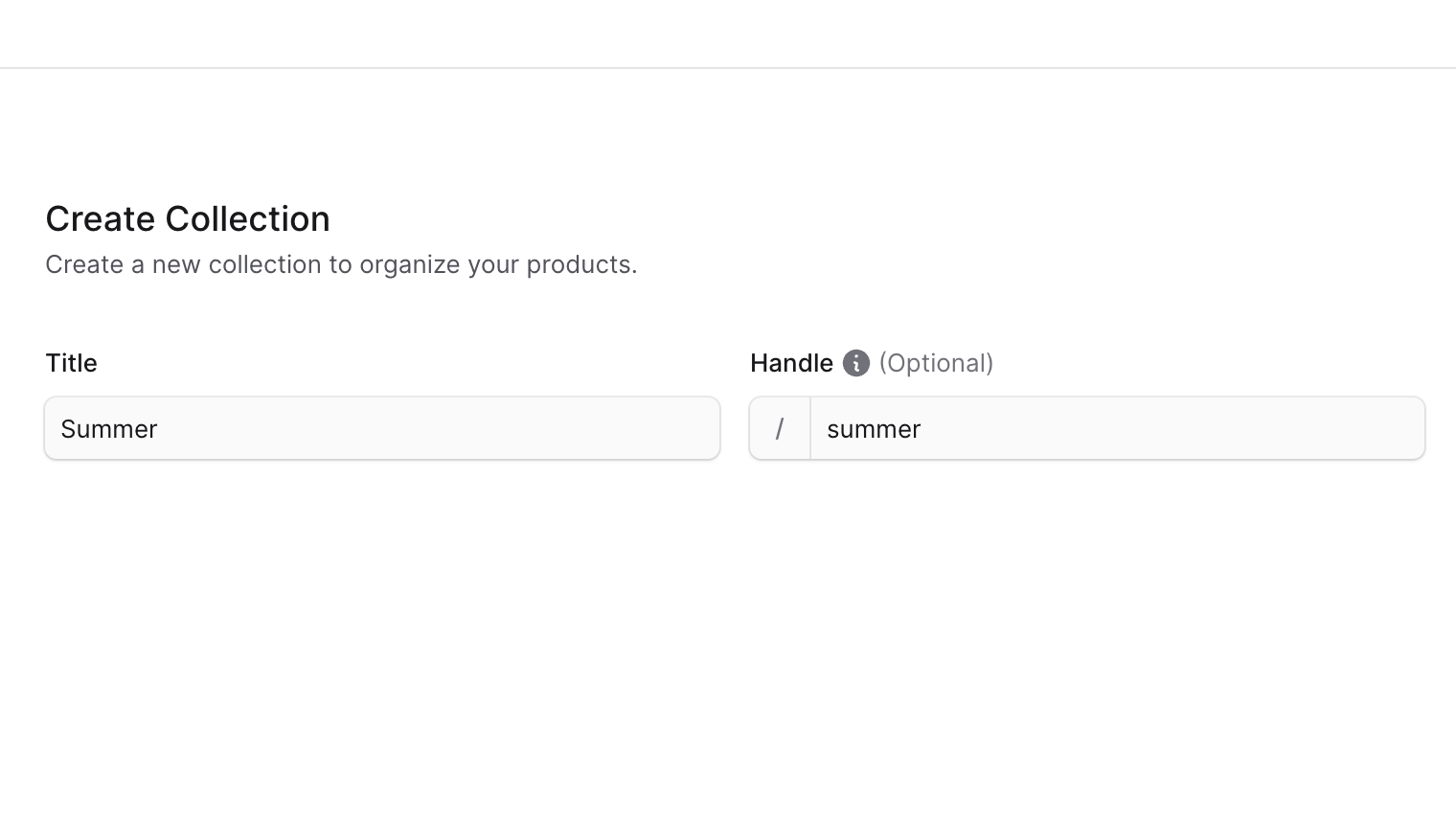
To create a collection:- Go to the Products → Collections page.
- Click on the Create button at the top right.
- In the form that opens:
- Enter the collection’s name in the Title field.
- The value of the Handle field is used in the collection’s URL on the storefront. It allows you to create a human-readable URL for the collection. The handle must be unique across all collections, and it must contain lowercase letters, numbers, and hyphens (
-). If not specified, BoxNCase Partners will generate a handle from the title.
- Once done, click the Create button.
View Product Collection’s Details
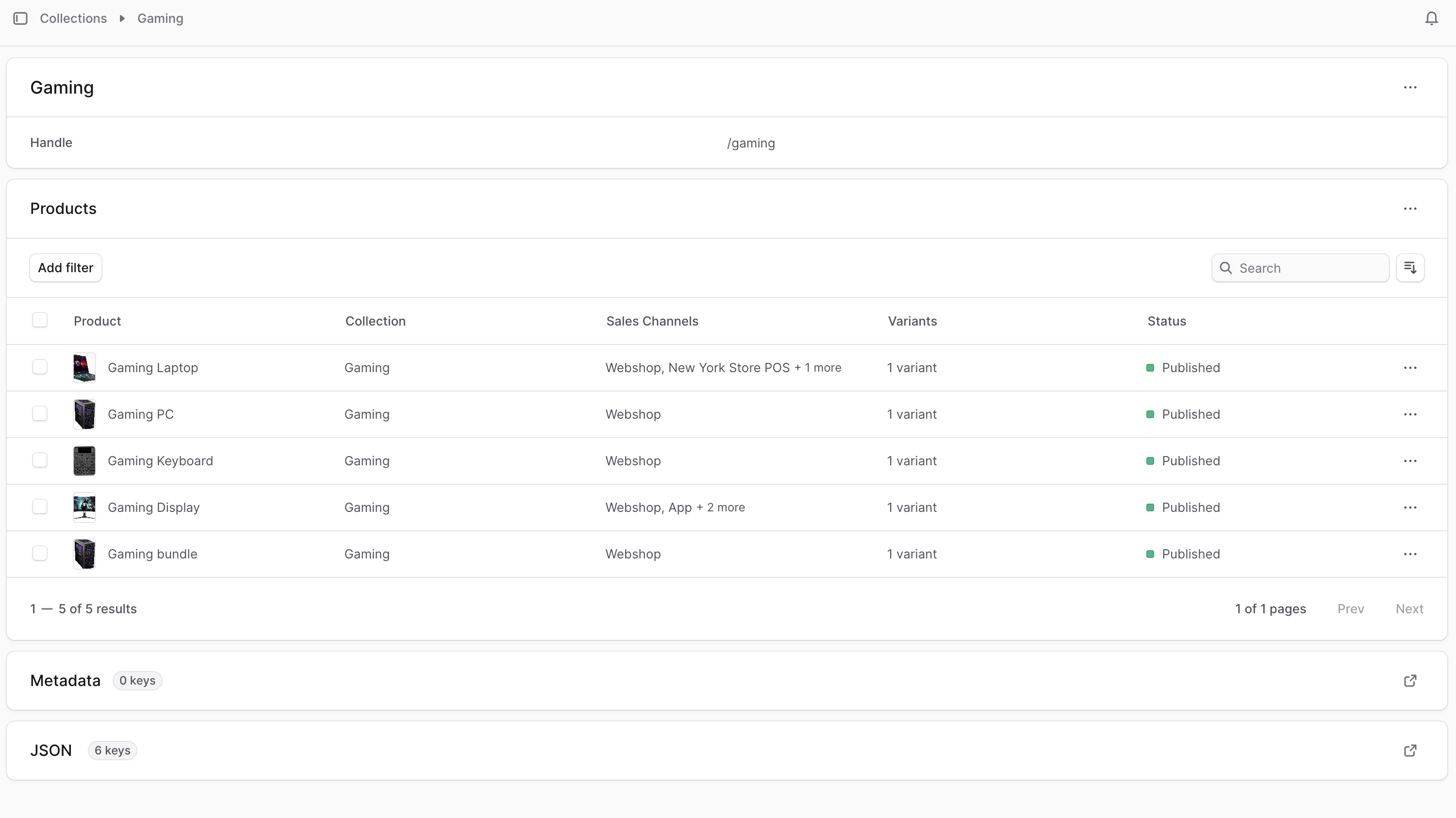
To view a collection’s details:- Go to the Products → Collections page.
- From the list, choose the collection you want to view.
Edit Product Collection
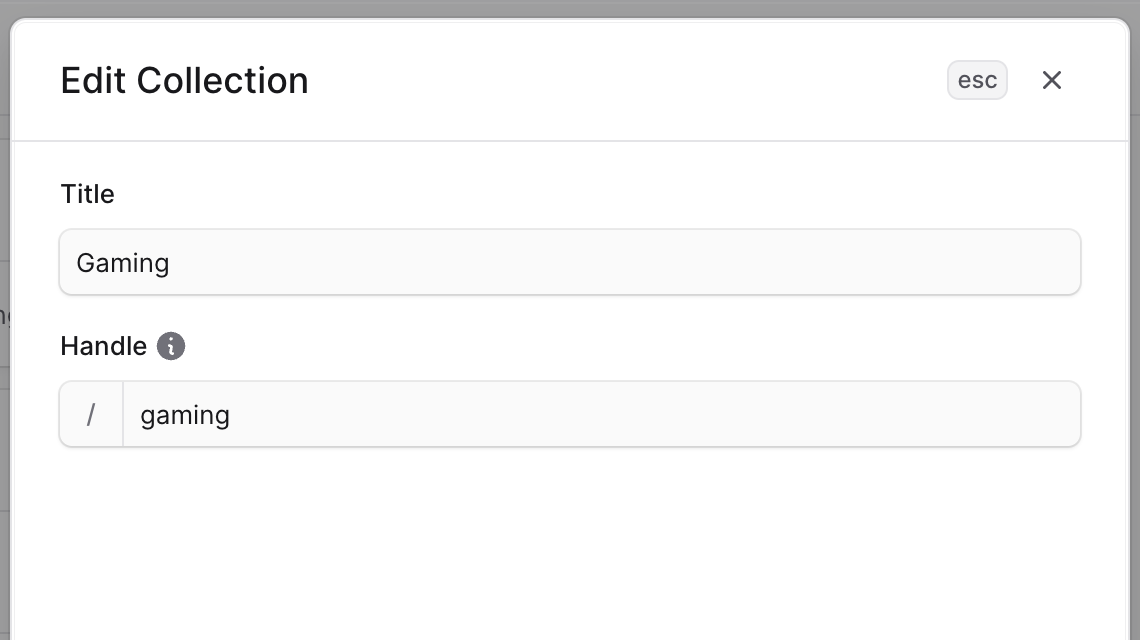
To edit a collection:- Go to the collection’s details page.
- Click on the ⋯ icon at the top right of the first section.
- Choose Edit from the dropdown.
- In the side window that opens, you can edit the collection’s title and handle.
- Once done, click the Save button.
Edit Product Collection Metadata
Metadata is custom data that can be associated with the product collection in key-value pairs. This is usually used by developers for custom integrations or to store additional information about the product collection. To edit the product collection’s metadata:- Go to the product collection’s details page.
- Click the ↗ icon at the right of the “Metadata” section.
- In the side window that opens:
- Manage the key-value pairs in the table.
- To add a new row of key-value pairs before or after a row:
- Hover over the row and click the ⋮ icon at its right.
- Choose “Insert row above” or “Insert row below” from the dropdown.
- To delete a row of key-value pairs:
- Hover over the row and click the ⋮ icon at its right.
- Choose “Delete row” from the dropdown.
- Once you’re done, click the Save button.
Manage Collection’s Products
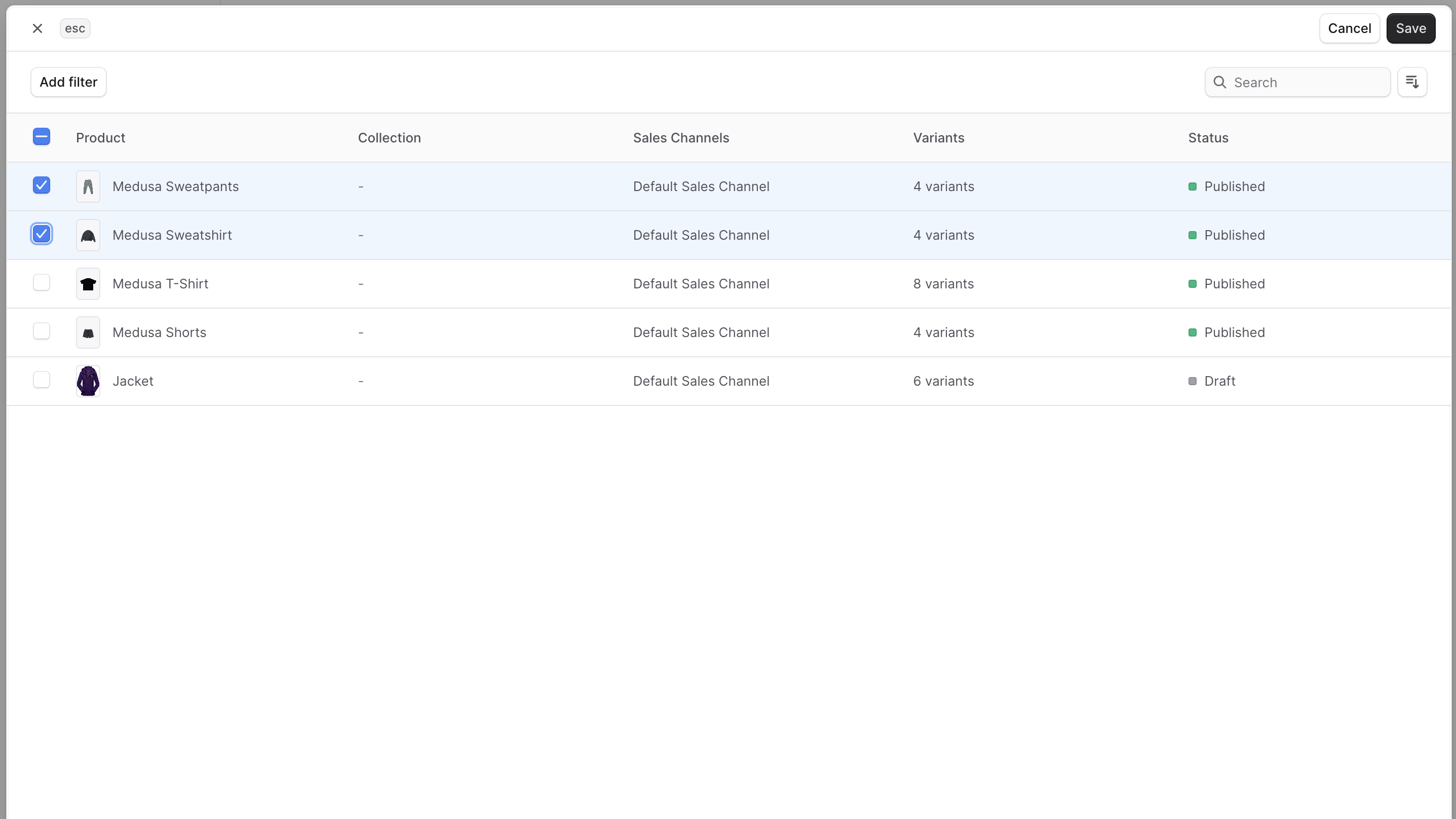
From the product collection’s details page, you can manage the products in the collection.Add Products to a Collection
To add products to a collection:- Go to the collection’s details page.
- In the Products section, click on the ⋯ icon at the top right.
- Choose Add from the dropdown.
- From the list of products, check the products you want to add to the collection.
- Once done, click on the Save button.
Remove a Product from a Collection
To remove a product from a collection:- Go to the collection’s details page.
- In the Products section, find the product you want to remove from the collection.
- Click the ⋯ icon at the right of the product.
- Choose Remove from the dropdown.
- Confirm removing the product by clicking the “Remove” button in the pop-up.
Delete a Collection
Deleting a collection is irreversible. To delete a collection:- Go to the collection’s details page.
- Click on the ⋯ icon at the top right of the first section.
- Choose Delete from the dropdown.
- Confirm deletion by clicking the “Confirm” button in the pop-up
- Review the warning about irreversible action
- Ensure you have selected the correct collection
- Consider the impact on associated products and marketing
Best Practices
Collection Strategy
- Logical Grouping: Create collections that align with customer shopping patterns
- Seasonal Planning: Plan collections around seasonal trends and promotions
- Theme Consistency: Ensure all products in a collection share clear common attributes
- Marketing Alignment: Coordinate collections with marketing campaigns and promotions
Organization and Management
- Descriptive Titles: Use clear, customer-friendly collection names
- SEO-Friendly Handles: Create handles that support search engine optimization
- Regular Review: Periodically audit collections for relevance and performance
- Product Balance: Maintain appropriate product counts per collection
Customer Experience
- Browse Optimization: Structure collections to enhance customer browsing experience
- Clear Themes: Ensure collection themes are obvious to customers
- Navigation Support: Design collections to support intuitive site navigation
- Mobile Consideration: Verify collections work effectively on mobile devices
Performance and Analytics
- Collection Metrics: Monitor collection performance and customer engagement
- Product Distribution: Ensure balanced product distribution across collections
- Conversion Tracking: Track how collections contribute to sales and conversions
- Customer Feedback: Gather insights on collection effectiveness from customer behavior
Important: Collections are key components of your storefront organization and marketing strategy. Changes to collection structure can impact customer navigation, SEO, and marketing campaigns. Plan collection changes carefully and communicate updates to relevant teams.