

Manage Order Payments
In this guide, you’ll learn how to manage an order’s payment in the BoxNCase Admin, including capturing payments, processing refunds, and handling outstanding payment amounts.Overview
When a customer places an order, their payment is authorized by the payment provider they’ve chosen. You can manage an order’s payment by capturing it, refunding it, or handling outstanding amounts.Payment Statuses
At the top of the order details page, you can see the payment status of the order. The payment status can be one of the following:| Status | Description |
|---|---|
| Authorized | Payment has been authorized but not yet captured |
| Partially Authorized | Only part of the order amount has been authorized |
| Captured | Payment has been successfully captured |
| Partially Captured | Only part of the authorized amount has been captured |
| Refunded | Payment has been fully refunded |
| Partially Refunded | Part of the payment has been refunded |
| Requires Action | Payment requires additional action from customer |
| Canceled | Payment authorization has been canceled |
Capture Payment
Unless the payment provider that the customer chose is configured to automatically capture an order’s payment, you need to manually capture the payment. Capturing an order’s payment triggers its processing with the chosen payment provider, such as Stripe.If you’re unsure whether your payment provider is configured to automatically capture payments, please contact your technical team.
How to Capture Payment
- Open the order’s details page
- Scroll to the Payments section
- Click on the Capture Payment button
- Confirm capturing the payment by clicking the Confirm button in the pop-up
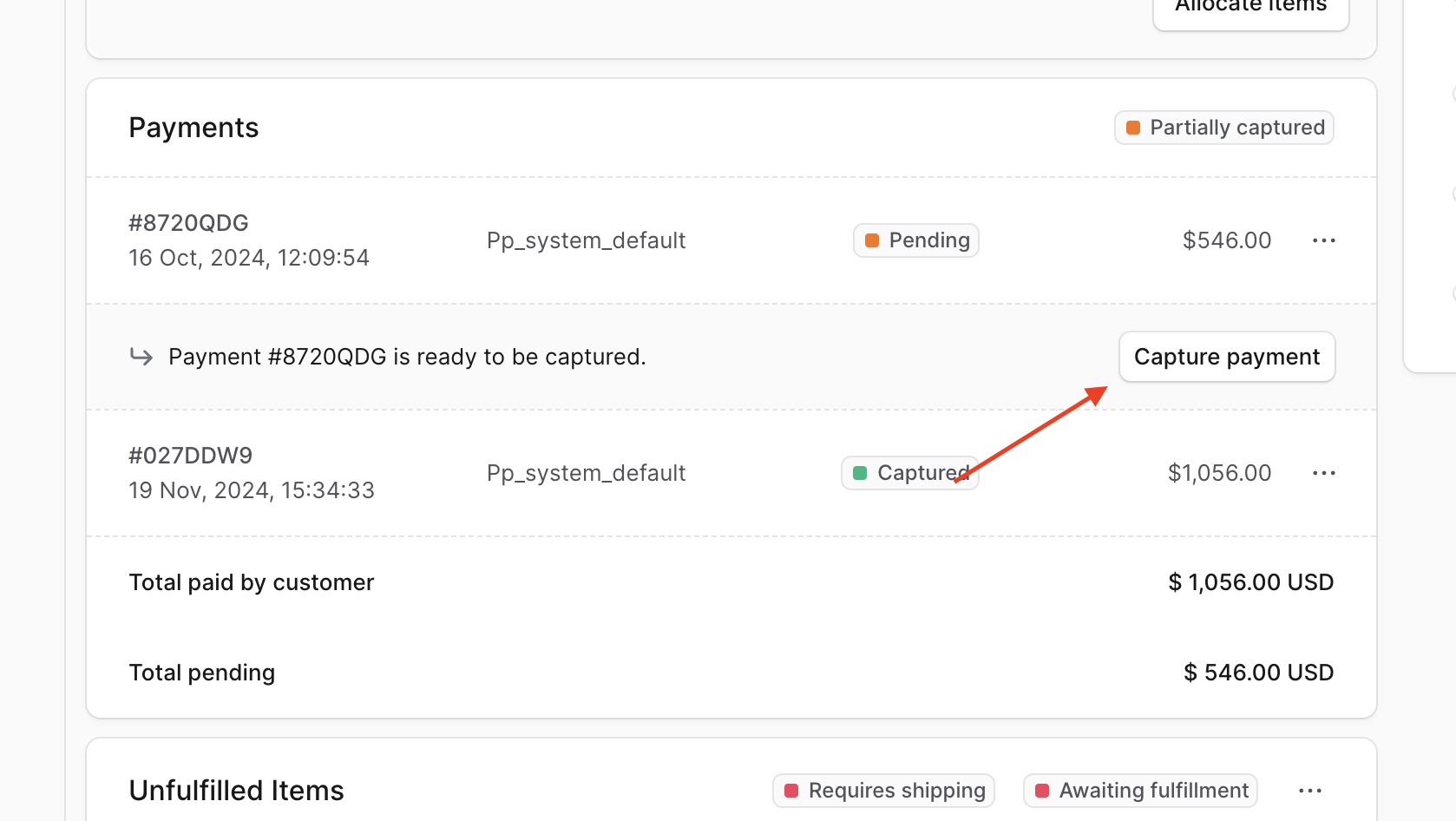 Once captured, the payment status will update to “Captured” and the funds will be processed by your payment provider.
Handle Outstanding Amounts
After making changes to an order, such as editing its items or creating an exchange, there may be outstanding amounts that are shown in the Summary section.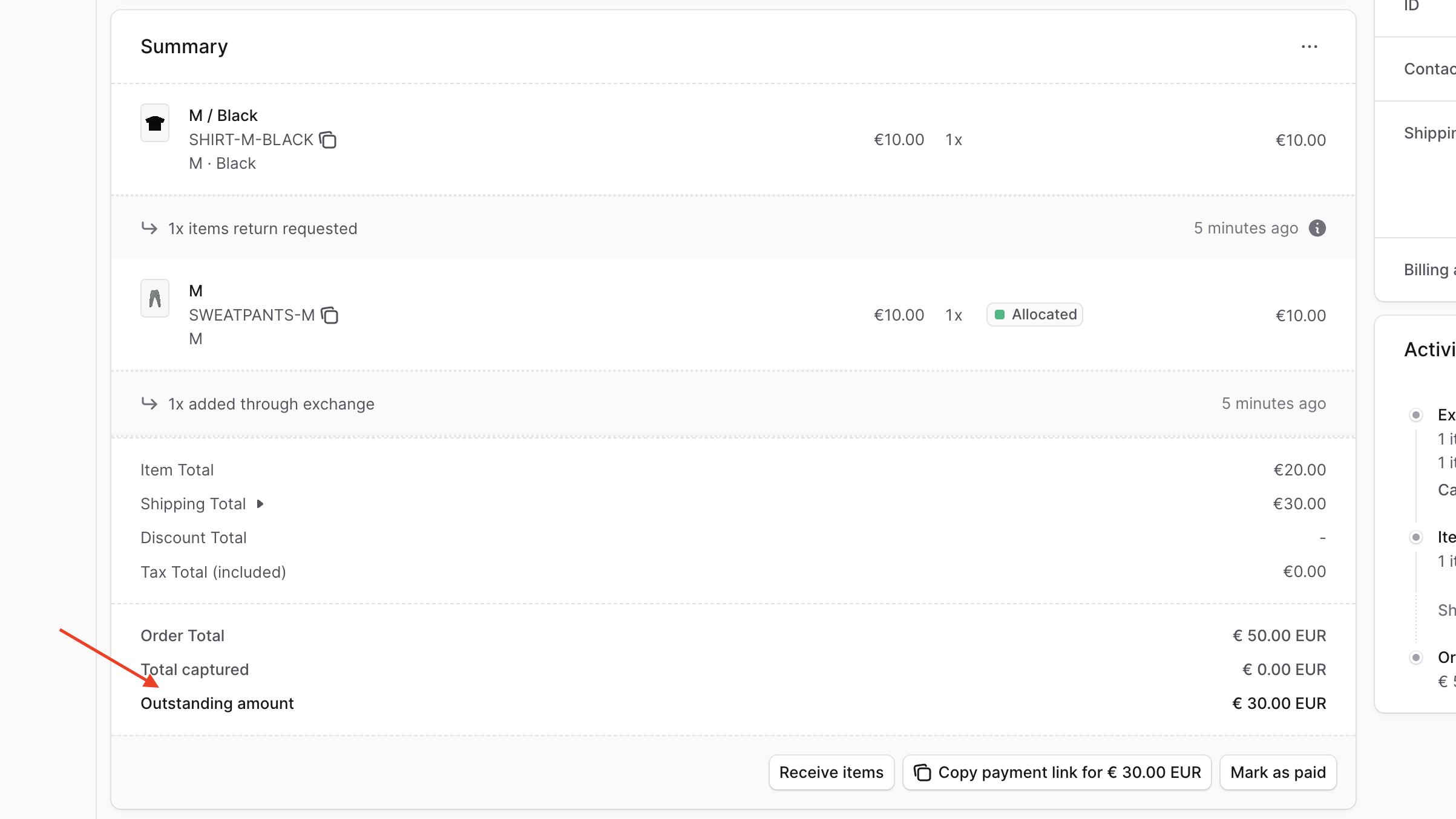
Negative Outstanding Amount
If the outstanding amount is negative, it means you owe the customer a refund. You should process a refund for this amount.Positive Outstanding Amount
A positive outstanding amount means there are additional payments required from the customer. You can handle this in two ways:- Mark as Paid Manually - For payments collected outside of BoxNCase
- Generate Payment Link - For customers to pay online
Refund Payment
You can refund a previously-captured payment when there’s an outstanding amount due to returns, exchanges, or order modifications.How to Process a Refund
- Open the order’s details page
- Scroll to the Payment section
- Click on the ⋯ icon at the right of the payment to refund
- Choose Refund from the dropdown
- In the side window that opens, fill out:
- Select payment to refund: Choose the payment to refund from
- Amount: Enter the refund amount
- Note: Add a note for the customer (optional)
- Click the Save button
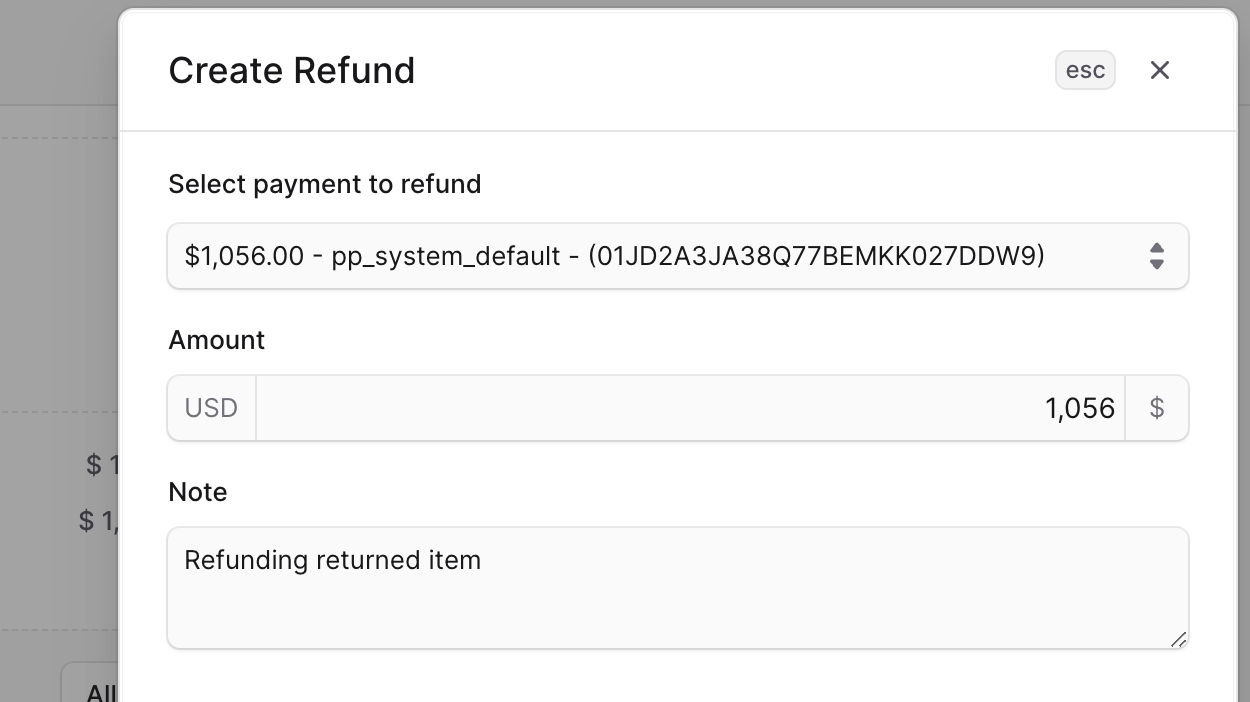 Once processed, the customer will receive a notification about the refund and the refund will appear in the order’s activity timeline.
Mark Outstanding Amount as Paid
Use this option when you’ve collected payment outside of BoxNCase (e.g., cash, check, or external payment system).Steps to Mark as Paid
- Open the order’s details page
- In the Summary section, locate the outstanding amount
- Click on the Mark as paid button
- Confirm by clicking Confirm in the pop-up
Generate Payment Link
For positive outstanding amounts, you can generate a payment link that customers can use to pay online through your storefront.How to Generate Payment Link
- Open the order’s details page
- In the Summary section, click on the Copy payment link button
- The link is automatically copied to your clipboard
- Share the link with the customer via email or message
If the payment link doesn’t start with your domain or shows an incorrect domain, contact your technical team to configure the storefront URL properly.
Best Practices
- Always verify payment amounts before capturing or refunding
- Include clear notes when processing refunds for customer reference
- Keep track of manual payments for accounting purposes
- Test payment links before sending to customers
- Monitor payment status regularly for orders requiring action