

Bulk Editor in BoxNCase Partners Admin
In this guide, you’ll learn about different tips and shortcuts to using the bulk editor. Master efficient bulk operations with advanced techniques, keyboard shortcuts, and best practices for managing large datasets.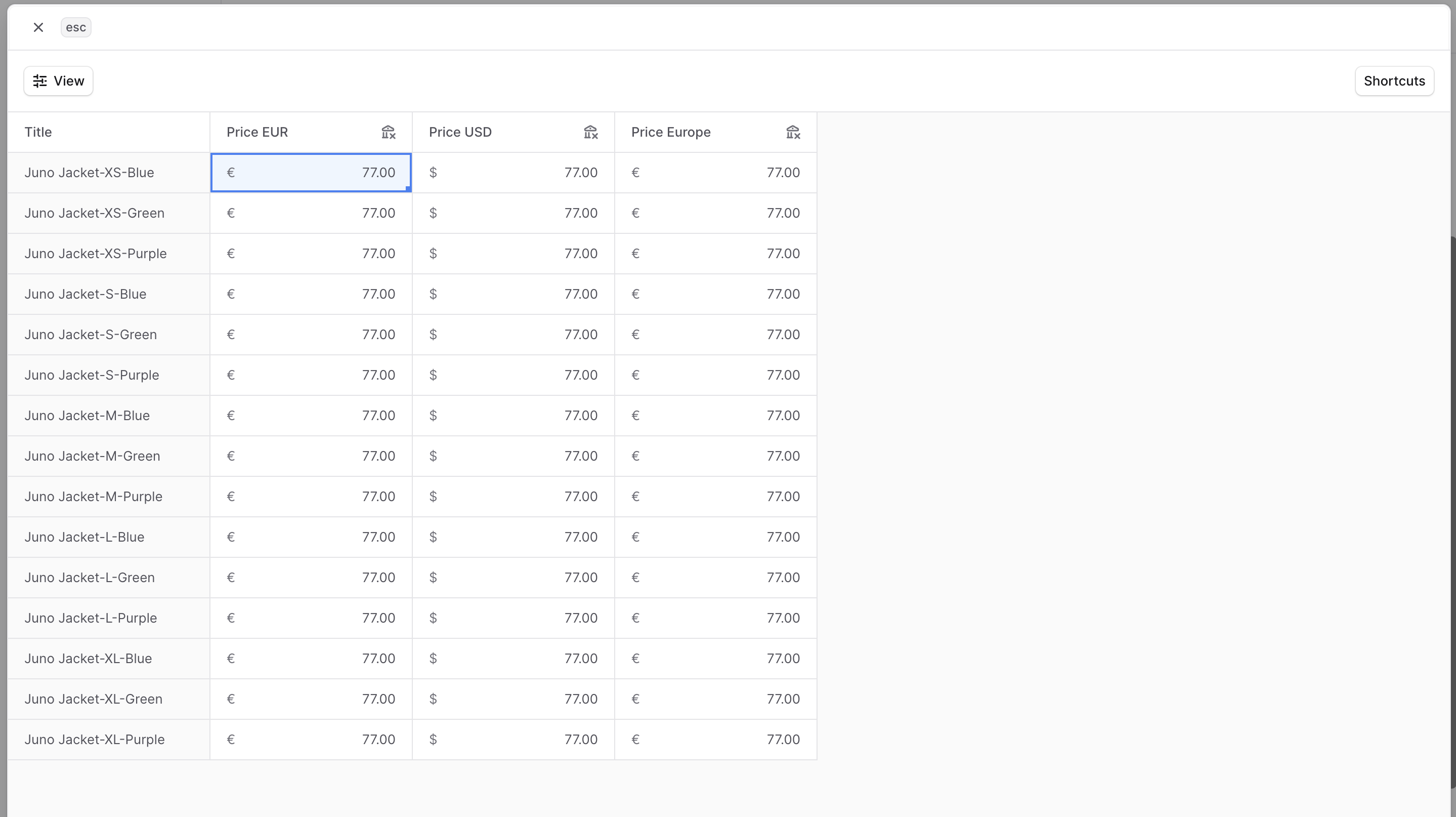
Manage Large Data in Bulk
The bulk editor allows you to edit prices or values using a spreadsheet-interface. It simplifies the editing process when working with a large number of data, and provides you with an intuitive user experience.Where is the Bulk Editor?
The bulk editor is used in different areas of the BoxNCase Partners Admin:- [Edit prices of product variants](https://docs.BoxNCase Partnersjs.com/products/variants#edit-product-variant-prices).
- [Edit inventory of a product variants](https://docs.BoxNCase Partnersjs.com/products/variants#manage-product-variant-inventory).
- [Edit prices in price lists](https://docs.BoxNCase Partnersjs.com/price-lists/manage#edit-prices-in-price-list).
- [Edit shipping option prices](https://docs.BoxNCase Partnersjs.com/settings/locations-and-shipping/locations#edit-shipping-option-prices)
Toggle Columns View
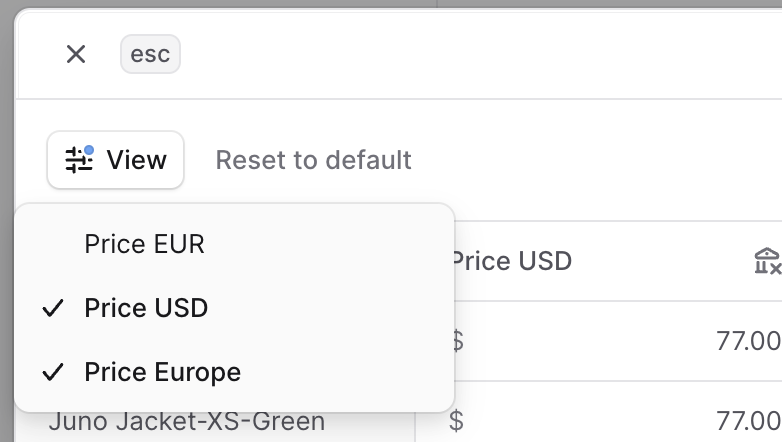
As the bulk editor may include a large number of columns, such as the different currencies supported in your store, you can toggle the columns’ visibility to focus on a subset of columns. To do that:- Click on the “View” button at the top left.
- Check or uncheck a column by clicking on it in the dropdown.
Perform Action on Multiple Cells
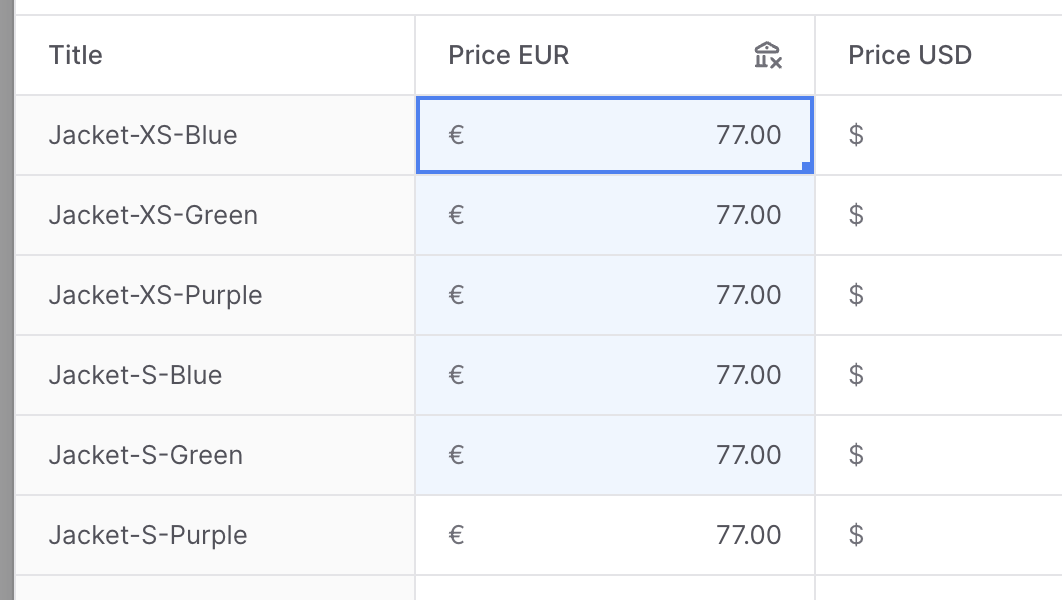
You can select multiple cells to perform an action on them. To do that:- Click and hold the mouse on a cell
- Drag the mouse in the direction of the other cells you want to select.
- Once you’re done selecting, release the hold.
- Perform the action on the cells:
- Press
backspaceto clear the values of the selected cells. - Press
Ctrl/Cmd+Zto undo a change you made on the selected cells.
- Press
Editing Cell Values
There are multiple ways you can edit cells’ values in a bulk editor:- To edit the value, click the cell, then enter your new value.
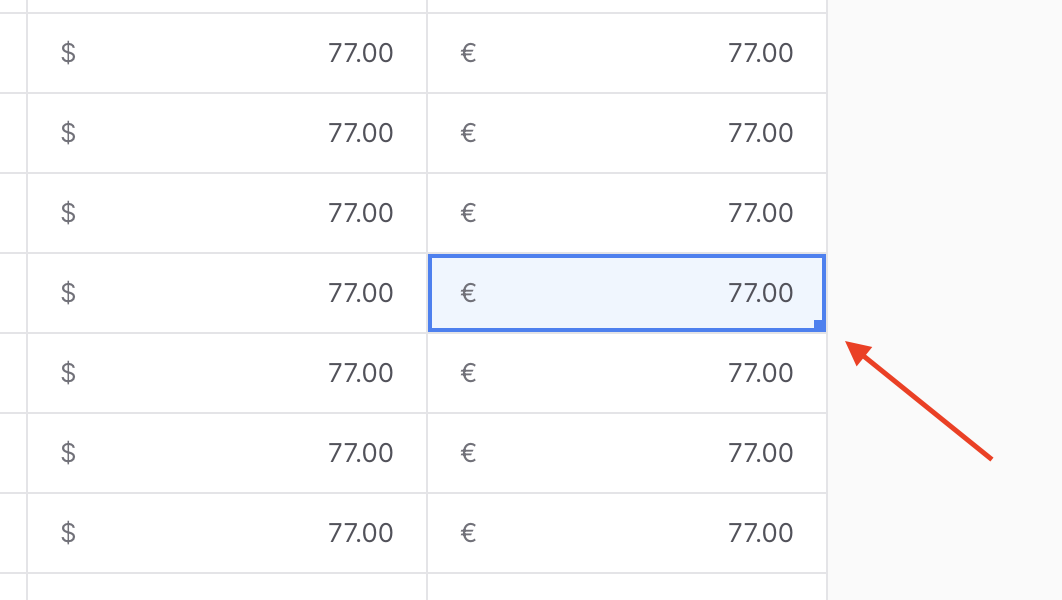
- To apply a value of a cell to other adjacent cells:
- Click on a cell
- Hold and Drag the blue dot at the corner of that cell to the cells below it that you want to apply the value to.
- Once you’re done, release the hold on the blue dot. The value of the first cell will be applied to the other cells.
Shortcuts
You can use the following shortcuts while working with the bulk editor:Tab: Persist the current cell’s value and move focus to the next cell.Shift+Tab: Move focus to the previous cell.Enter: Confirm changes and move to the cell below.Escape: Cancel current edit and revert to original value.Backspace: Delete the value of the selected cell(s).Ctrl/Cmd+Z: Undo a change you made in the currently selected cell(s).Ctrl/Cmd+Y: Redo a previously undone change.Ctrl/Cmd+A: Select all cells in the current view.Arrow Keys: Navigate between cells without making changes.
Advanced Use Cases
The bulk editor is powerful for various business scenarios:Price Management
- Seasonal Adjustments: Apply percentage increases or decreases across product lines
- Currency Updates: Update prices for multiple currencies simultaneously
- Competitive Pricing: Bulk adjust prices based on market research
- Promotional Pricing: Set temporary sale prices across product categories
Inventory Management
- Stock Level Updates: Adjust inventory quantities after physical counts
- Seasonal Preparation: Bulk update stock levels before peak seasons
- Location Transfers: Update inventory across multiple warehouse locations
- Low Stock Alerts: Set minimum threshold levels for automatic reordering
Shipping Configuration
- Rate Updates: Apply new shipping rates across multiple zones
- Service Level Adjustments: Update delivery timeframes for different regions
- Weight-Based Pricing: Configure tiered pricing based on package weight
- Distance-Based Rates: Set rates based on shipping distance calculations
Best Practices
Follow these guidelines for efficient bulk editing:Before You Start
- Backup Your Data: Always export current data before making bulk changes
- Plan Your Changes: Map out exactly what needs to be updated
- Test on Small Scale: Try changes on a few items first
- Prepare Reference Data: Have comparison charts or formulas ready
During Bulk Operations
- Work in Batches: Don’t try to edit thousands of items at once
- Use Column Filters: Hide irrelevant columns to focus on your task
- Double-Check Formulas: Verify calculations before applying to multiple cells
- Save Frequently: Use the save functionality regularly to prevent data loss
After Bulk Changes
- Verify Changes: Spot-check random items to ensure accuracy
- Test Functionality: Check that updated prices/inventory work correctly
- Monitor Performance: Watch for any system performance impacts
- Document Changes: Keep a record of what was changed and when
Error Prevention Tips
- Use Consistent Formats: Maintain the same number format (decimals, currency)
- Avoid Special Characters: Stick to alphanumeric characters when possible
- Check Data Types: Ensure you’re entering the correct data type for each field
- Validate Ranges: Make sure values fall within acceptable business ranges
Troubleshooting Common Issues
Performance Problems
If the bulk editor is running slowly:- Reduce the number of visible columns
- Work with smaller batches of data
- Close other browser tabs to free up memory
- Check your internet connection stability
Data Validation Errors
When changes aren’t saving:- Verify all required fields are filled
- Check that numeric values don’t exceed maximum limits
- Ensure decimal places match system requirements
- Remove any invalid characters from text fields
Undo/Redo Issues
If undo isn’t working properly:- Make sure you’re using the correct keyboard shortcut
- Try using the browser’s native undo (Ctrl+Z / Cmd+Z)
- Refresh the page if the undo stack becomes corrupted
- Save your work frequently to minimize data loss
Integration with Other Features
The bulk editor works seamlessly with other BoxNCase Partners Admin features:Product Management
- Bulk update product variants after using the bulk editor
- Synchronize changes with product collections and categories
- Update SEO metadata and descriptions alongside price changes
Analytics Integration
- Track bulk changes in your analytics dashboard
- Monitor the impact of price changes on sales performance
- Generate reports on inventory level changes
Workflow Integration
- Set up approval processes for bulk price changes
- Create automated notifications for inventory updates
- Integrate with external ERP systems for data synchronization
Related Guides
- Product Variants Management - Learn about managing product variations
- Price Lists Overview - Understand price list functionality
- Inventory Management - Master inventory tracking and updates
- Shipping Configuration - Set up and manage shipping options
- Data Import/Export - Learn about data import and export capabilities