

Manage Return Reasons in BoxNCase Partners Admin
In this guide, you’ll learn what return reasons are and how to manage them.What’s a Return Reason?
A return reason is useful when returning an item in an order. It’s used to specify why an item is being returned. For example, a customer might return an item because it’s damaged, the wrong size, or they changed their mind. To specify the return reason when creating a return, exchange, or claim, you can choose from a list of return reasons that you’ve set up in your settings.View Return Reasons
To view return reasons in your store, go to Settings → Return Reasons. Here, you can see a list of all the return reasons you have set up in your store. You can also search, filter, and sort the return reasons to find the one you are looking for.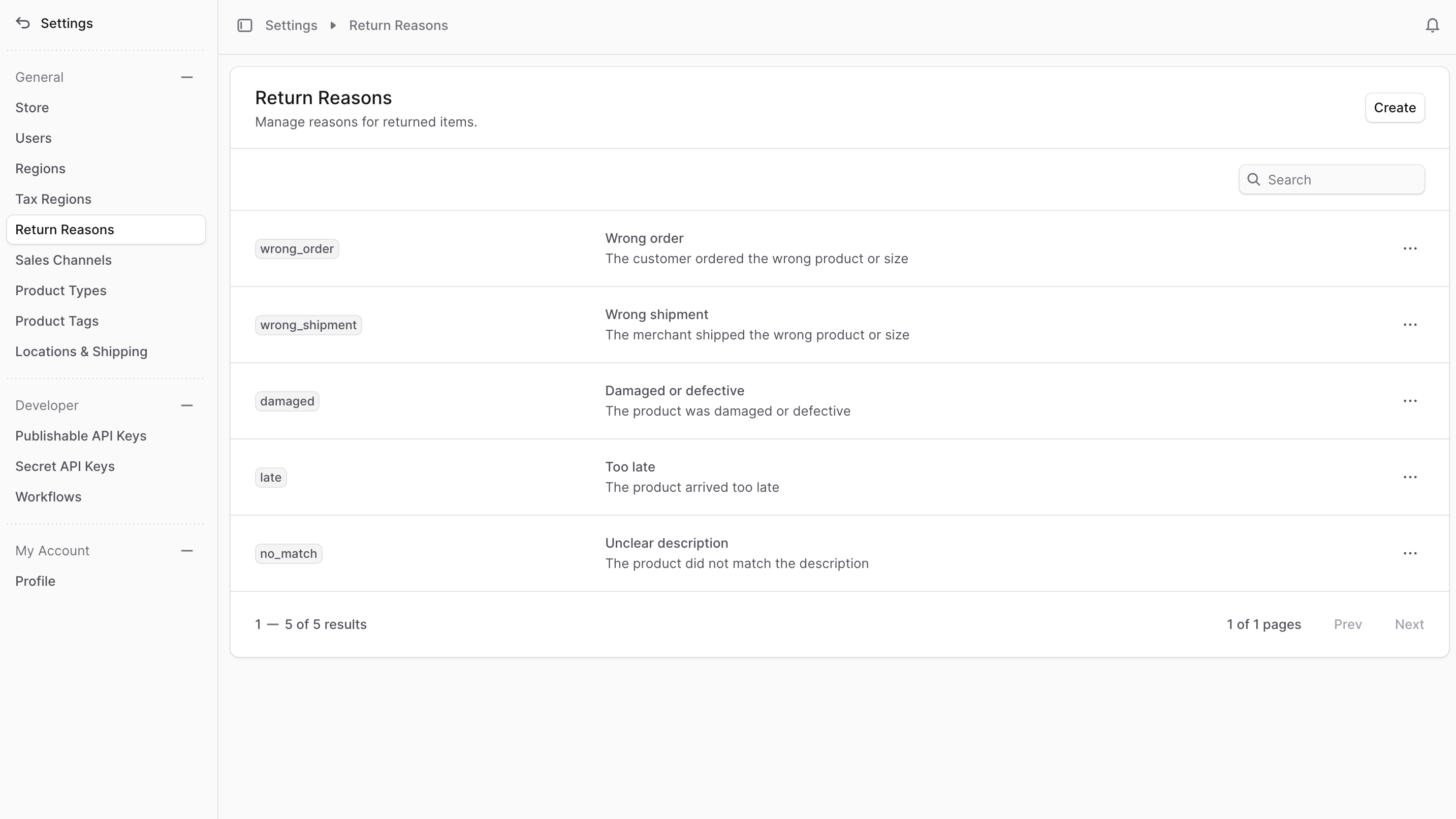
Create Return Reason
Creating Effective Return Reasons: Value Field Best Practices:- Use descriptive, lowercase identifiers (e.g., “damaged_on_arrival”)
- Maintain consistency across similar reasons
- Avoid spaces; use underscores for readability
- Consider future integrations and API usage
- Keep values permanent once in use
- Write customer-friendly, clear descriptions
- Use consistent tone and terminology
- Consider multiple languages if serving international customers
- Keep labels concise but descriptive
- Test labels with customer service team
- Provide internal guidance for staff
- Include handling instructions if needed
- Document any special processing requirements
- Note if reason affects refund/exchange policies
- Add compliance or regulatory notes
| Value | Label | Description |
|---|---|---|
| damaged_arrival | Damaged on Arrival | Item received damaged; requires photo documentation |
| wrong_size | Wrong Size | Customer ordered incorrect size; exchange available |
| not_as_described | Not as Described | Item differs from website description; full refund |
| changed_mind | Changed Mind | Customer no longer wants item; return policy applies |
- Go to Settings → Return Reasons.
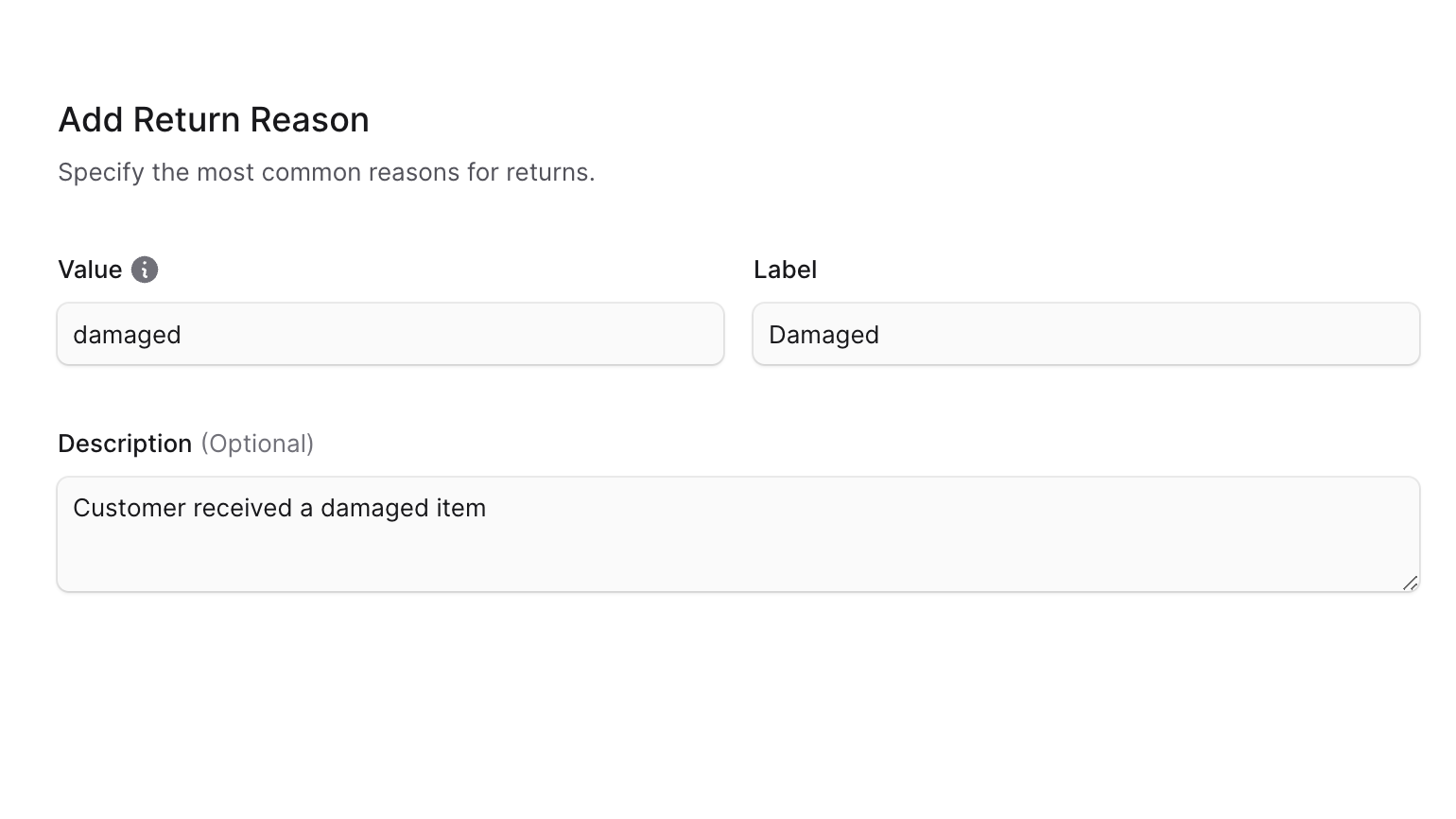
- Click the Create button at the top right.
- In the form that opens, apply the best practices above for each field.
- Once done, click the Save button.
Edit a Return Reason
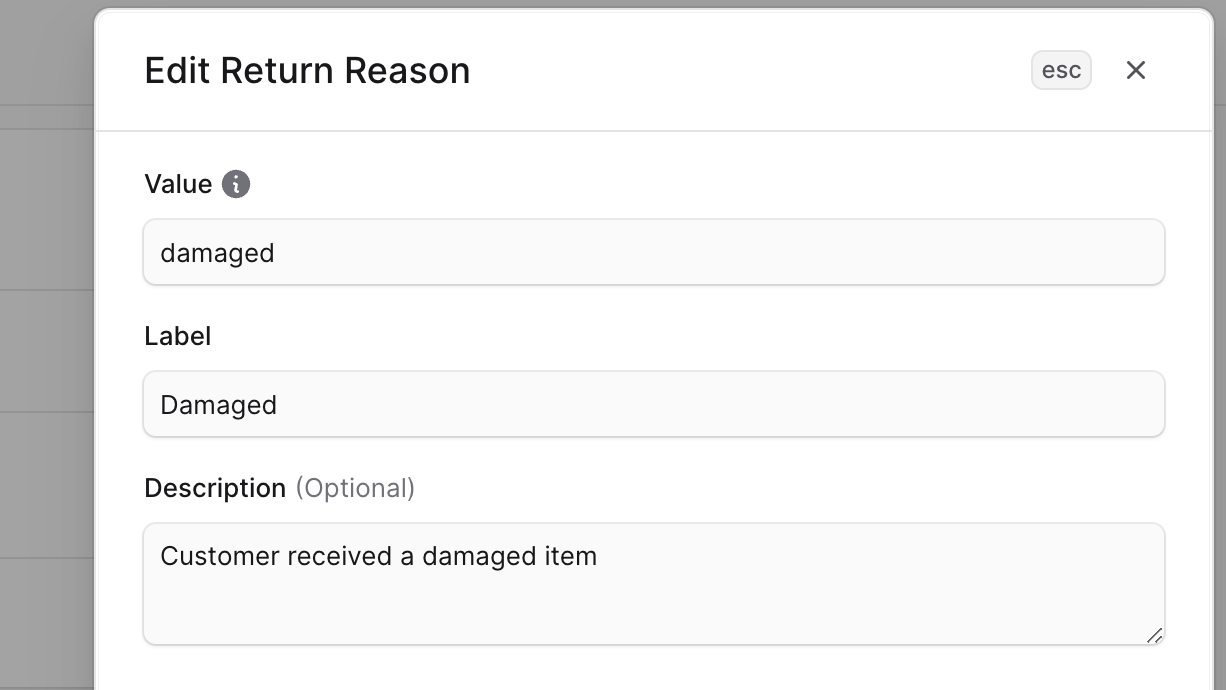
To edit a return reason:- Go to Settings → Return Reasons.
- Find the return reason to edit and click the ⋯ icon at its right.
- Choose Edit from the dropdown.
- In the side window that opens, you can edit the return reason’s value, label, and description.
- Once you’re done, click the Save button.
Delete a Return Reason
Deleting a return reason is irreversible. To delete a return reason:- Go to Settings → Return Reasons.
- Find the return reason to delete and click the ⋯ icon at its right.
- Choose Delete from the dropdown.
- Confirm deleting the return reason by clicking the Delete button in the pop-up.