

Tips for Lists in BoxNCase Admin
In this guide, you’ll get an overview of lists including filters, searching, and more. Each domain in the BoxNCase Admin, such as products or orders, has a list view displaying the items in that domain. Master advanced filtering techniques, search optimization, and keyboard shortcuts for efficient data management.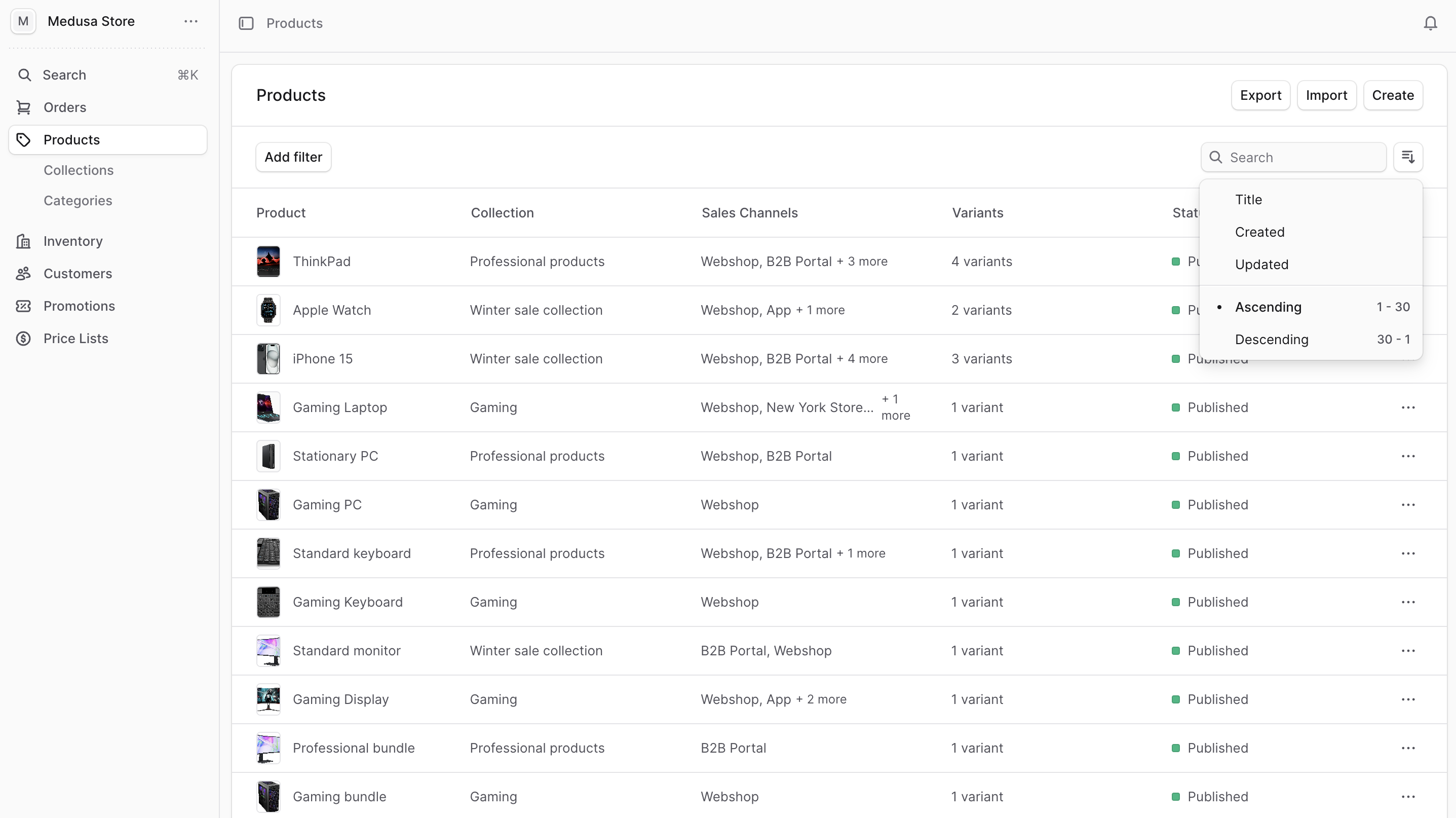
Filter Items
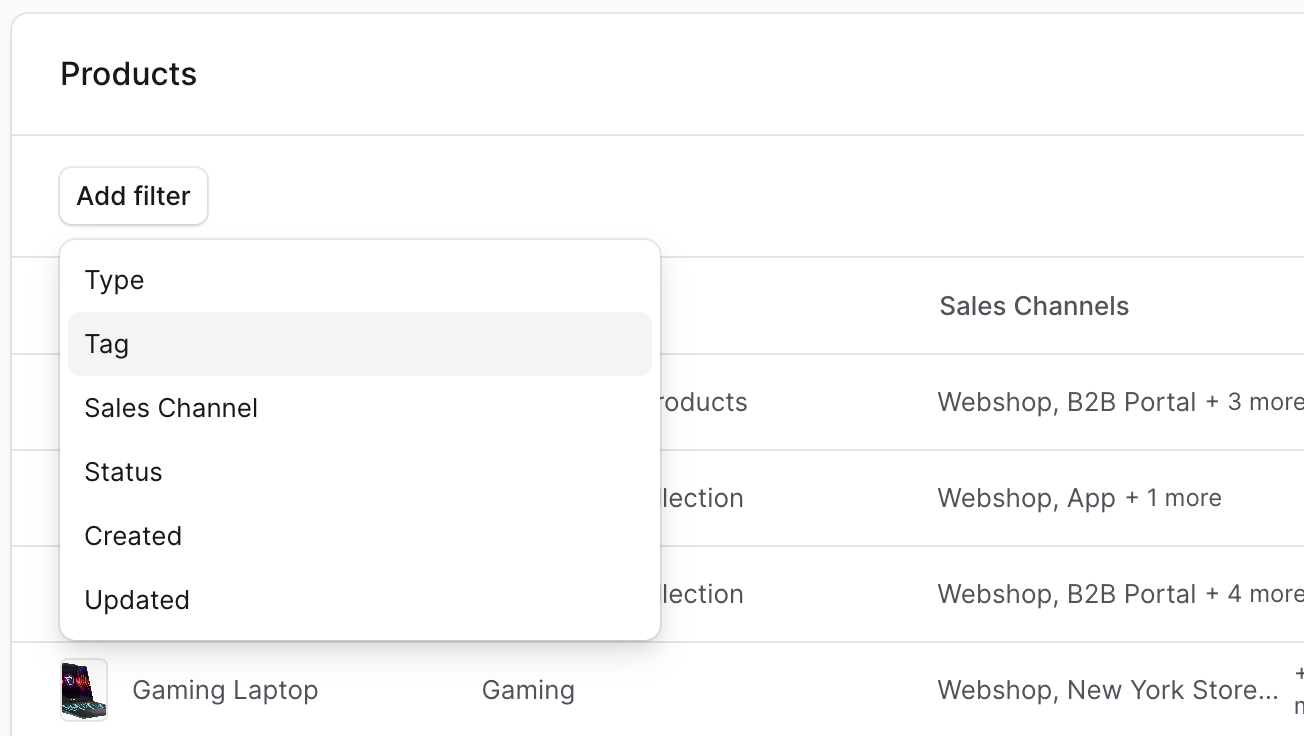
Use filters to retrieve items in a list matching specific criteria. To do that:- Click on the “Add filter” button at the top of the list.
- From the dropdown, choose the criteria you want to filter by, such as Tag.
- This shows a new set of values to filter the list by. Select the value(s) you want to filter by.
Clear Filters
To clear all applied filters, click on the “Clear all” link at the end of the list of filters.Search Items
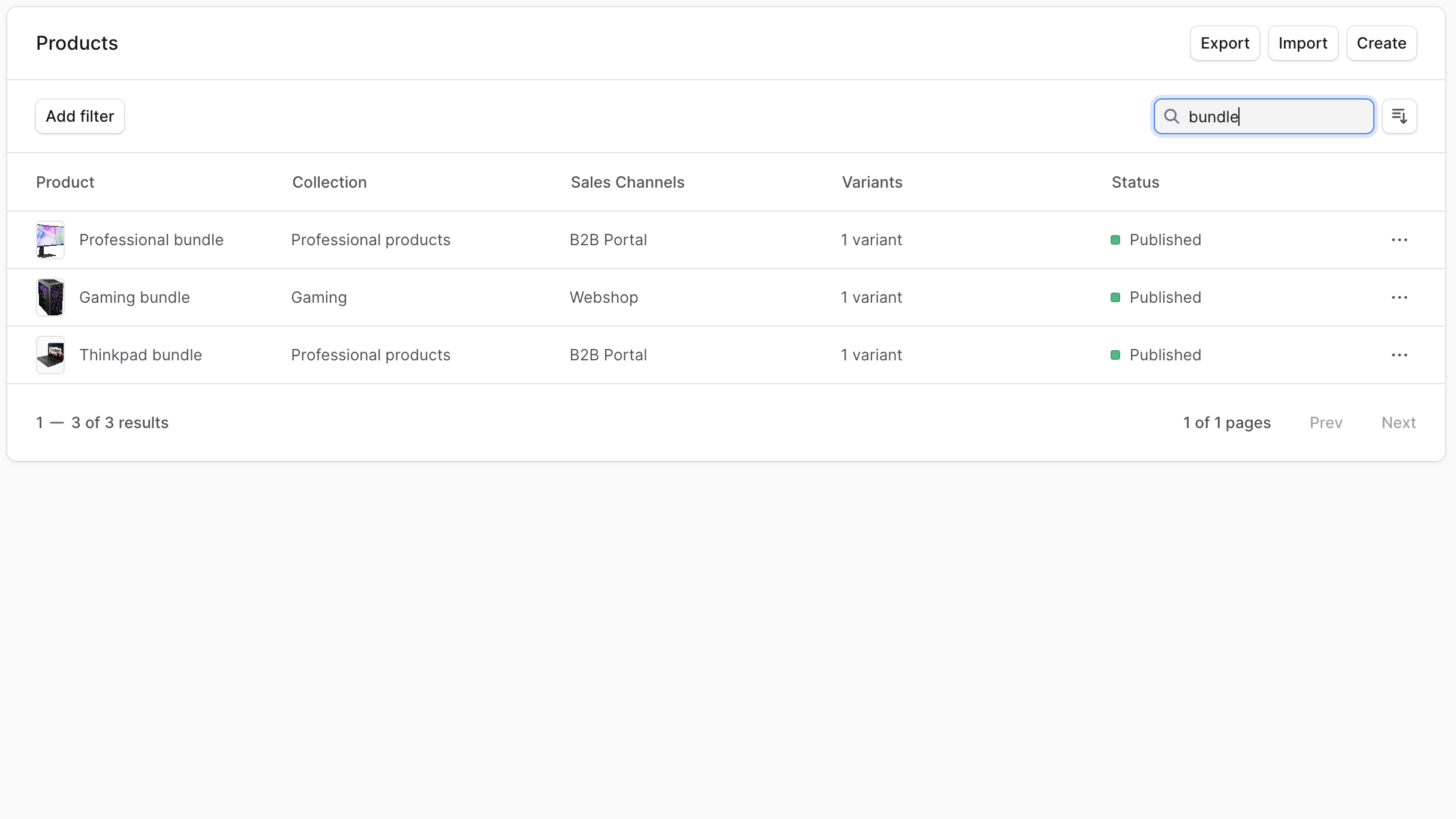
To search for items in a list:- Click the search input at the top right of the list.
- Enter your search term. The list is updated in real-time with items matching the search query.
Sort Items
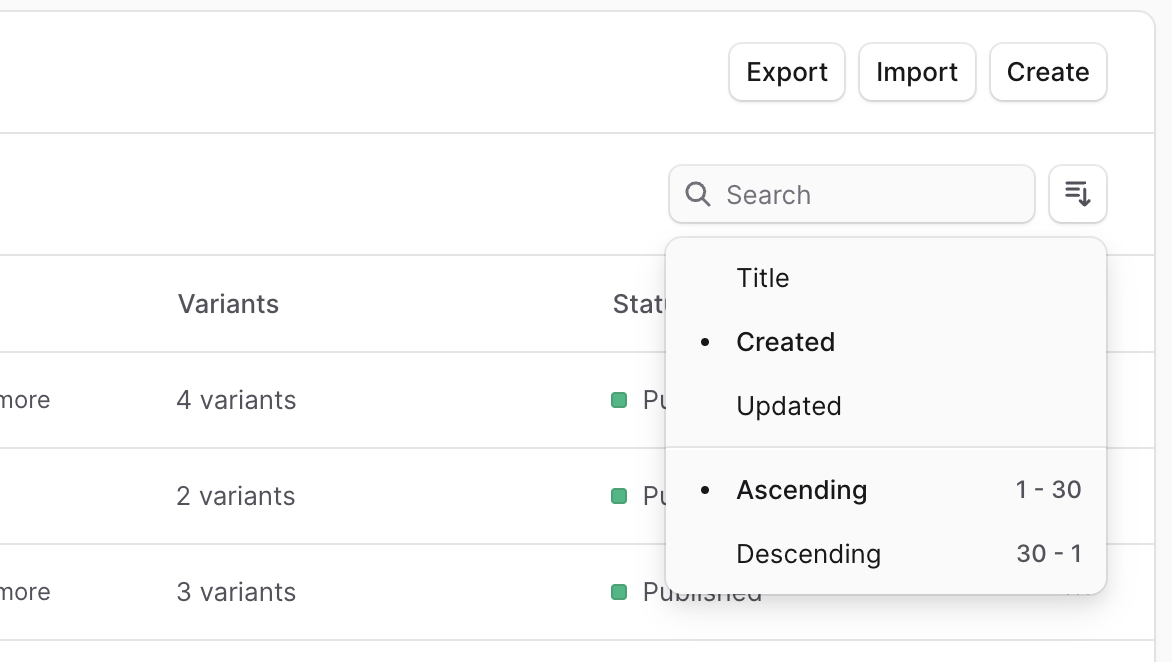
To configure the sorting of items in the list:- Click on the ≡↓ button.
- Choose the field to filter by (for example, Created date) and the direction of filter (ascending or descending).
Multiple Pages
Lists in the BoxNCase Admin span across multiple pages if the number of items in that list are more than twenty. You can navigate between pages using the “Prev” and “Next” buttons at the bottom of the list.Page Navigation Tips
- Use keyboard shortcuts:
←for previous page,→for next page - Jump to specific pages using the page number dropdown
- Adjust items per page in your user preferences (10, 20, 50, or 100 items)
Advanced Filtering Techniques
Combining Multiple Filters
Create sophisticated queries by combining different filter types:- Date Range + Status: Filter orders by date range and specific status
- Category + Price Range: Find products within price ranges by category
- Location + Stock Level: Identify inventory issues by location
- Customer Type + Order Value: Segment high-value customers
Filter Operators
Understanding filter operators enhances search precision:- Equals: Exact match for the specified value
- Contains: Partial match within text fields
- Greater Than/Less Than: Numeric and date comparisons
- In Range: Values between minimum and maximum limits
- Is Empty/Not Empty: Find items with missing or present data
Saved Filter Sets
Create and manage frequently used filter combinations:- Create Filter Set: Apply your desired filters
- Save Configuration: Click “Save Filter Set” and provide a name
- Quick Access: Access saved filters from the dropdown menu
- Share with Team: Export filter configurations for team use
Search Optimization
Search Techniques
Maximize search effectiveness with these approaches:Exact Match Search
- Use quotation marks for exact phrases:
"premium headphones" - Search specific SKUs or product codes:
SKU-12345 - Find exact customer names:
"John Smith"
Wildcard Search
- Use asterisk (*) for partial matches:
head*finds “headphones”, “headsets” - Question mark (?) for single character:
color?finds “colors”, “colour” - Combine wildcards for flexible search:
*phone*case*
Boolean Search
- AND:
bluetooth AND headphones(both terms required) - OR:
red OR blue(either term acceptable) - NOT:
speakers NOT bluetooth(exclude bluetooth speakers)
Search Scope
Understanding what fields are searched:- Product Lists: Name, description, SKU, tags, category
- Order Lists: Order number, customer name, email, status
- Customer Lists: Name, email, phone, company, location
- Inventory Lists: Product name, SKU, location, supplier
Keyboard Shortcuts
Master these shortcuts for faster navigation:General Navigation
↑``↓: Navigate between list itemsEnter: Open selected item for editingSpace: Select/deselect current itemCtrl/Cmd+A: Select all visible items
Search and Filter
Ctrl/Cmd+F: Focus on search fieldCtrl/Cmd+K: Open quick filter menuEscape: Clear active search or filterAlt+F: Open advanced filter panel
Page Navigation
Ctrl/Cmd+←: First pageCtrl/Cmd+→: Last pagePage Up/Down: Navigate between pagesHome/End: Top/bottom of current page
Export Capabilities
Export Formats
Choose the appropriate format for your needs:CSV Export
- Best For: Spreadsheet analysis, data imports to other systems
- Includes: All visible columns and applied filters
- Character Encoding: UTF-8 for international character support
- Delimiter Options: Comma, semicolon, or tab-separated
Excel Export
- Best For: Advanced analysis, pivot tables, complex formatting
- Features: Maintains data types, includes multiple sheets
- Compatibility: Excel 2010 and newer versions
- Size Limit: Up to 100,000 rows per export
PDF Export
- Best For: Reports, documentation, sharing with stakeholders
- Features: Professional formatting, headers and footers
- Customization: Logo inclusion, custom styling options
- Page Options: Portrait/landscape, various paper sizes
Export Best Practices
Before Exporting
- Apply Relevant Filters: Export only the data you need
- Sort Appropriately: Organize data in the desired order
- Select Columns: Use column visibility to include only necessary fields
- Check Data Volume: Large exports may take time to process
Export Process
- Access Export Menu: Click the export button (download icon)
- Choose Format: Select CSV, Excel, or PDF based on your needs
- Configure Options: Set date ranges, column selection, formatting preferences
- Initiate Export: Click “Generate Export” and wait for processing
- Download File: Access the generated file from the download notification
After Export
- Verify Data: Check that exported data matches your expectations
- Secure Storage: Store sensitive data exports in secure locations
- Version Control: Include dates in filenames for version tracking
- Clean Up: Remove temporary export files when no longer needed
Performance Optimization
Large Dataset Management
Handle large lists efficiently:Pagination Strategy
- Default View: Start with recent or most relevant items
- Progressive Loading: Load additional data as needed
- Batch Processing: Work with manageable chunks of data
- Index Optimization: Use indexed fields for faster filtering
Browser Performance
- Memory Management: Clear filters and searches when switching contexts
- Tab Optimization: Close unused admin tabs to free up memory
- Cache Utilization: Allow browser caching for frequently accessed data
- Network Optimization: Use stable internet connection for large operations
Filter Performance Tips
- Indexed Fields: Use indexed fields (ID, date, status) for faster filtering
- Specific Queries: More specific filters perform better than broad searches
- Date Ranges: Limit date ranges to necessary timeframes
- Batch Operations: Process large changes in smaller batches
Integration Features
Workflow Integration
Connect list operations with other admin functions:Bulk Actions
- Status Updates: Change multiple items’ status simultaneously
- Category Changes: Move products between categories in bulk
- Price Adjustments: Apply pricing changes to filtered selections
- Inventory Updates: Adjust stock levels for multiple items
Automation Triggers
- Low Stock Alerts: Automatically flag items below threshold
- Status Notifications: Alert team members of status changes
- Export Scheduling: Set up recurring data exports
- Report Generation: Create automated reports from filtered data
Third-Party Integrations
- ERP Systems: Export data for external business systems
- Analytics Tools: Send filtered data to analytics platforms
- Marketing Platforms: Export customer segments for campaigns
- Accounting Software: Transfer order and financial data
Troubleshooting Common Issues
Search Not Working
If search functionality is unresponsive:- Clear Browser Cache: Force refresh with Ctrl+F5 (Cmd+Shift+R on Mac)
- Check Network: Ensure stable internet connection
- Simplify Query: Try simpler search terms or fewer filters
- Browser Compatibility: Use supported browsers (Chrome, Firefox, Safari, Edge)
Slow Loading Lists
When lists load slowly:- Reduce Page Size: Lower items per page in preferences
- Clear Filters: Remove complex or unnecessary filters
- Check Date Ranges: Narrow down date filters to recent periods
- Browser Resources: Close other tabs and applications
Export Failures
If exports don’t generate:- Data Volume: Try smaller datasets or apply more restrictive filters
- Browser Settings: Allow pop-ups and downloads from the admin domain
- File Permissions: Check that you have write access to download folder
- Format Compatibility: Try different export formats if one fails
Filter Memory Issues
If filters reset unexpectedly:- Session Management: Ensure you’re not timing out due to inactivity
- Browser Settings: Enable cookies and local storage for the admin domain
- Save Filter Sets: Use saved filters instead of relying on session memory
- Multiple Tabs: Avoid opening multiple admin tabs simultaneously
Related Guides
- Bulk Editor Tips - Learn efficient bulk editing techniques
- Data Export and Import - Master data import/export workflows
- Search and Analytics - Analyze search patterns and performance
- User Permissions - Understand access controls for different list views
- Performance Optimization - Optimize admin interface performance