

Manage Locations in BoxNCase Admin
Optimize your BoxNCase store’s fulfillment operations with comprehensive location management. Set up multiple warehouse and store locations, manage inventory allocation, and configure location-specific fulfillment options for efficient order processing.Overview
Location management enables:- Multi-location inventory management
- Location-specific fulfillment workflows
- Geographic optimization of shipping
- Sales channel association per location
- Advanced logistics and distribution control
What is a Stock Location?
Location Functionality: Locations represent physical fulfillment points in your distribution network: Location Types:- Primary warehouses for bulk inventory
- Regional distribution centers
- Retail store locations with pickup/shipping
- Drop-shipping supplier locations
- Third-party logistics (3PL) facilities
- Pop-up or temporary locations
- Inventory management per location
- Sales channel associations for targeted fulfillment
- Fulfillment provider integrations
- Location-specific shipping options and rates
- Geographic service area definitions
- Customer shops through specific sales channel
- Available shipping options determined by channel’s associated location
- Order placed with location-specific fulfillment rules
- Inventory allocated from appropriate location
- Order fulfilled using location’s configured providers
- Reduced shipping costs through proximity
- Faster delivery times to customers
- Distributed inventory risk management
- Regional compliance and regulations
- Scalable fulfillment operations
Create Location
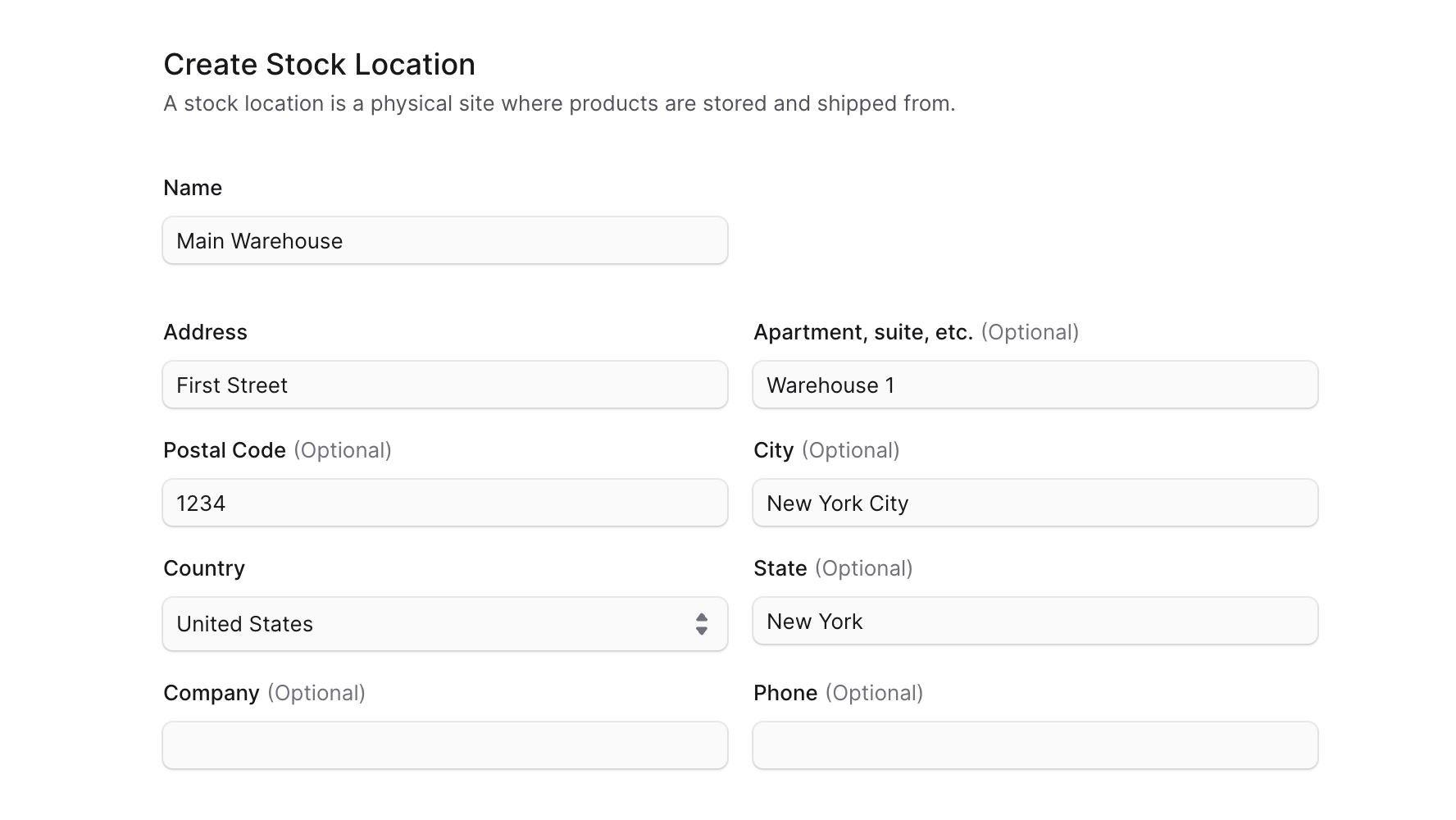
To create a stock location:- Go to Settings → Locations & Shipping.
- Click the Create button at the top right.
- In the form that opens:
- Enter the location’s name, such as “Main Warehouse”.
- Enter the address details. It’s only required to enter an address line and choose a country.
- Once you’re done, click the Save button.
View Location Details
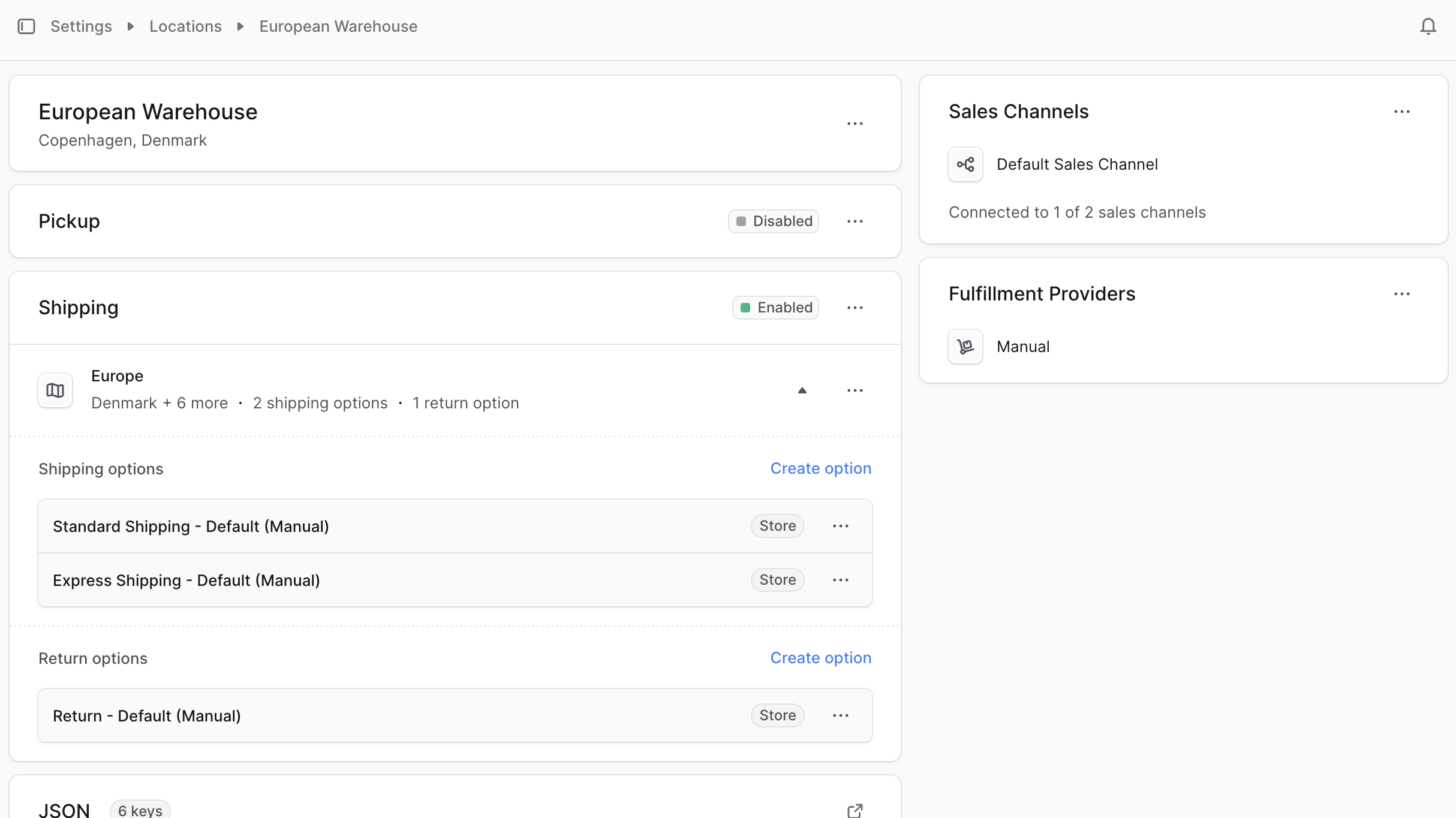
To view the details of a location:- Go to Settings → Locations.
- Click on “View details” at the top right of the location’s section.
Edit Location
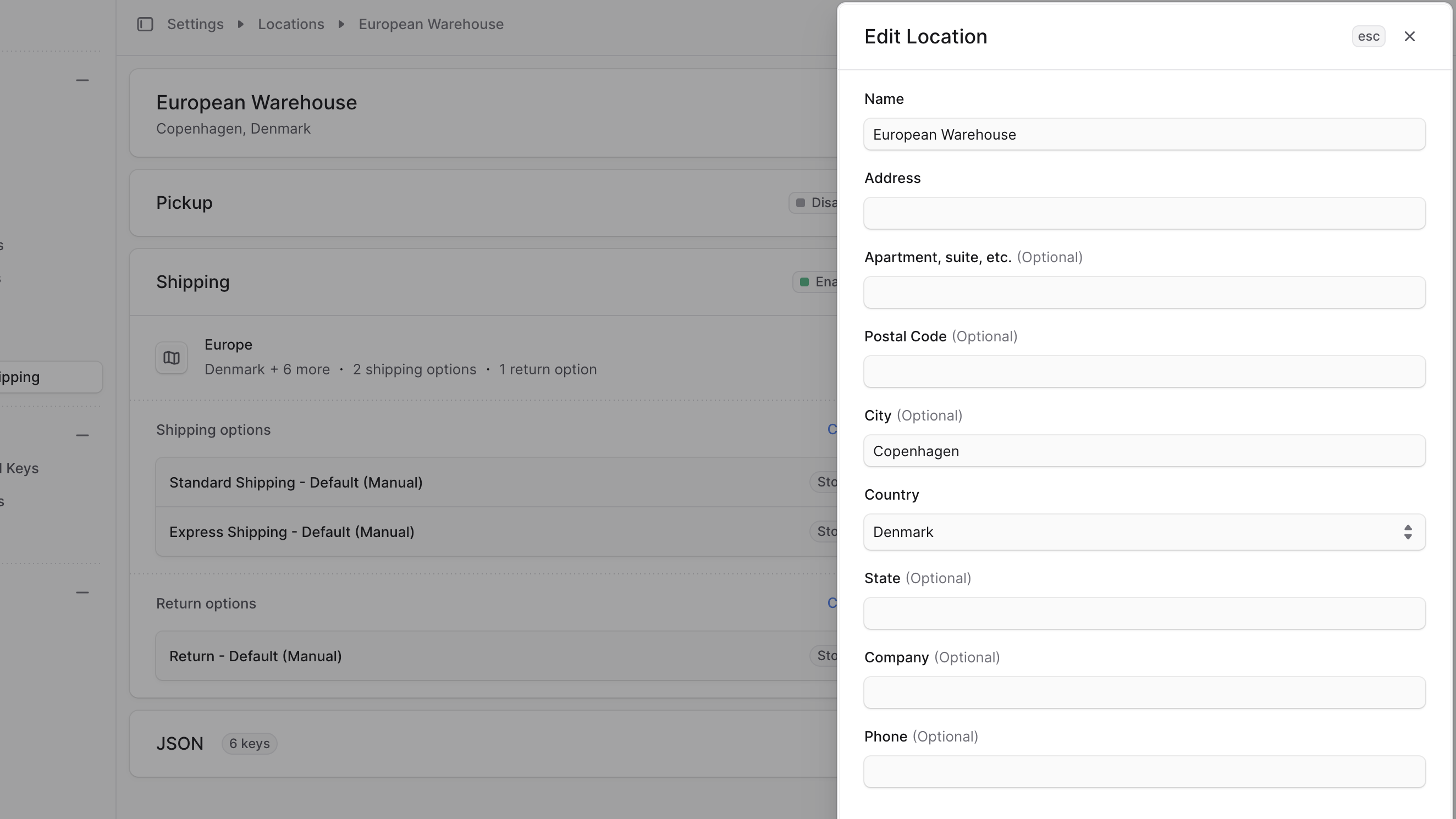
To edit a stock location:- Open the location’s details page.
- Click the ⋯ icon at the top right of the first section.
- Choose Edit from the dropdown.
- In the side window that opens, you can edit the location’s name and address details.
- Once you’re done, click the Save button.
Create Shipping Options
A location can have shipping options for the pickup and shipping modes. You can manage these options from the location’s details page. Shipping options are organized by service zones in each shipping mode. A service zone is a geographical area where you can specify the shipping options available. For example, you can create a service zone for the United States, and specify the shipping options available in the US. So, to create a shipping option for either pick-up or shipping, you need to enable the pick-up or shipping mode, create a service zone for that mode, and create the shipping option within that zone.1. Enable Shipping Mode
Location Shipping Modes: Each location supports multiple fulfillment modes that must be explicitly enabled: Available Modes:- Pickup: Customers collect orders at location
- Shipping: Items sent directly to customers
- Both: Flexible options for customer preference
- Tailored service offerings per location
- Cost optimization based on location capabilities
- Customer convenience and choice
- Operational efficiency alignment
- Go to the location’s details page.
- Click the ⋯ icon at the top right of the “Pickup” or “Shipping” section.
- Choose Enable from the dropdown.
2. Create Service Zone
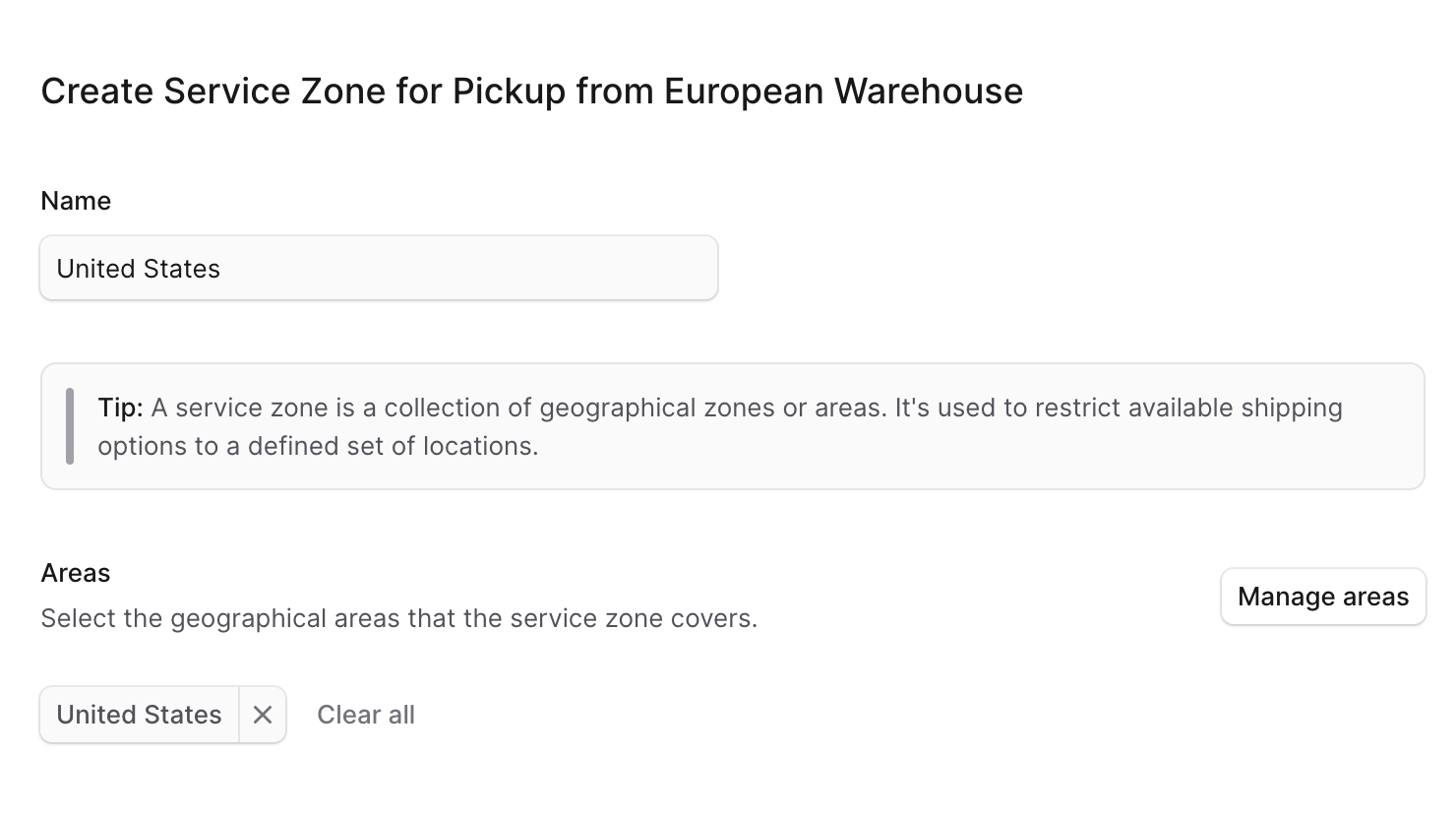
To ceate a service zone for pick-up or shipping:- Go to the location’s details page.
- Click the ⋯ icon at the top right of the “Pickup” or “Shipping” section.
- Choose “Create service zone” from the dropdown.
- In the form that opens:
- In the Name field, enter the name of the service zone. For example, “United States”.
- Under the Areas section, you’ll choose the countries that are covered by this service zone:
- Click the “Manage areas” button.
- Check the countries to add to the service zone.
- Click the Save button.
- Once you’re done, click the Save button.
 Learn how you can further manage this service zone in the Manage Service Zones section.
3. Create Shipping Options
You can now add shipping options to the service zone you created. You can either add a standard shipping option that’s used during checkout, or a return shipping option, which is only used to return items from the customer. To create a shipping option:- Go to the location’s details page.
- In the “Pickup” or “Shipping” section, find the service zone you want to add the shipping option to.
- Click the “Create option” at the right of either “Shipping options”, “Pickup options”, or “Return options”, based on the type of shipping option you’re creating.
- In the form that opens:
- If the shipping option isn’t a pick-up option, you can choose the price type. Choose Fixed if you want to apply fixed pricing for the shipping option, or Calculated if the price should be calculated dynamically during checkout. Calculated prices are useful if you’re using a third-party fulfillment provider that calculates prices dynamically.
- If you chose Fixed, you’ll set the price in the next step of the form.
- If you choose Calculated and the fulfillment provider you choose doesn’t support calculated prices, the shipping option creation will fail.
- In the Name field, enter a name for the shipping option. Customers will see this option during checkout.
- In the Shipping Profile field, choose the shipping profile that this option can be used for. Only products belonging to this shipping profile can be shipped with this shipping option.
- In the Fulfillment Provider field, choose the fulfillment provider that will handle shipping orders using this option.
- If you don’t find the fulfillment provider you’re looking for, make sure it’s added to the location.
- In the Fulfillment Option field, choose a fulfillment option from the fulfillment provider. For example, UPS may provide express or standard fulfillment options.
- If you’re unsure about which fulfillment option to choose, contact your technical team for assistance.
- If you don’t want this shipping option to be used by customers during checkout, disable the “Enable in store” toggle. This is useful if you’re creating a shipping option that’s only used internally.
- If the shipping option isn’t a pick-up option, you can choose the price type. Choose Fixed if you want to apply fixed pricing for the shipping option, or Calculated if the price should be calculated dynamically during checkout. Calculated prices are useful if you’re using a third-party fulfillment provider that calculates prices dynamically.
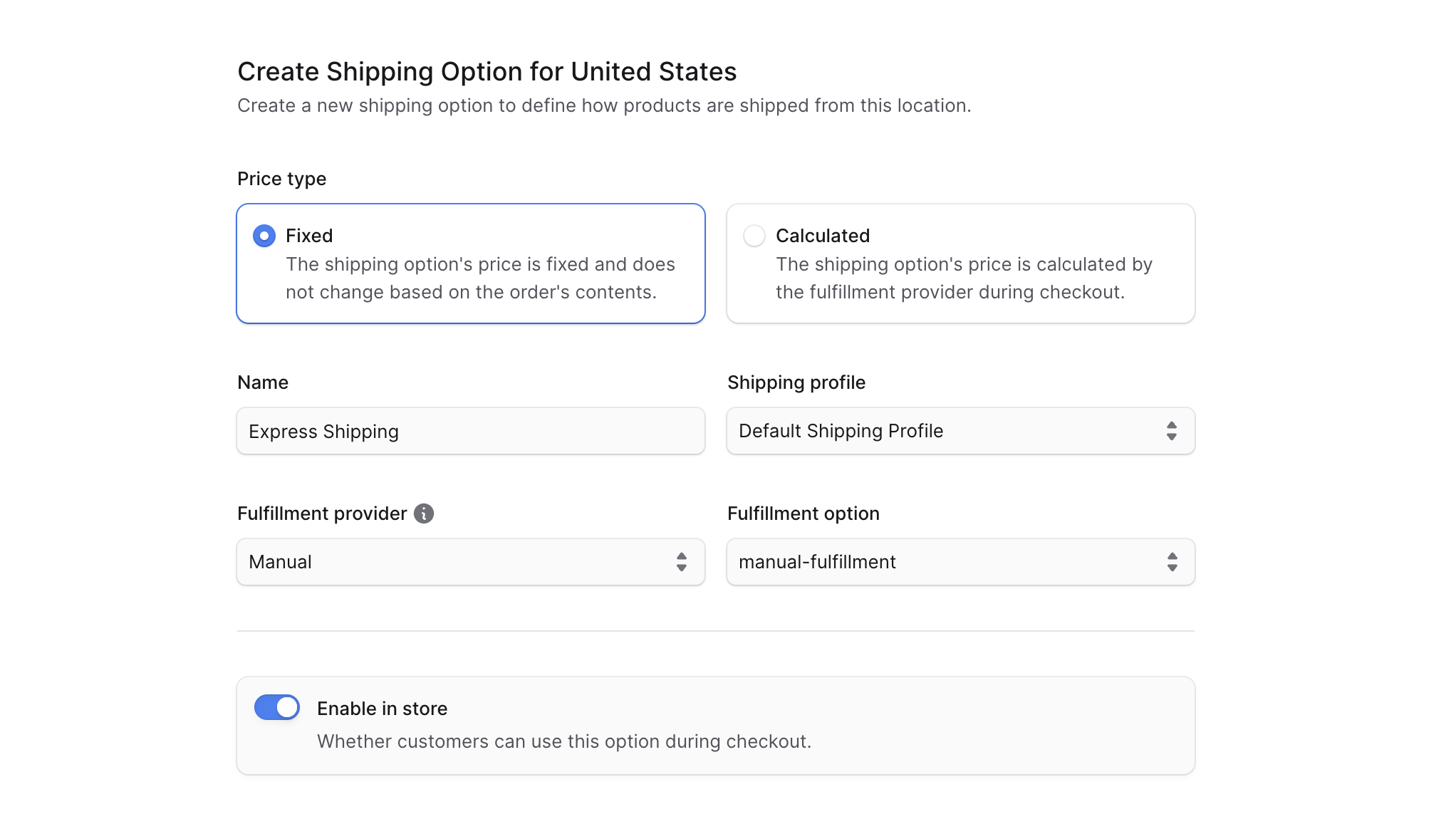 If you chose a “Calculated” price type, you can click the “Save” button to create the shipping option. Otherwise click Continue to proceed to the Prices step.
Fixed and Conditional Shipping Option Prices
In the Prices step, use the [Bulk Editor](https://docs.BoxNCase Partnersjs.com/tips/bulk-editor) to enter the shipping option’s prices for every currency and region in your store.- Price columns that have the 🗋 icon are tax-exclusive prices. BoxNCase Partners will calculate taxes during checkout and add them to this price.
- Price columns that have the 🗊 icon are tax-inclusive prices. BoxNCase Partners will calculate taxes during checkout as part of this price.
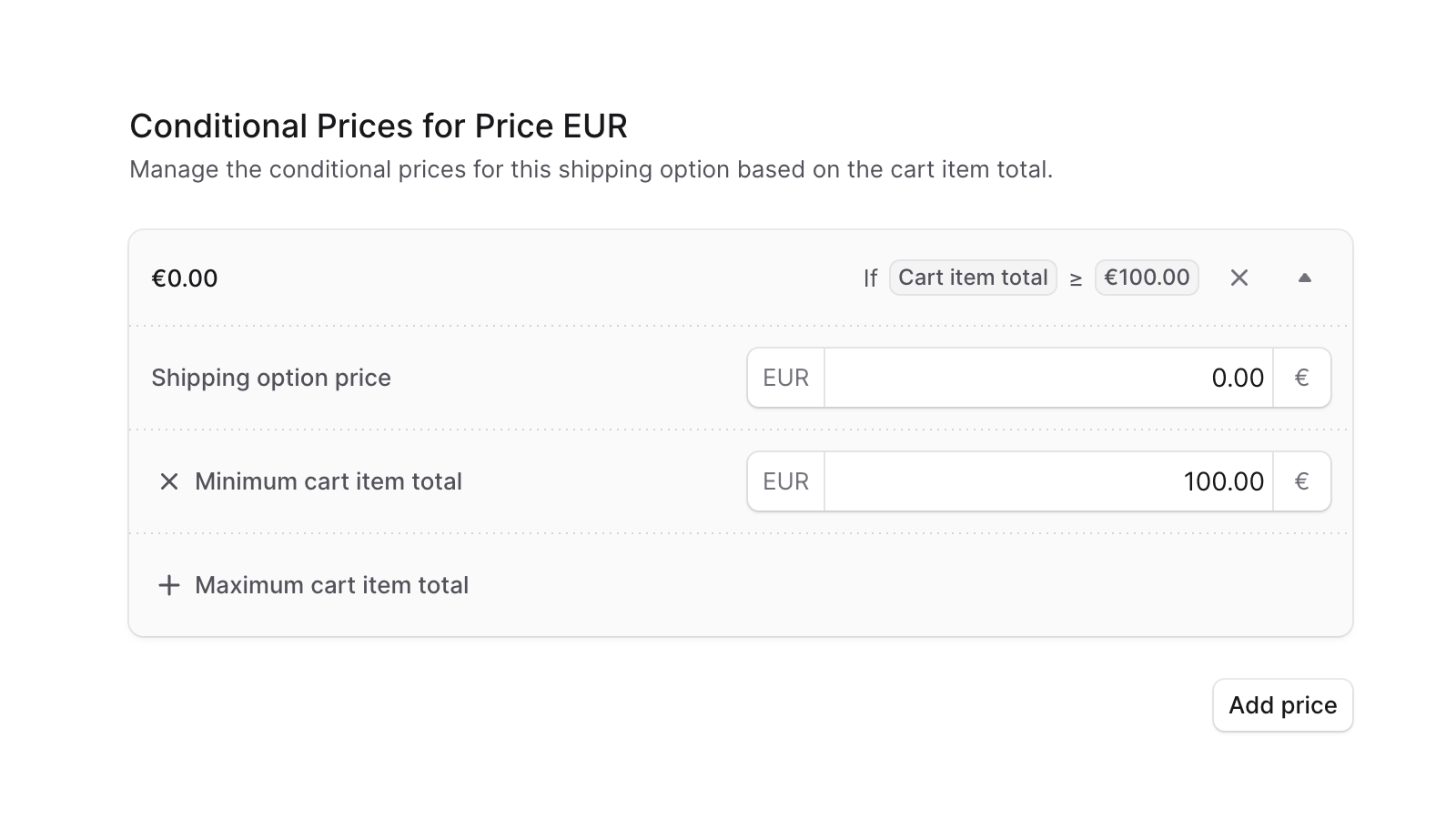
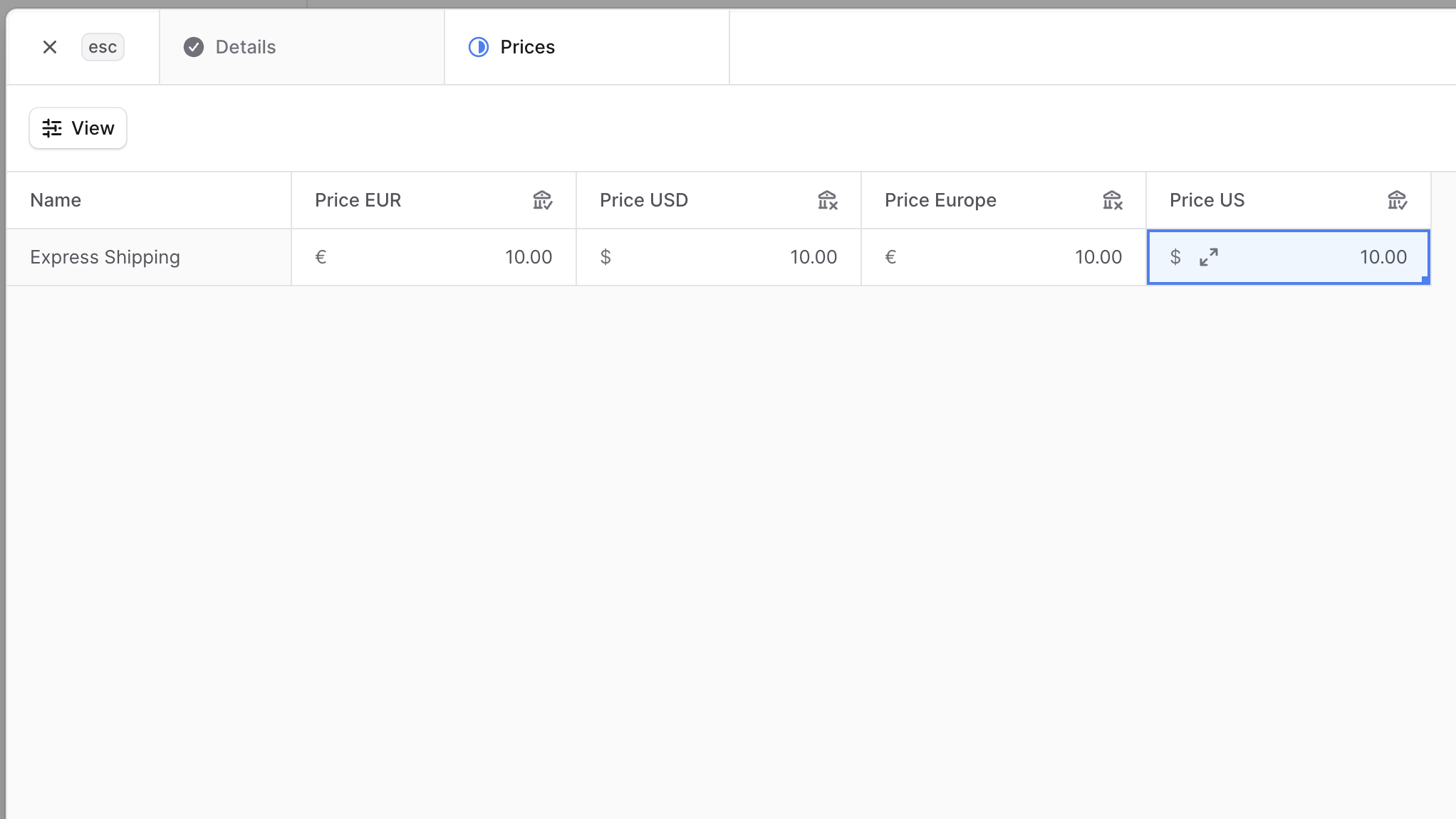 Shipping option prices can also be conditioned based on the cart’s total. For example, you can make the shipping option free if the cart’s total exceeds
 $100. So, you can set a fixed price for a shipping option, and then set a conditioned price based on the cart’s total.
To set a conditioned price for the shipping option:
- Hover over a cell in the Bulk Editor based on the currency or region you want to set the conditioned price for.
- Click the ⇕ icon that appears to open the conditional pricing form.
- In the form that opens:
- Conditional pricing card will appear, and you can add another one by clicking the “Add price” button.
- Enter in the “Shipping option price” field the price when this condition is satisfied.
- To set the minimum cart total required for this price to apply:
- Click the + next to “Minimum cart total”.
- In the field that shows, enter the minimum cart total required for this price to apply.
- To set the maximum cart total required for this price to apply:
- Click the + next to “Maximum cart total”.
- In the field that shows, enter the maximum cart total required for this price to apply.
- Once you’re done, click the Save button.
 Learn how you can further manage the shipping option in the Manage Shipping Options section.
Manage Service Zones
You can manage service zones in pick-up or shipping mode by creating, editing, or deleting them.Edit Service Zone Details
To edit a service zone in a location:- Go to the location’s details page.
- In the “Pickup” or “Shipping” sections, find the service zone and click on the ⋯ icon at its right.
- Choose Edit from the dropdown.
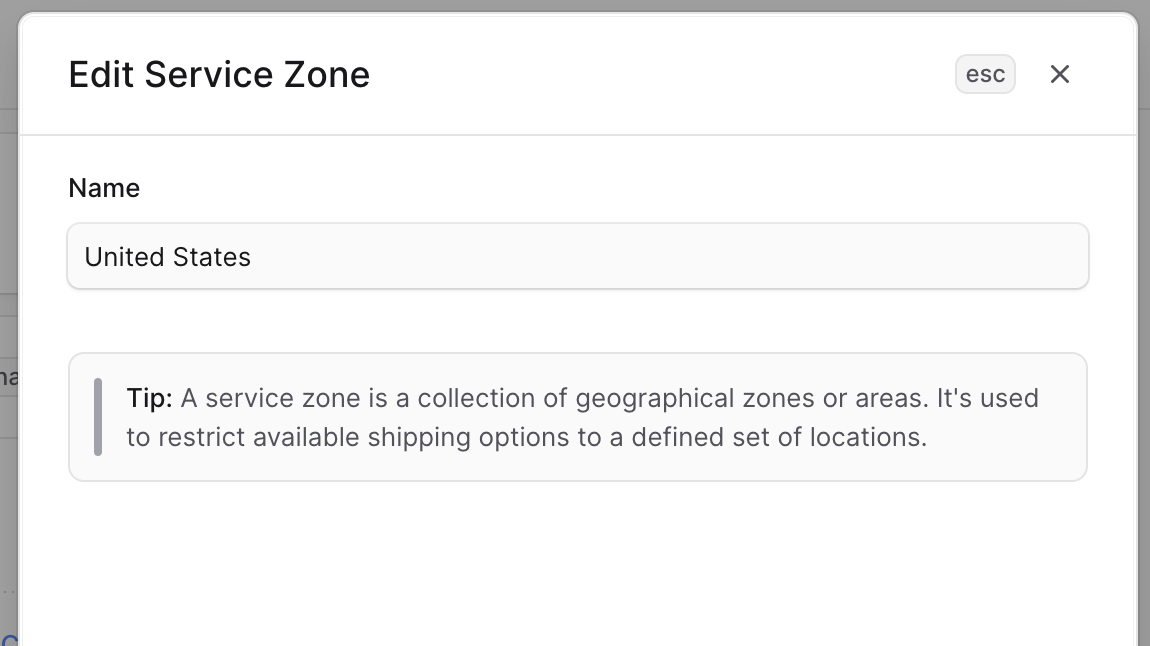
- In the side window that opens, you can edit the service zone’s name.
- Once you’re done, click the Save button.
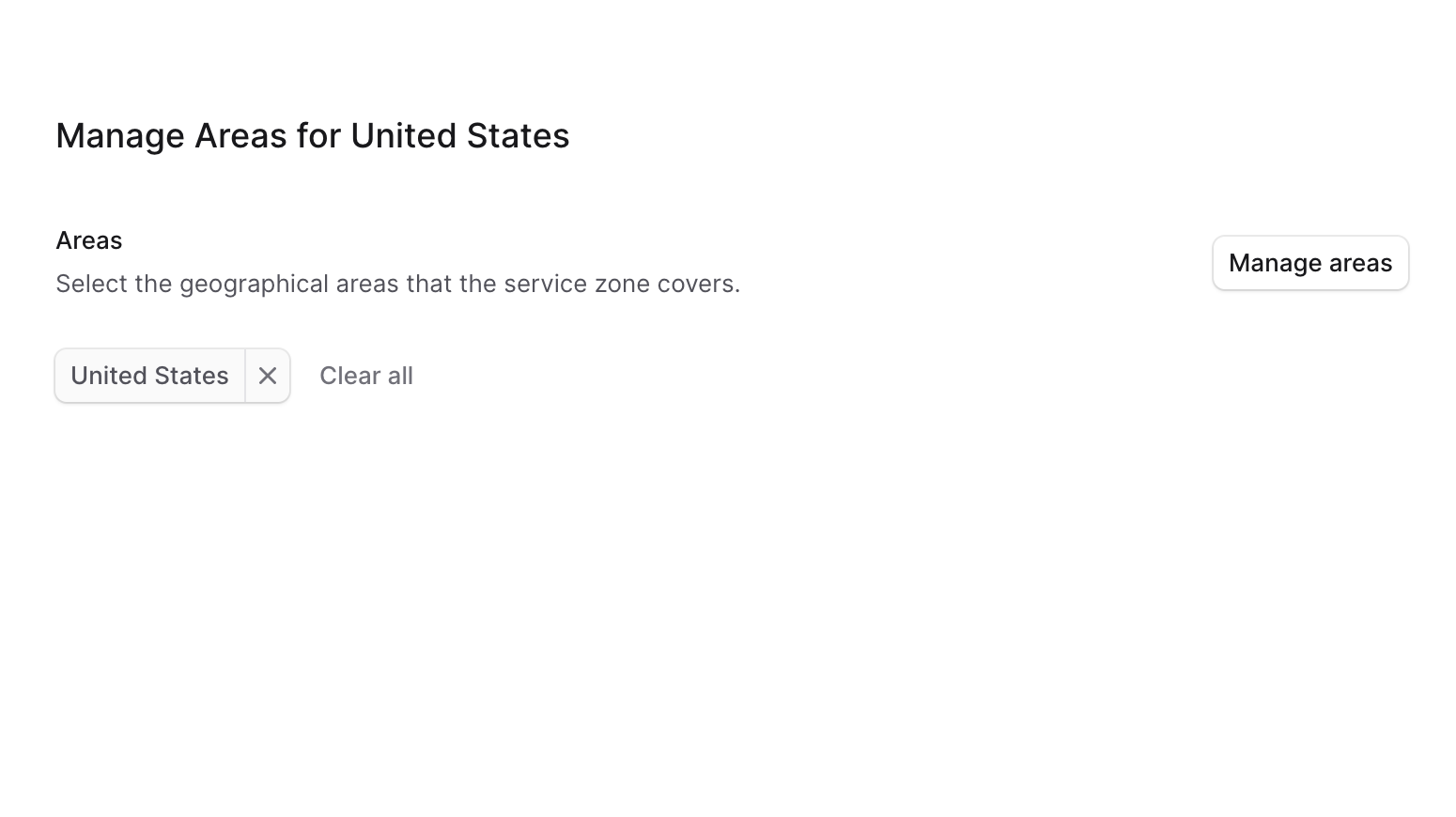
Manage Service Zone Areas
To manage the areas in a service zone:- Go to the location’s details page.
- In the “Pickup” or “Shipping” sections, find the service zone and click on the ⋯ icon at its right.
- Choose “Manage areas” from the dropdown.
- In the form that opens, manage the areas in the service zone:
- Click the “Manage areas” button.
- Check the countries to add to the service zone, and uncheck the countries to remove from the service zone.
- Click the Save button.
- Once you’re done, click the Save button.
Delete Service Zone
Deleting a service zone is irreversible. It will delete all shipping options in the service zone. To delete a service zone:- Go to the location’s details page.
- In the “Pickup” or “Shipping” sections, find the service zone and click on the ⋯ icon at its right.
- Choose Delete from the dropdown.
- Confirm deleting the service zone by clicking the Delete button in the pop-up.
Manage Shipping Options
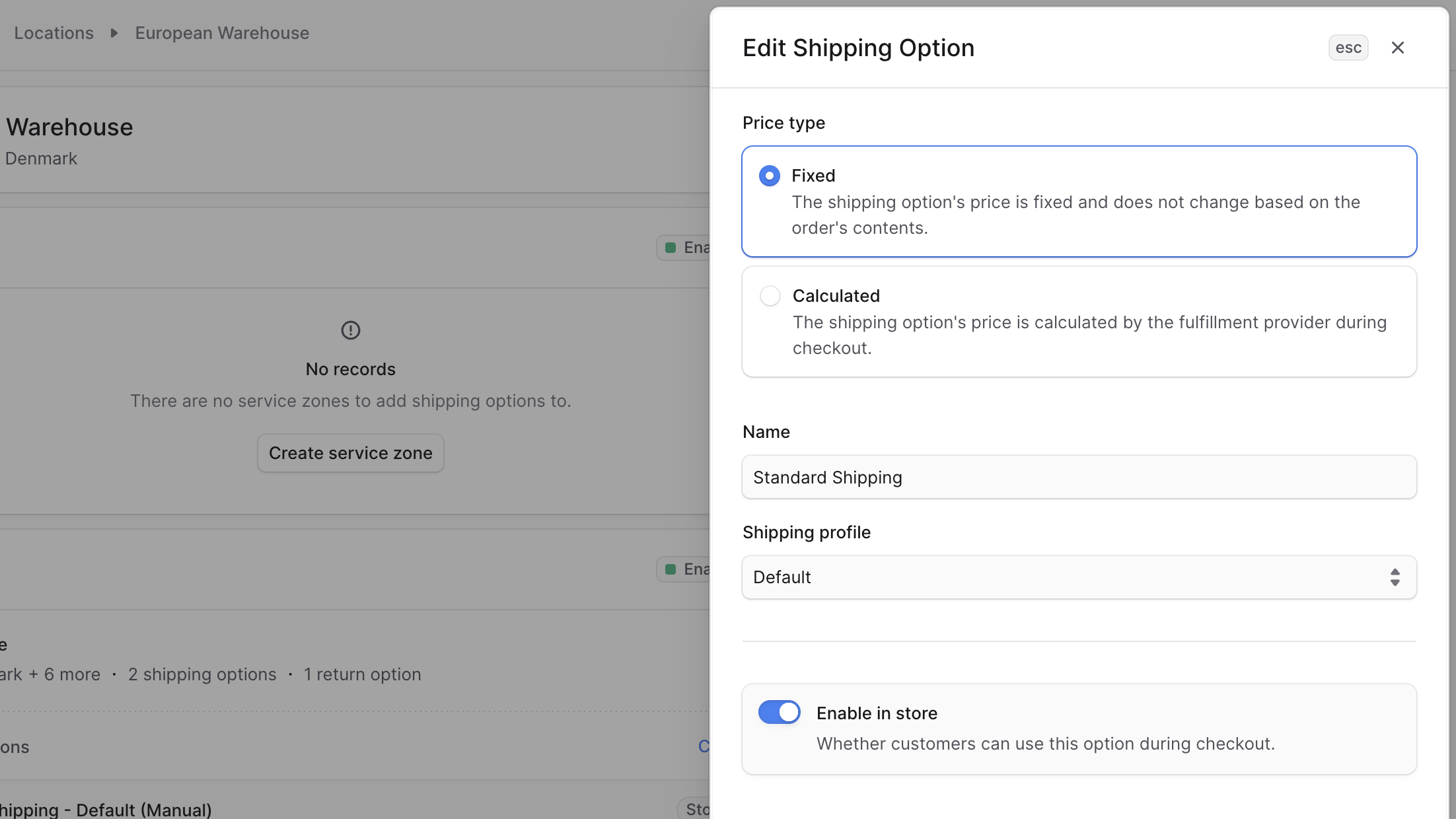
You can manage shipping options in pick-up and shipping modes by creating, editing, or deleting them.Edit Shipping Option Details
To edit a shipping option’s details:- Go to the location’s details page.
- In the “Pickup” or “Shipping” sections, find the shipping option and click on the ⋯ icon at its right.
- Choose “Edit option” from the dropdown.
- In the side window that opens, you can edit the shipping option’s price type, name, shipping profile, and whether it’s enabled in store for customers to use.
- Once you’re done, click the Save button.
Edit Shipping Option Prices
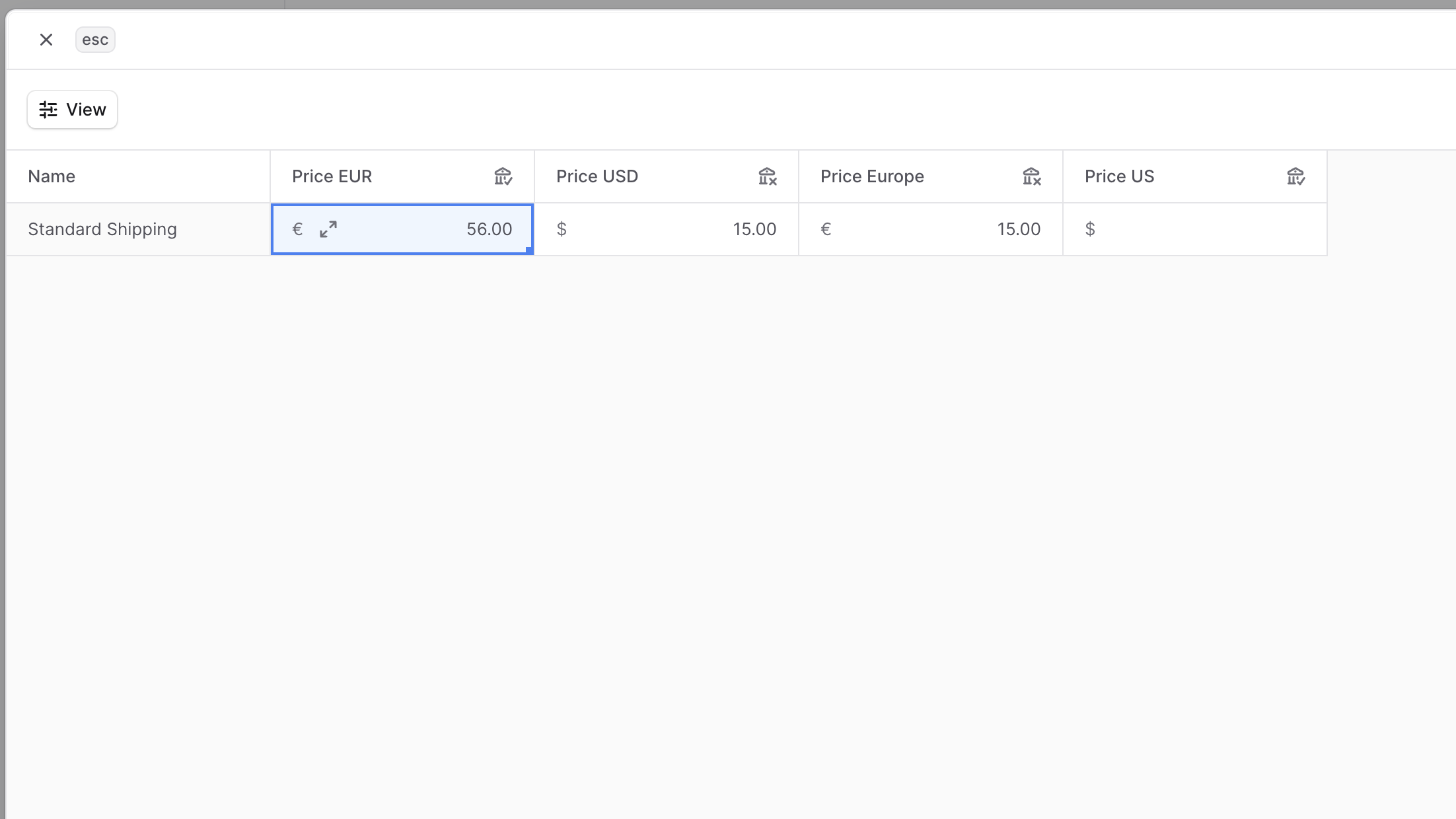
To edit the prices of shipping options whose price type is Fixed:- Go to the location’s details page.
- In the “Pickup” or “Shipping” sections, find the shipping option and click on the ⋯ icon at its right.
- Choose “Edit prices” from the dropdown.
- In the [Bulk Editor](https://docs.BoxNCase Partnersjs.com/tips/bulk-editor) that opens, you can edit the shipping option’s price for every currency and region in your store.
- Refer to the Fixed and Conditional Shipping Option Prices section to learn how to set a conditional price for the shipping option.
- Once you’re done, click the Save button.
- Price columns that have the 🗋 icon are tax-exclusive prices. BoxNCase Partners will calculate taxes during checkout and add them to this price.
- Price columns that have the 🗊 icon are tax-inclusive prices. BoxNCase Partners will calculate taxes during checkout as part of this price.
Delete Shipping Option
Deleting a shipping option is irreversible. To delete a shipping option:- Go to the location’s details page.
- In the “Pickup” or “Shipping” sections, find the shipping option and click on the ⋯ icon at its right.
- Choose Delete from the dropdown.
- Confirm deleting the shipping option by entering its name in the pop-up and clicking the “Delete” button.
Change Associated Sales Channels
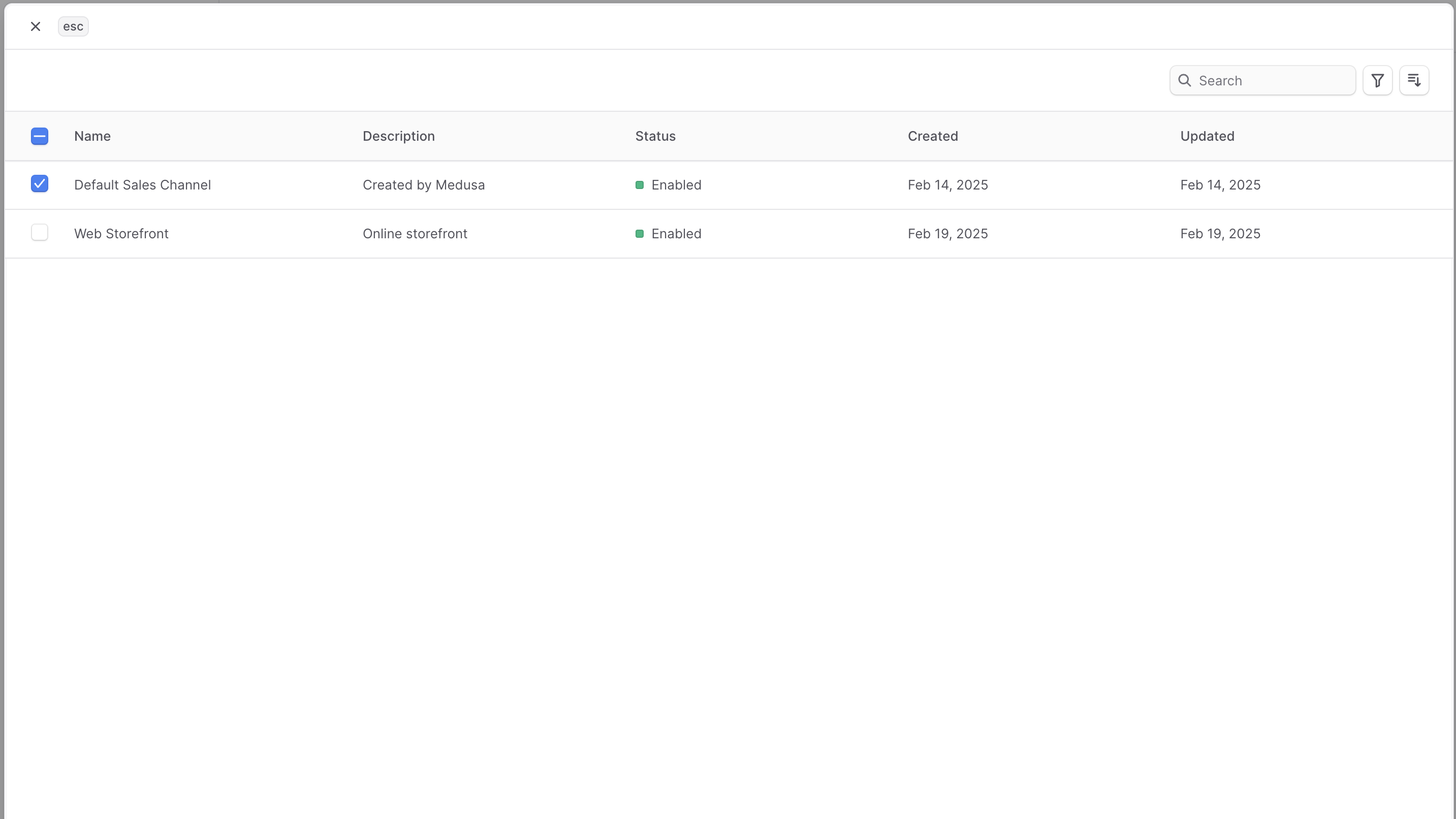
To change the sales channels associated with a location:- Go to the location’s details page.
- Click the ⋯ icon at the top right of the “Sales Channels” section.
- Choose Edit from the dropdown.
- In the list that opens, you can select the sales channels to associate with the location, or unselect the ones you want to remove.
- Once you’re done, click the Save button.
Manage Fulfillment Providers
To manage the fulfillment providers available in a location:- Go to the location’s details page.
- Click the ⋯ icon at the top right of the “Fulfillment Providers” section.
- Choose Edit from the dropdown.
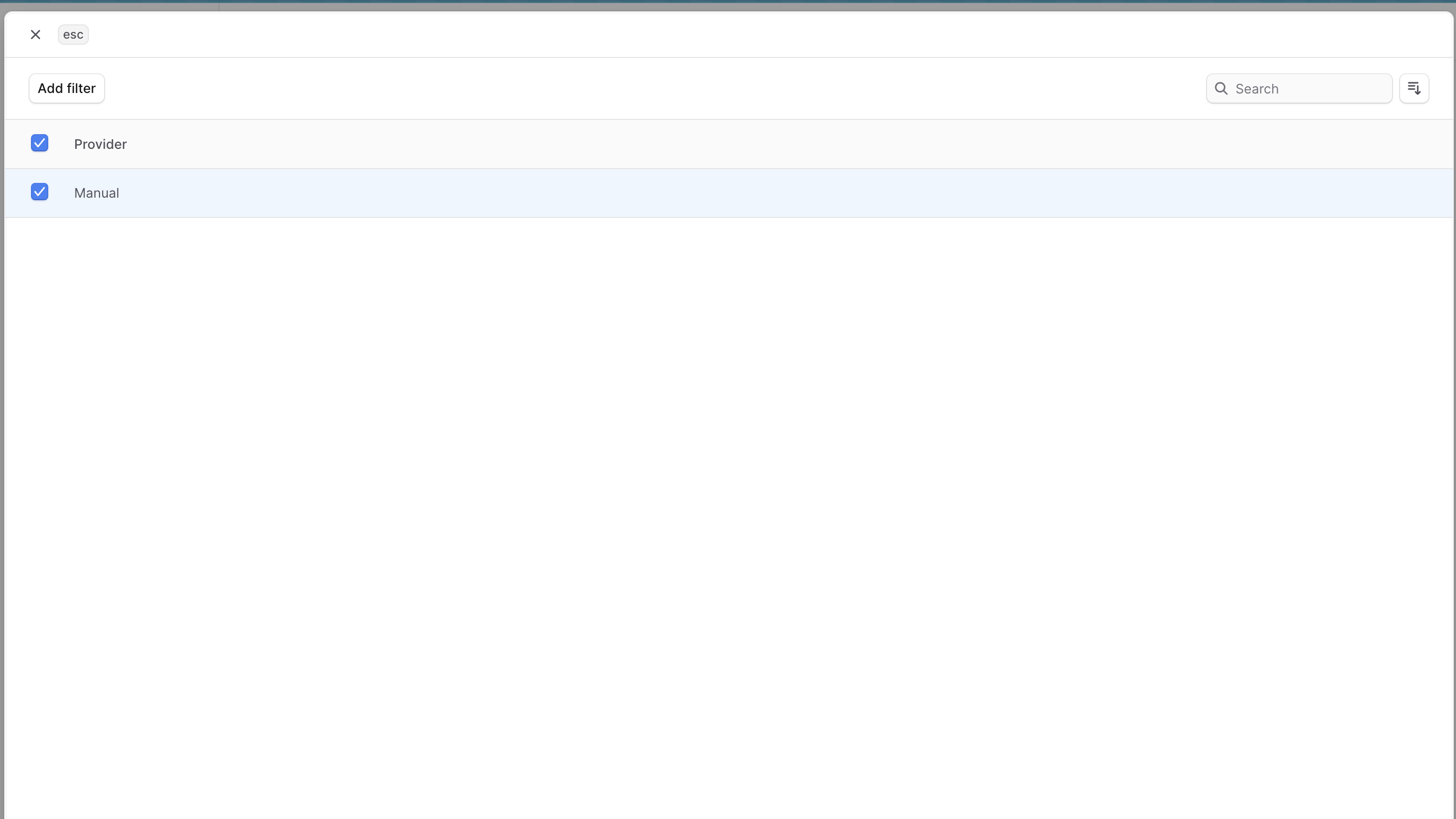
- In the list that opens, you can select the fulfillment providers to associate with the location, or unselect the ones you want to remove.
- Once you’re done, click the Save button.
Delete Location
Deleting a location is irreversible and will delete its service zones and shipping options. To delete a location:- Open the location’s details page.
- Click the ⋯ icon at the top right of the first section.
- Choose Delete from the dropdown.
- Confirm deleting the location by entering its name and clicking the Delete button.