

Manage Shipping Profiles in BoxNCase Admin
Streamline your BoxNCase store’s shipping operations with comprehensive shipping profile management. Create organized shipping option sets, define zone-specific rates, and implement product-specific shipping rules for optimal fulfillment efficiency.Overview
Shipping profiles provide:- Product-specific shipping rule groupings
- Standardized shipping option sets
- Zone-based rate management
- Flexible fulfillment configurations
- Scalable shipping operations
What is a Shipping Profile?
Shipping Profile Strategy: Shipping profiles organize products by similar shipping characteristics and requirements: Common Profile Categories:- Fragile Items: Special handling, insurance, protective packaging
- Oversized Products: Freight shipping, dimensional pricing
- Hazardous Materials: Specialized carriers, compliance requirements
- Perishable Goods: Expedited shipping, temperature control
- High-Value Items: Signature delivery, tracking, insurance
- Digital Products: Instant delivery, no physical shipping
- International Items: Customs documentation, restricted shipping
- Targeted shipping option creation
- Consistent handling procedures
- Cost optimization by product type
- Compliance with shipping regulations
- Improved customer experience through appropriate options
- Insurance requirements
- Special packaging fees
- Restricted carrier options
- Signature delivery requirements
View Shipping Profiles
To view shipping profiles in your store:- Go to Settings → Location & Shipping.
- In the Shipping Configuration section, click on “Shipping Profiles”.
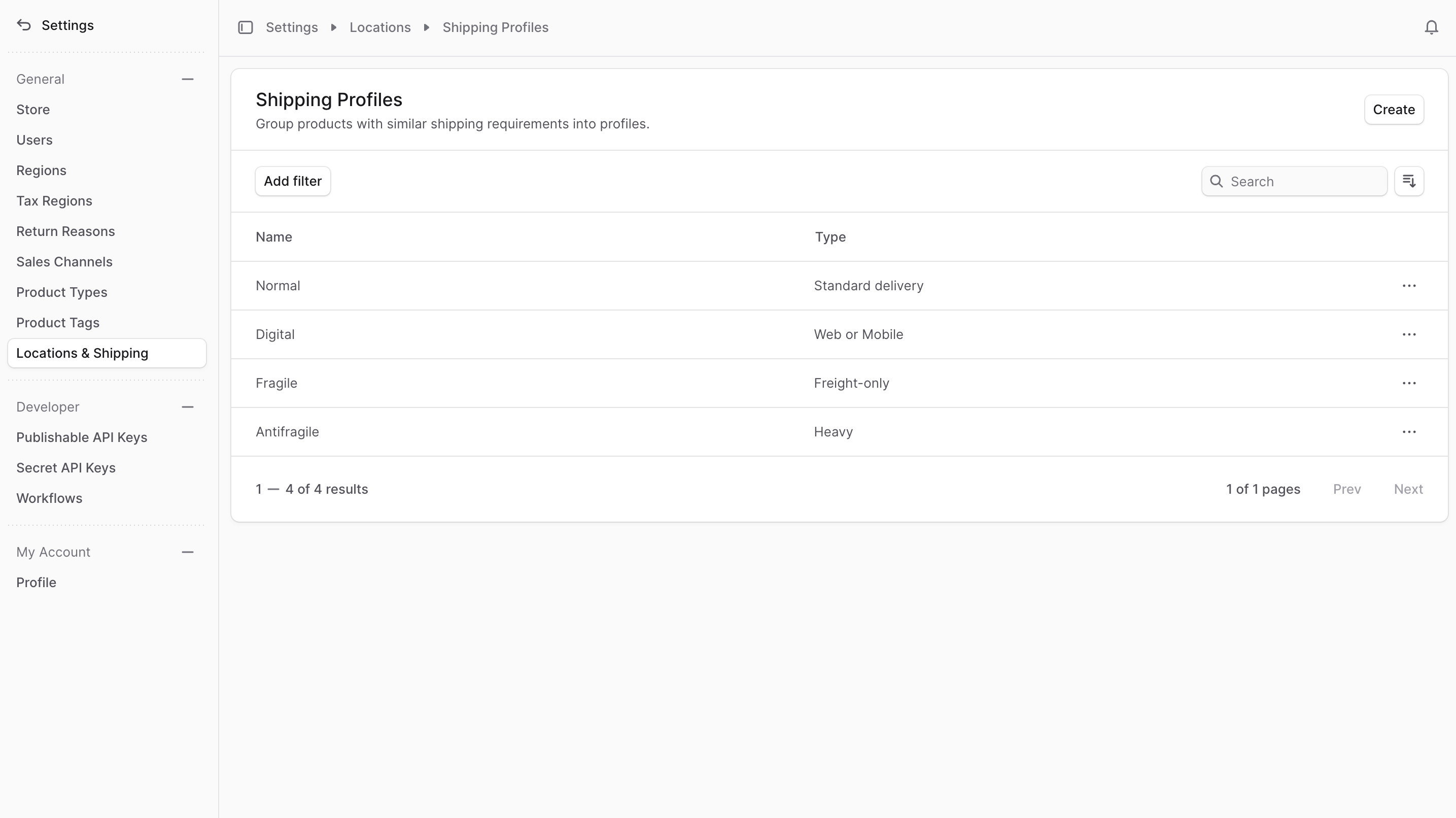
Create Shipping Profile
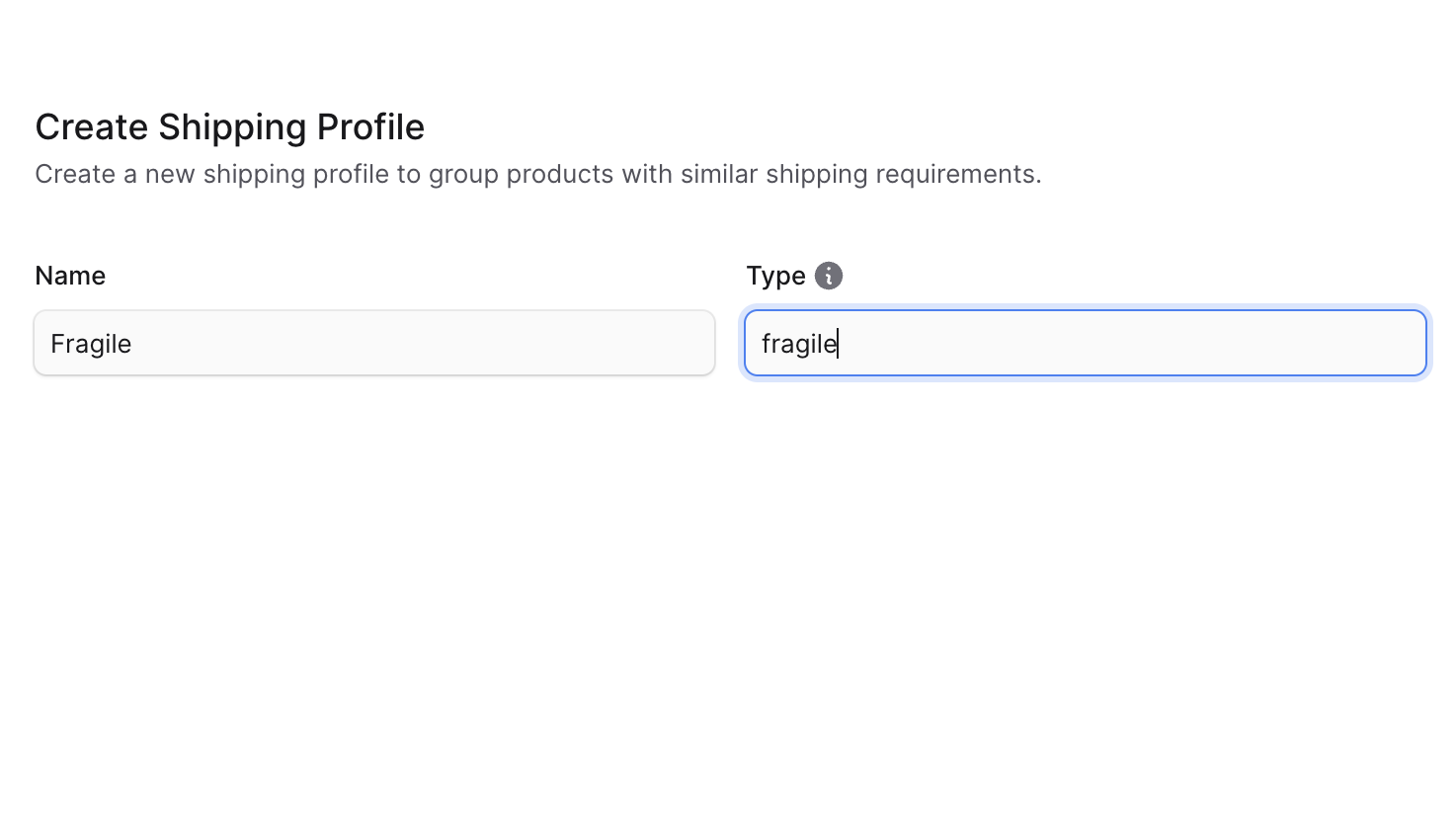
To create a shipping profile:- Go to Settings → Location & Shipping -> Shipping Profiles.
- Click the Create button at the top right.
- In the form that opens:
- In the Name field, enter a name for the shipping profile. For example, “Fragile”.
- In the Type field, enter the type of products that belong to the shipping profile. For example, “fragile” or “heavy”.
- Once you’re done, click the Save button.
View Shipping Profile Details
To view the details of a shipping profile:- Go to Settings → Location & Shipping -> Shipping Profiles.
- Click on a shipping profile from the list.
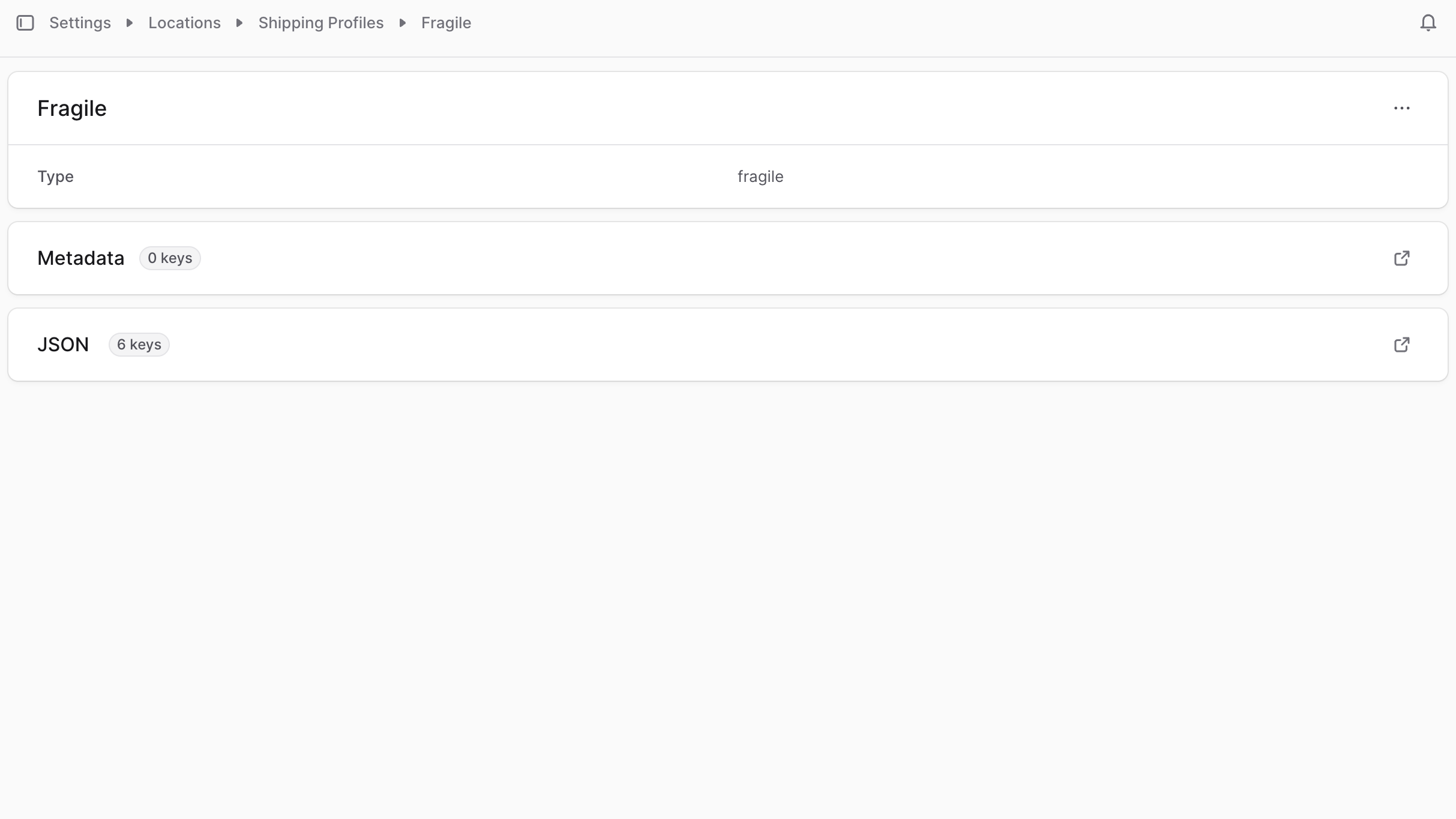
Manage Products of Shipping Profile
Product Assignment: Assign products to shipping profiles through the product’s details page. Assignment Best Practices:- Evaluate product characteristics before assignment
- Consider shipping cost implications
- Review carrier compatibility
- Test shipping calculations after assignment
- Document profile criteria for consistency
- Regular review of profile effectiveness
- Monitor shipping cost performance
- Update profiles as product lines evolve
- Train team on profile selection criteria
- Maintain profile documentation for reference
Manage Shipping Profile Metadata
Shipping Profile Metadata: Enhance shipping profiles with custom metadata for advanced functionality: Common Metadata Applications:- Carrier-specific configuration parameters
- Custom packaging requirements and specifications
- Insurance and liability settings
- International shipping documentation
- Handling instructions and special requirements
- Cost calculation modifiers and adjustments
- Compliance and regulatory tracking codes
- Third-party shipping service configuration
- Automated rule engine parameters
- Analytics and reporting enhancements
- Custom business logic implementation
- Advanced shipping calculations
- Use standardized naming conventions
- Document metadata purpose and usage
- Regular validation of metadata accuracy
- Security considerations for sensitive data
- Version control for configuration changes
- Click the ↗ icon at the right of the “Metadata” section.
- In the side window that opens:
- Manage the key-value pairs in the table.
- To add a new row of key-value pairs before or after a row:
- Hover over the row and click the ⋮ icon at its right.
- Choose “Insert row above” or “Insert row below” from the dropdown.
- To delete a row of key-value pairs:
- Hover over the row and click the ⋮ icon at its right.
- Choose “Delete row” from the dropdown.
- Once you’re done, click the Save button.
Delete Shipping Profile
Deleting a shipping profile is irreversible. To delete a shipping profile:- Go to the shipping profile’s details page.
- Click the ⋯ icon at the top right of the first section.
- Choose Delete from the dropdown.
- Confirm the deletion by entering the shipping profile’s name in the pop-up and clicking the Delete button.