Workflows in BoxNCase Admin
Monitor and debug your BoxNCase store’s automated workflows with comprehensive execution tracking. View workflow performance, analyze execution details, and optimize automated processes for improved business operations.Overview
Workflow management provides:- Comprehensive workflow execution monitoring
- Detailed step-by-step execution analysis
- Performance tracking and optimization insights
- Debugging tools for workflow development
- Audit trails for automated processes
What are Workflow Executions?
Workflow Fundamentals: Workflows enable powerful automation and custom business logic: Workflow Components:- Sequential step execution for complex tasks
- Custom commerce flows and business processes
- Error handling and compensation mechanisms
- Conditional logic and branching capabilities
- Integration with external services and systems
- Complete execution history and audit trails
- Step-by-step performance analysis
- Error identification and debugging information
- Business process compliance documentation
- Performance optimization insights
- Order processing automation
- Inventory management workflows
- Customer communication sequences
- Payment processing flows
- Integration synchronization tasks
- Compliance and audit processes
View Workflow Executions
To view workflow executions, go to Settings → Workflows. There, you’ll find the list of custom and BoxNCase Partners workflows that have been executed and are stored in the database. You can search through the list to find the one you’re looking for.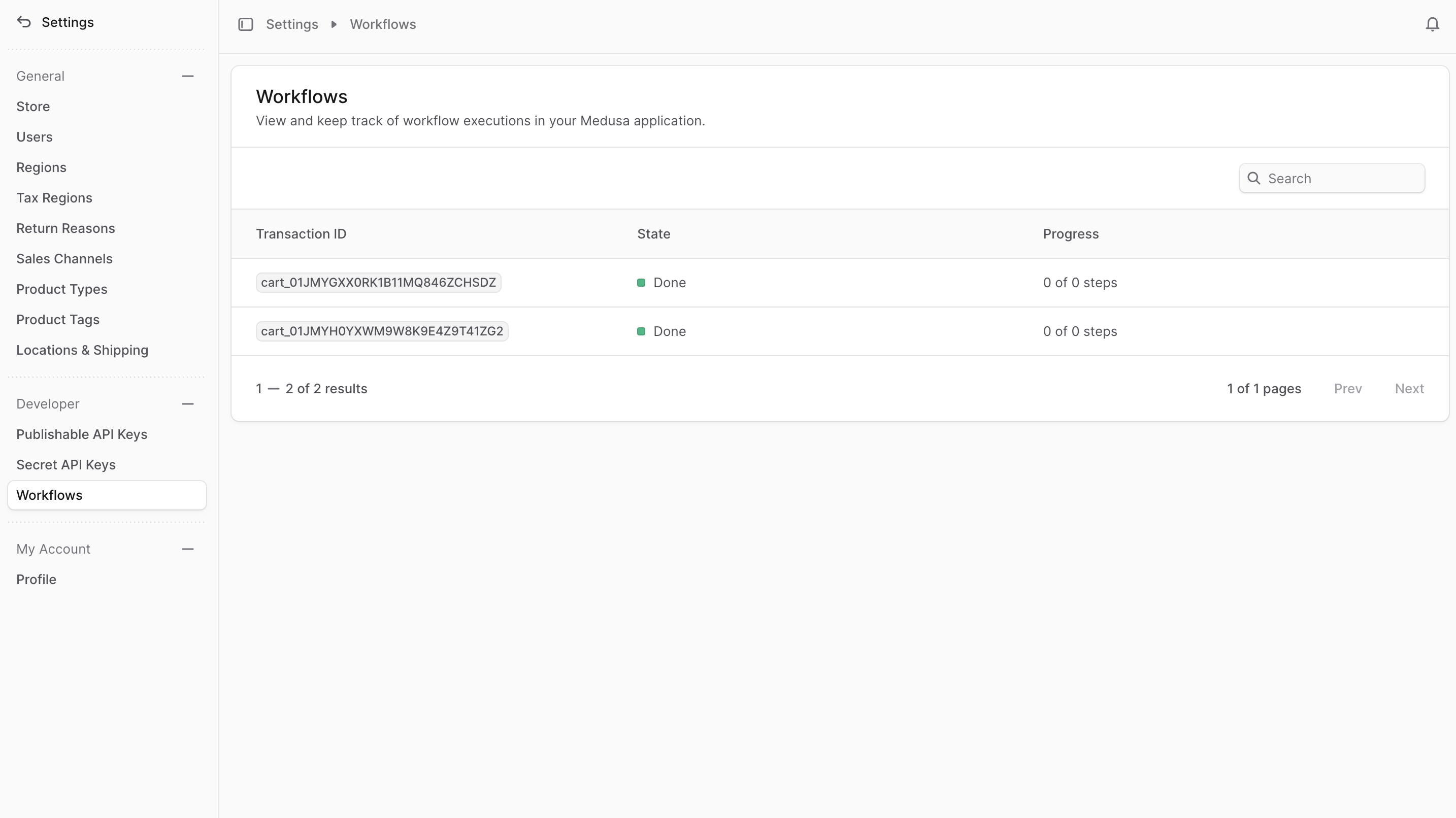
Workflow Execution Status
In the list, you can view the status of each workflow execution. A workflow’s execution status can be:| Status | Description |
|---|---|
| Completed | Workflow executed successfully through all steps |
| Failed | Workflow encountered an error and stopped execution |
| Running | Workflow is currently executing steps |
| Pending | Workflow is queued but not yet started |
| Cancelled | Workflow execution was manually cancelled |
| Compensating | Workflow is running compensation steps after failure |
| Compensated | Workflow completed compensation after failure |
| Timeout | Workflow exceeded maximum execution time |
| Retrying | Workflow is retrying failed steps according to policy |
View Workflow Execution Details
To view a workflow execution’s details:- Go to Settings → Workflows.
- Click on the workflow execution to view it.
Summary Section
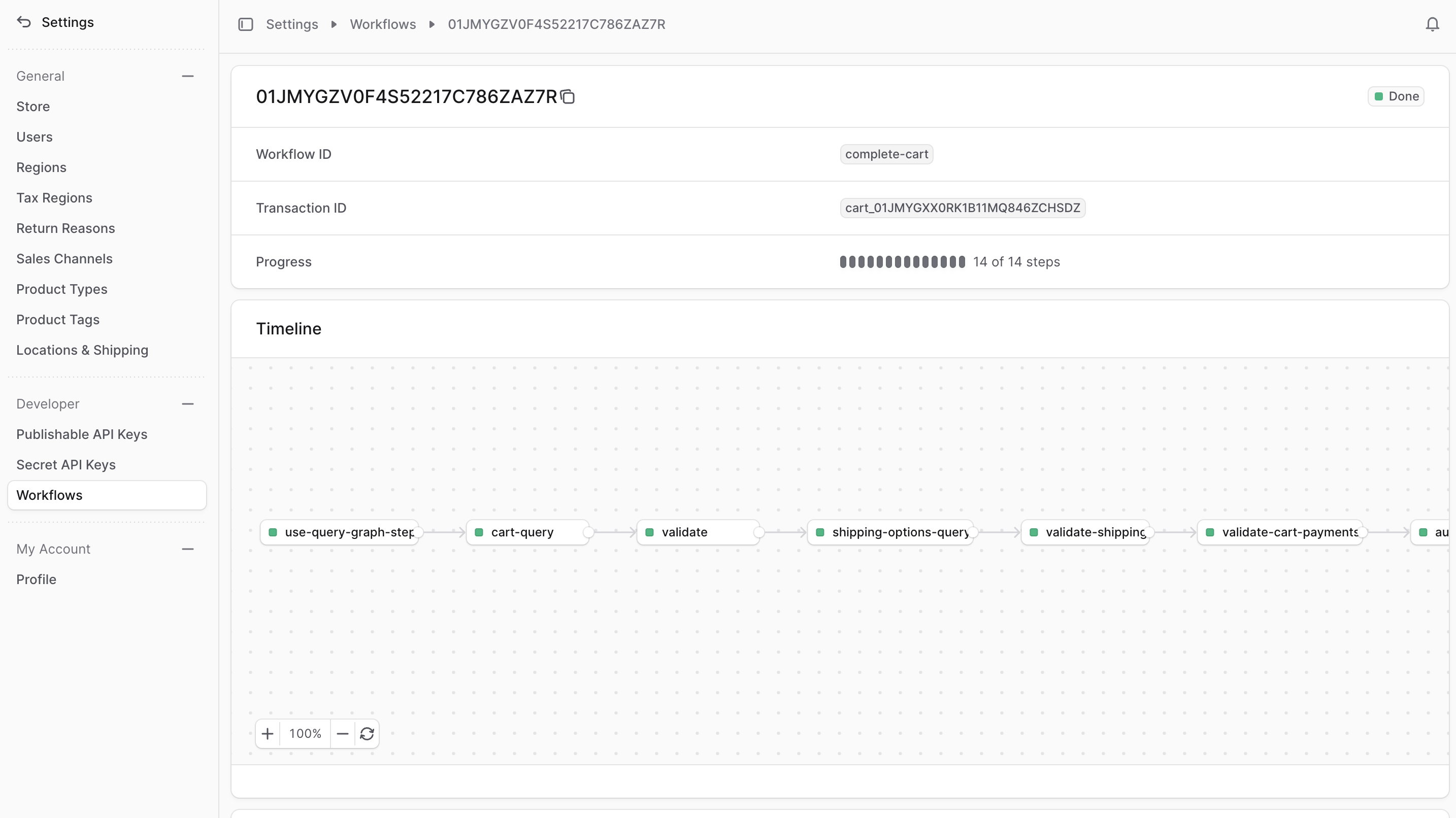
In the first section, you’ll find a summary of the workflow execution, including:- A badge at the top right indicating its status.
- The workflow’s unique ID, which you specify when you create the workflow.
- The transaction ID, which is a unique identifier for the workflow execution. This is useful for debugging, tracking, and changing step statuses of [long-running workflows](https://docs.BoxNCase Partnersjs.com/learn/fundamentals/workflows/long-running-workflow).
- The workflow’s progress which shows a quick overview of the steps that have been executed.
Timeline
The timeline diagram shows you the step by step execution of the workflow. You can zoom in and out, and drag and move the mouse to view the entire diagram. You can also click on a step to view its execution details in the History section.Step Status
Step Status Indicators: The timeline diagram uses color-coded status indicators for clear visual tracking:| Color | Status | Description |
|---|---|---|
| Orange | Executing | The step is currently being processed |
| Green | Completed | The step executed successfully |
| Red | Failed | The step encountered an error |
| Gray | Pending/Skipped | Step awaiting execution or was skipped due to conditional logic |
| Blue | Compensating | Step is running compensation logic after workflow failure |
- Quick identification of workflow progress
- Immediate error spotting for debugging
- Clear understanding of execution flow
- Easy identification of bottlenecks
- Intuitive status comprehension
JSON
The JSON section allows you to view the execution’s details as a raw JSON object by clicking the ↗ icon. This is useful for advanced debugging to see all the details of the workflow execution.History
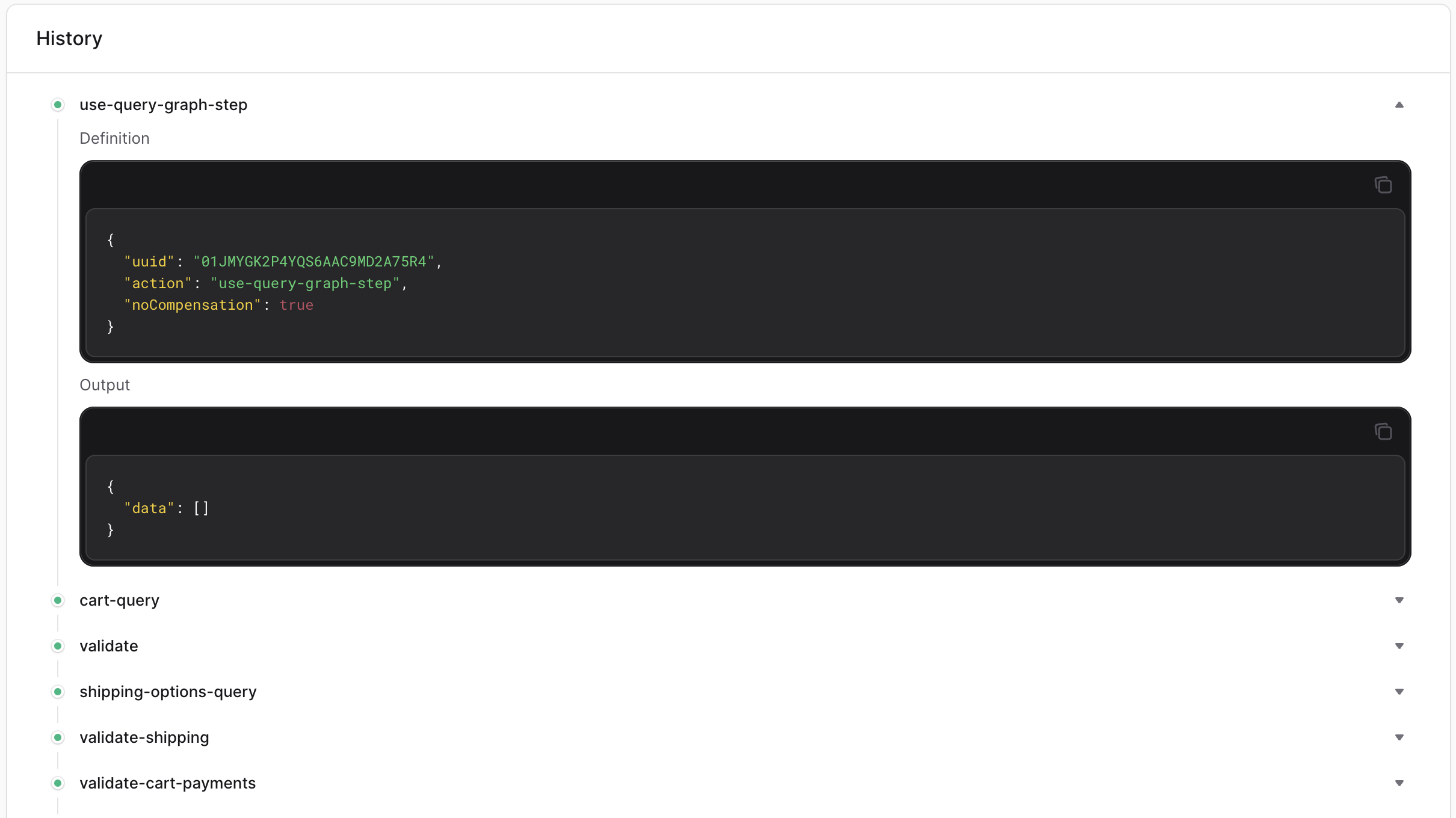
The History section shows you the execution of the workflow’s steps by order of execution. You can see each step’s name with a dot reflecting its status as explained in the Step Status section. If you click on any executed step, you’ll see its details, including:- Definition: the step’s configurations which can be passed when you create the step. For example, the step’s name, whether it has a compensation function, whether it’s asynchronous, etc…
- Output: the step’s output, which is the result of the step’s execution.
- Compensation Input: if the workflow failed and the step has a compensation function, you can see the input that the compensation function received.
- Error: if the step failed, you can see the error message.