

Publishable API Keys in BoxNCase Admin
Secure your BoxNCase store’s client-side integrations with properly managed publishable API keys. Generate keys for storefront applications, control access scope, and monitor usage patterns for optimal security and performance.Overview
Publishable API keys enable:- Secure client-side API access
- Sales channel-specific scoping
- Controlled integration permissions
- Usage monitoring and analytics
- Scalable storefront development
What is a Publishable API Key?
Publishable API Key Functionality: Publishable keys provide secure, limited access for client-side applications: Key Characteristics:- Client-safe keys that can be exposed in frontend code
- Sales channel scoping for targeted data access
- Read-only permissions for security
- No sensitive operations or admin functions
- Public-facing integration support
- Product catalog filtering by channel
- Available stock quantities per location
- Pricing and currency information
- Shipping options and calculations
- Regional and channel-specific configurations
- Pass key in request headers for API calls
- Specify target sales channel for proper scoping
- Handle key rotation and updates in applications
- Monitor usage patterns for security
View Publishable API Keys
To view the publishable API keys in the BoxNCase Partners Admin, go to Settings -> Publishable API Keys. Here, you can see a list of all the publishable API keys you have set up in your store. You can also search, filter, and sort the API keys to find the one you are looking for.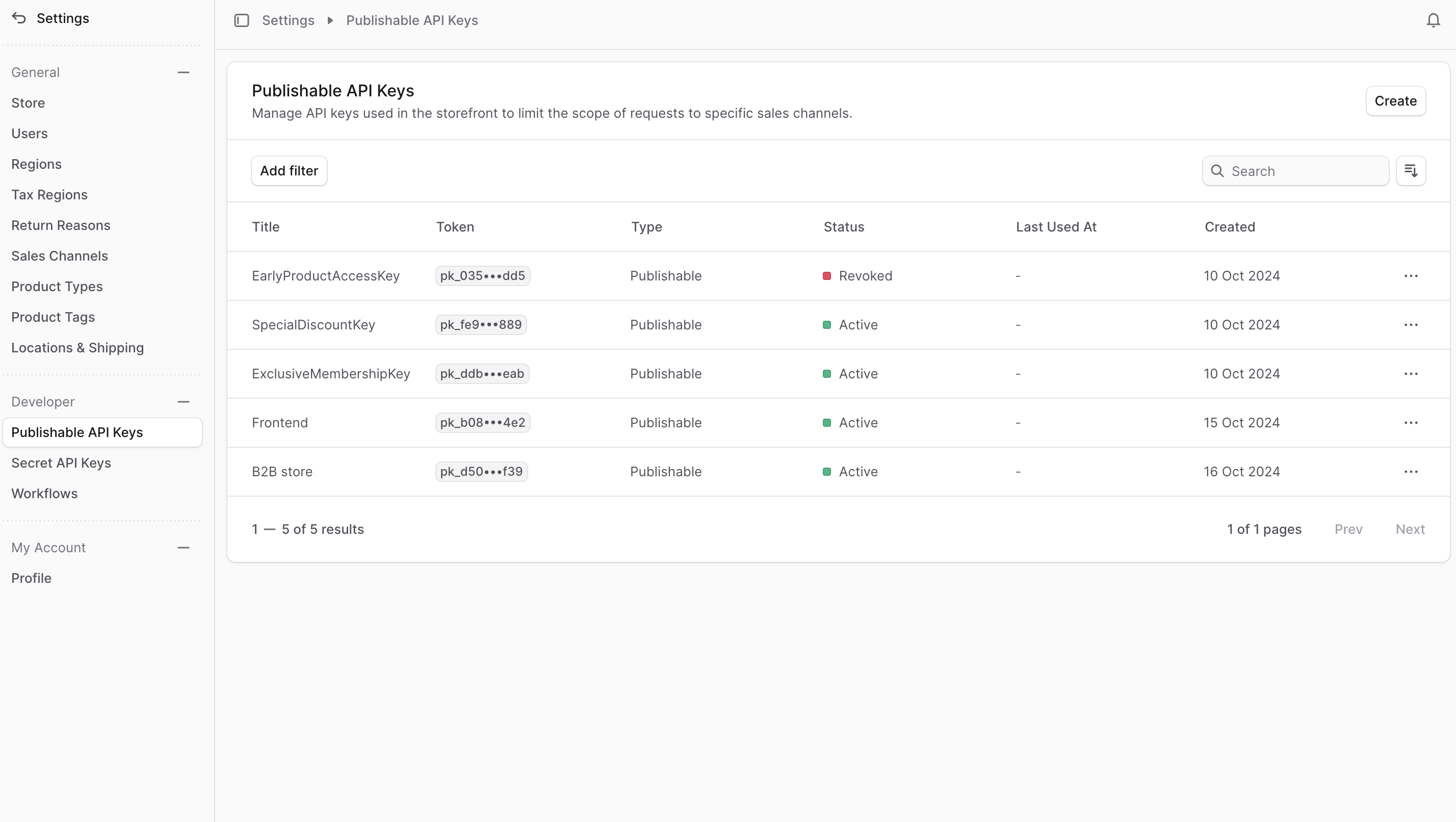
Create Publishable API Key
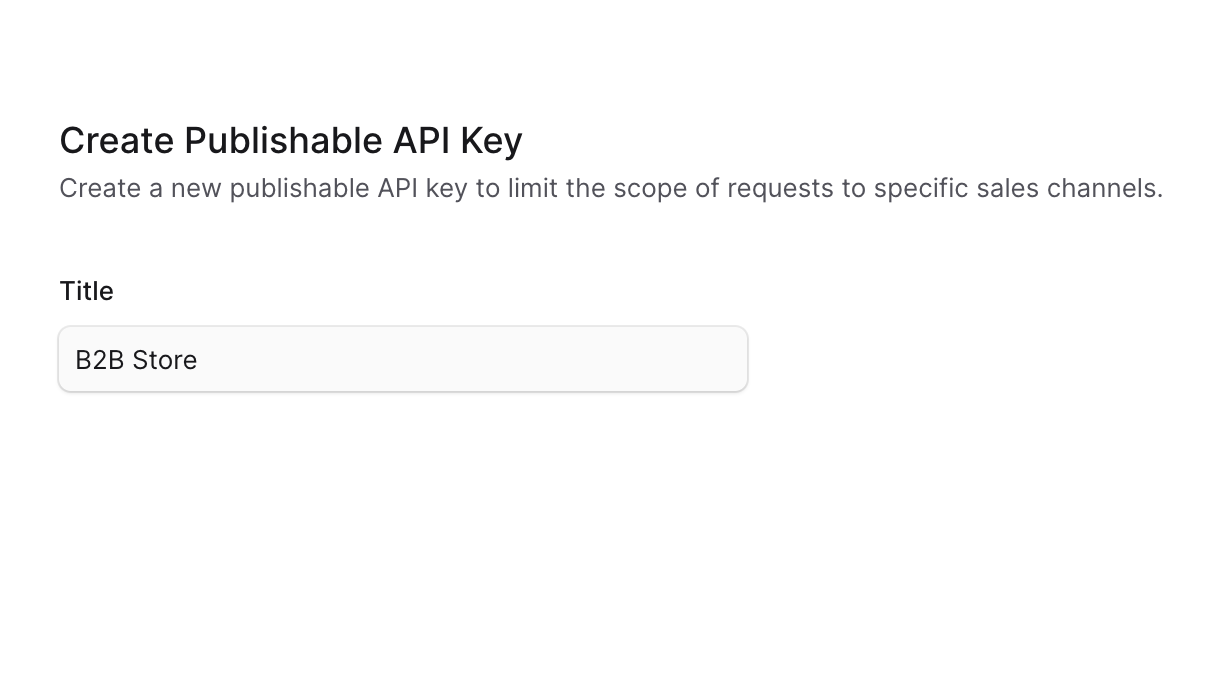
To create a new publishable API key:- Go to Settings -> Publishable API Keys.
- Click the Create button at the top right.
- In the form that opens, enter the publishable API key’s title.
- Once you’re done, click the Save button.
View Publishable API Key Details
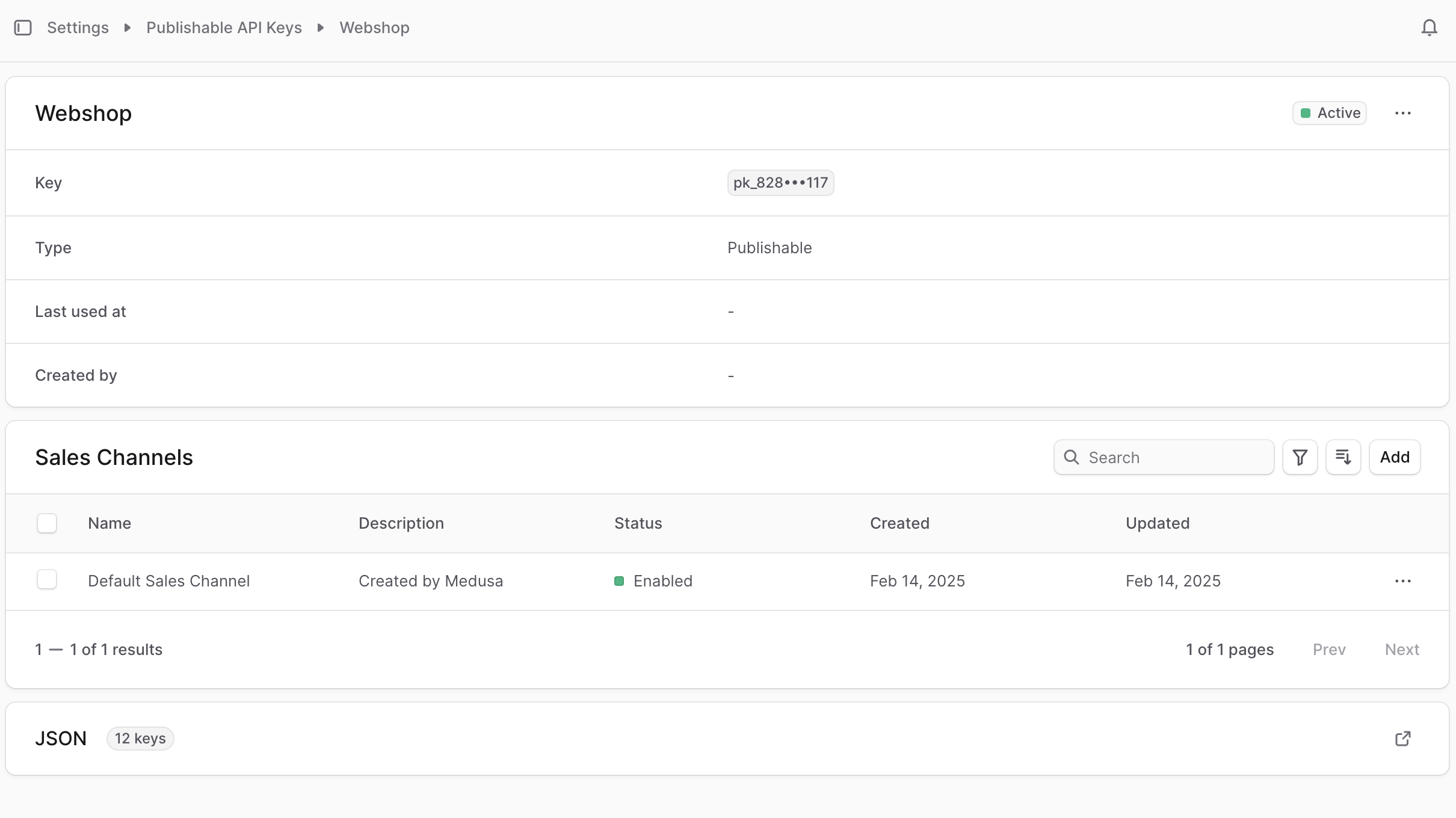
To view the details of a publishable API key:- Go to Settings -> Publishable API Keys.
- Click on a publishable API key from the list.
Publishable API Key Status
You can see the status of the publishable API key at the top right of the first section in the details page. A publishable API key’s status can be:| Status | Description |
|---|---|
| Active | Key is valid and can be used for API requests |
| Revoked | Key has been permanently disabled and cannot be used |
| Expired | Key has exceeded its validity period and needs renewal |
Copy Publishable API Key
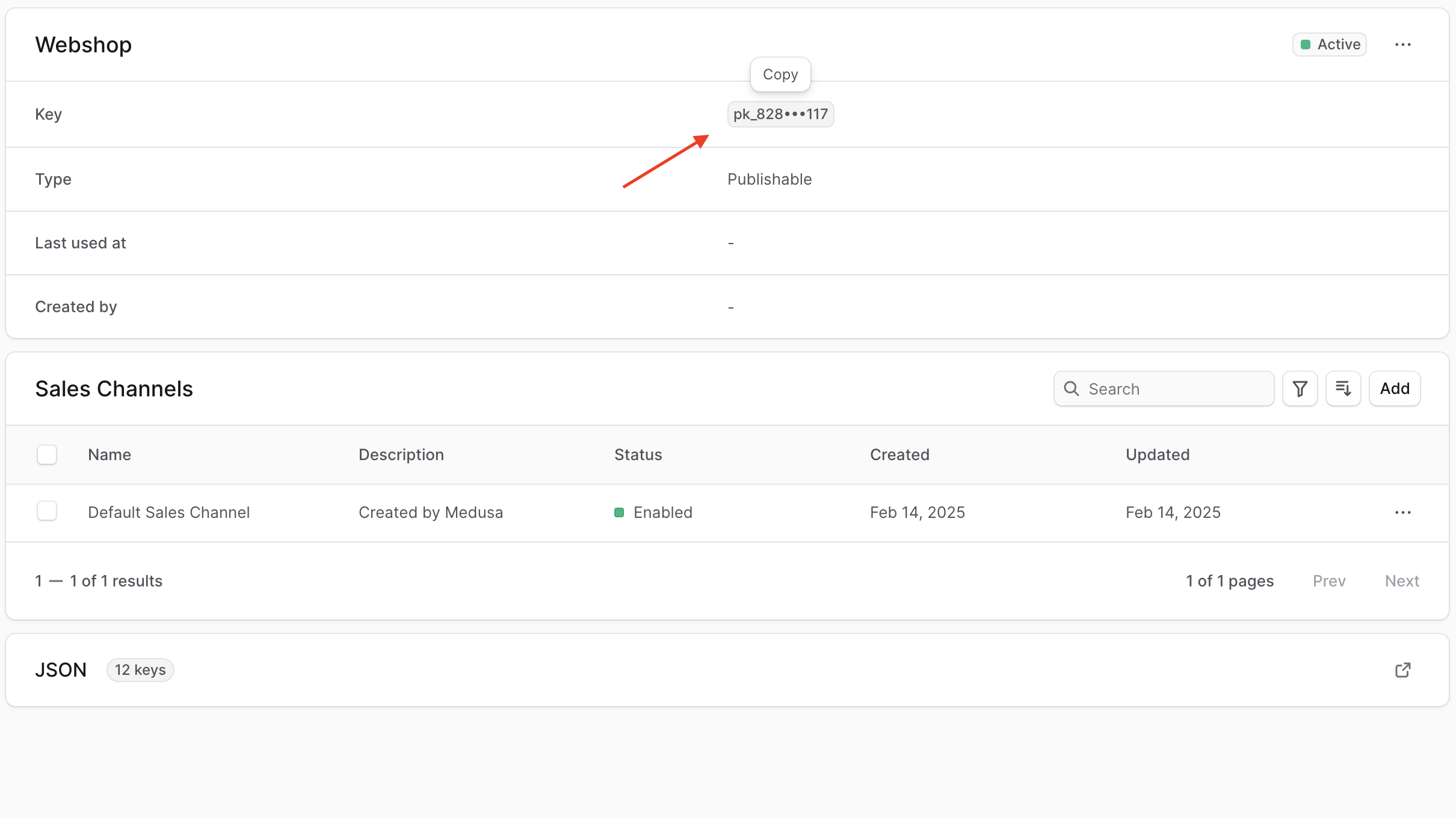
To copy a publishable API key:- Go to the publishable API key’s details page.
- In the first section, click on the truncated key to copy it to your clipboard.
Edit Publishable API Key
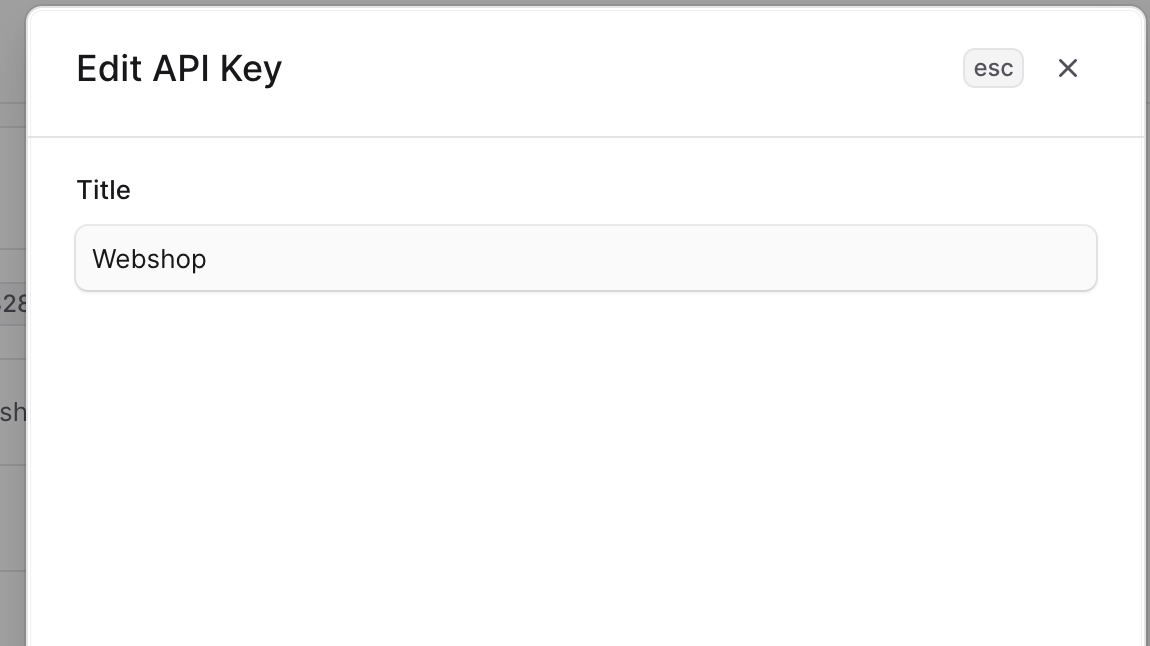
To edit a publishable API key:- Go to the publishable API key’s details page.
- Click the ⋯ at the top right of the first section.
- Choose “Edit” from the dropdown.
- In the side window that opens, you can edit the publishable API key’s title.
- Once you’re done, click the Save button.
Manage Publishable API Key’s Sales Channels
Sales Channel Management: Sales channel association is crucial for proper API key functionality: Scoping Benefits:- Data filtering appropriate to specific channels
- Channel-specific product availability
- Targeted pricing and promotion display
- Regional compliance and restrictions
- Performance optimization through focused data
- Assign channels based on storefront purpose
- Consider customer segmentation needs
- Plan for multi-channel scenarios
- Monitor channel performance impact
- Regular review of channel assignments
Add Sales Channels
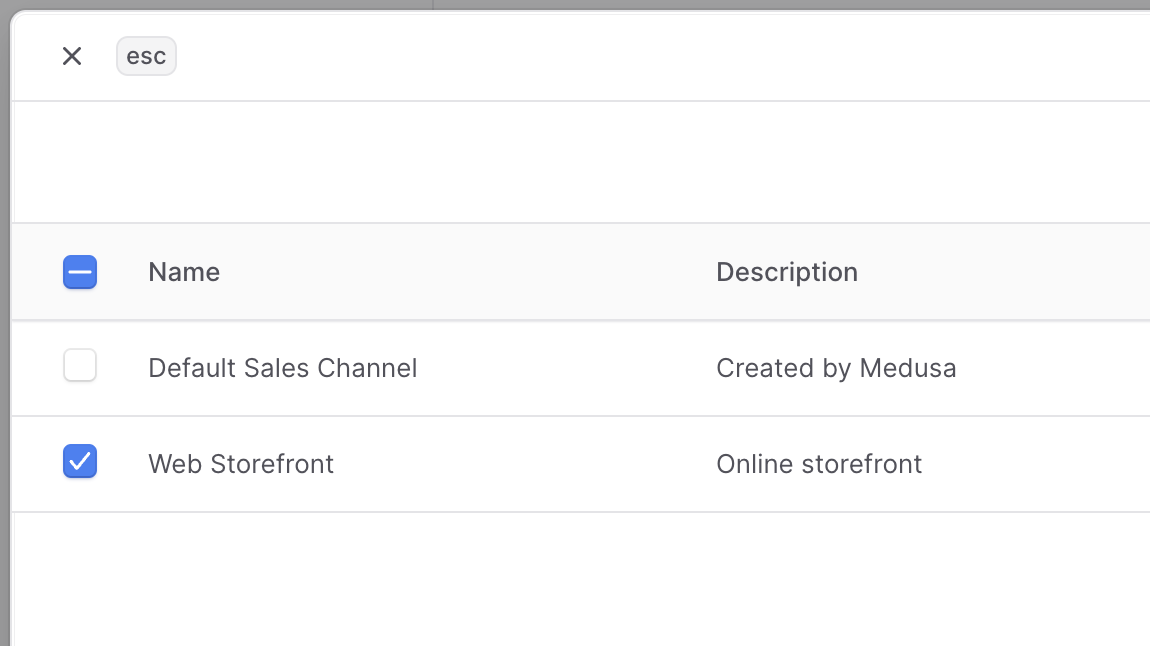
To add a sales channel to a publishable API key:- Go to the publishable API key’s details page.
- Click the “Add” button at the top right of the “Sales Channels” section.
- In the list that opens, check the sales channels you want to add the API key to.
- Once you’re done, click the Save button.
Remove Sales Channels
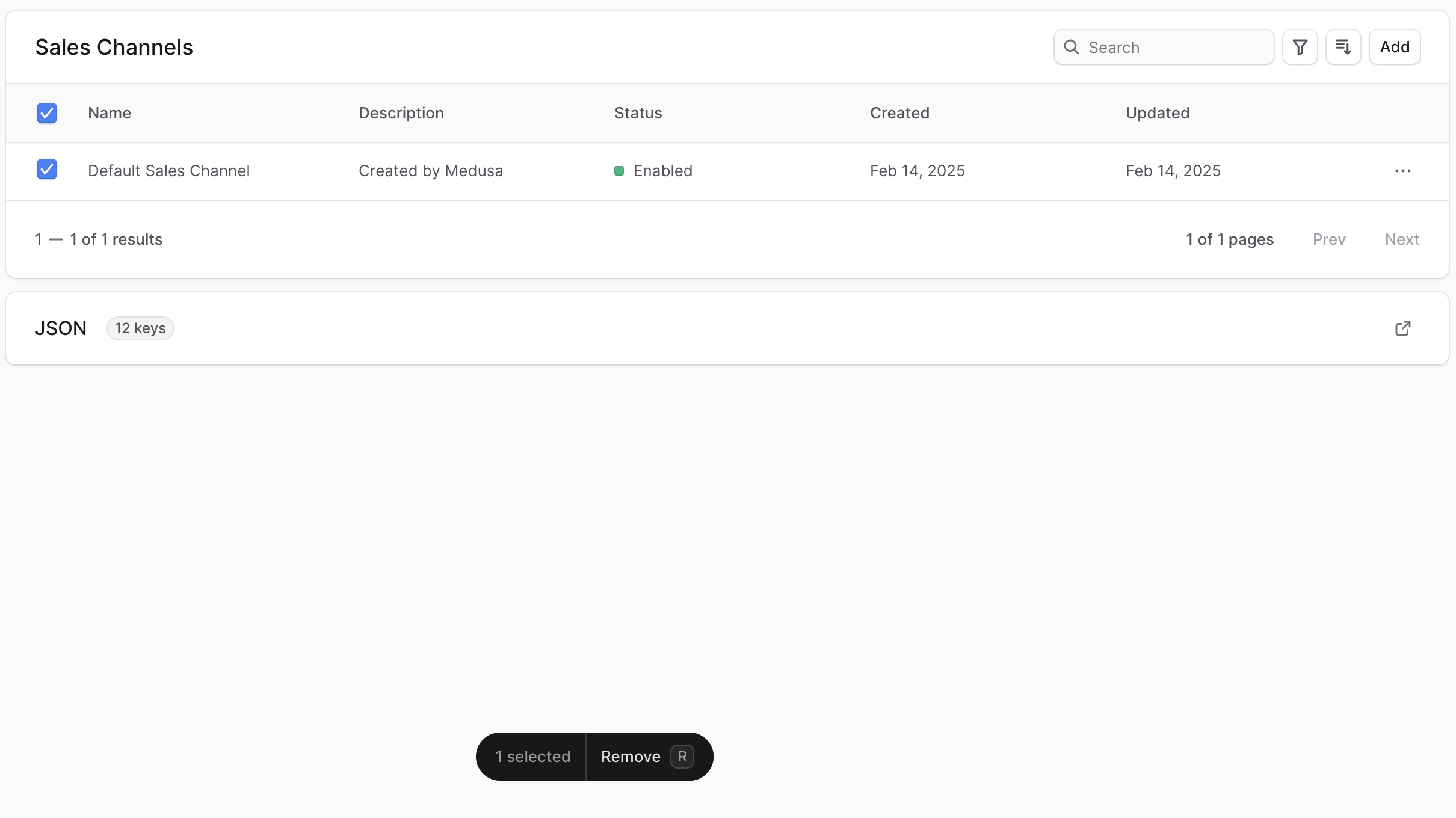
To remove a sales channel from a publishable API key:- Go to the publishable API key’s details page.
- Check the checkbox next to the sales channel you want to remove in the “Sales Channels” section.
- Press
Ror click the Remove button at the bottom center of the page. - Confirm removing the sales channels by clicking the Continue button.
Revoke Publishable API Key
Revoking a publishable API key is irreversible. You can’t use the key in requests after revoking it or reactivate it. To revoke a publishable API key:- Go to the publishable API key’s details page.
- Click the ⋯ at the top right of the first section.
- Choose “Revoke API key” from the dropdown.
- Confirm revoking the API key by clicking the “Revoke API key” button in the pop-up.
Delete Publishable API Key
Deleting a publishable API key is irreversible. You can only delete a publishable API key after revoking it. To delete a publishable API key:- Go to the publishable API key’s details page.
- Click the ⋯ at the top right of the first section.
- Choose “Delete” from the dropdown.
- Confirm deleting the API key by clicking the Delete button in the pop-up.